
XP-Pen Artist Pro 27 (Gen 2)
Recently, I’ve found my reviews to be leaning towards the more portable end of the pen display market, so when XP-Pen offered to let me test out their new flagship “Colour Master” drawing display, I jumped at the chance.
What initially excited me was that not only did the Artist Pro 27 (Gen 2) boast a larger, 27 inch, 4k 120Hz “Mega Display”, but also XP-Pens Advanced X-Touch Solution, offering its users a ten-point multitouch experience.
This meant that not only would the screen be crisp and clear with silky smooth pen strokes, but I could directly interact with it too as I worked, which was something I had missed with previous pen displays i’d reviewed which skipped offering touch input all together.
So, once out of the box and all set up, did the Artist Pro 27 live up to expectations?
Continue reading to find out…
Although XP-Pen supplied the Artist Pro 27 (Gen 2) for me to test, the opinions offered in this review are completely my own and remember, that clicking the links in this review helps to support future content.
Unboxing
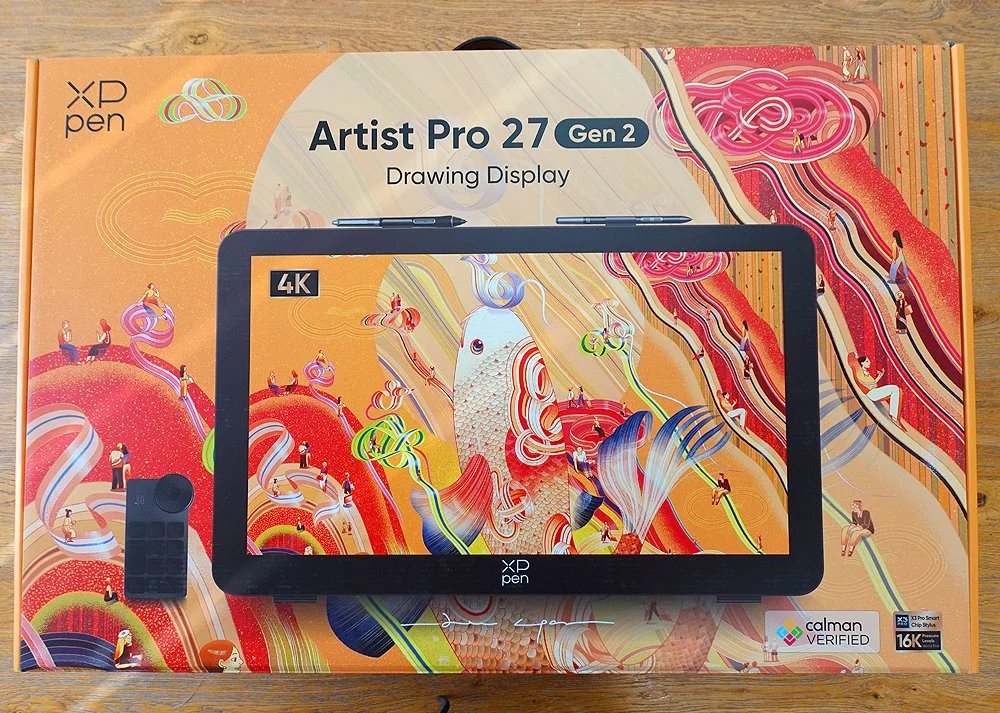
The box for the Artist Pro 27 is huge, but thats to be expected with a device of this size. It’s also bright and colourful too, which no doubt reflects the 1.07 billion colours the screen offers.
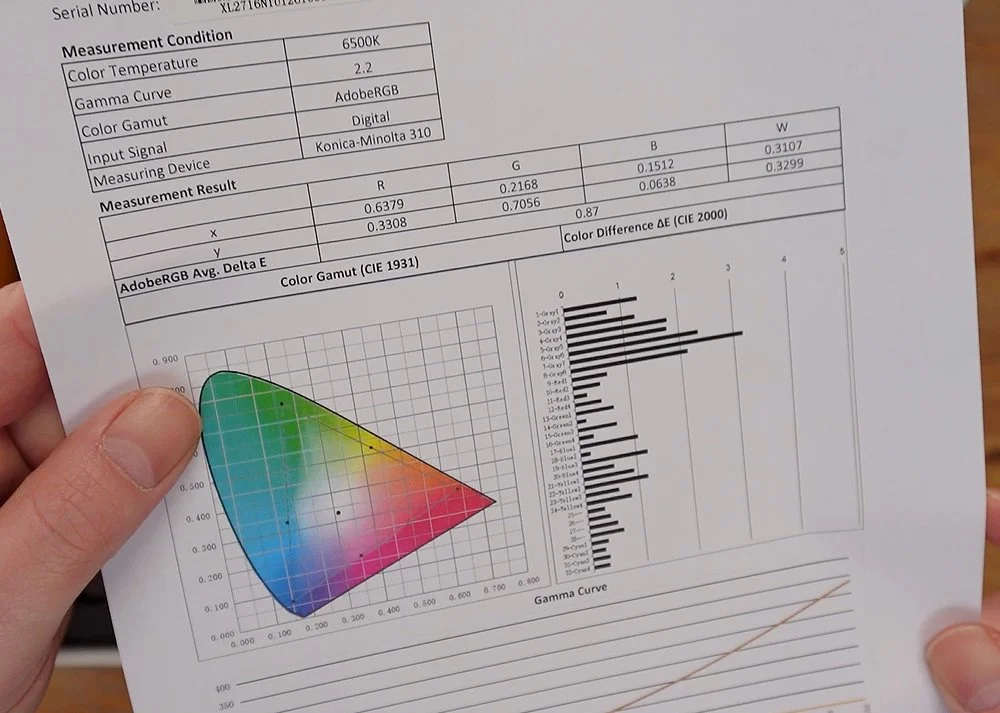
After opening the box and removing the protective foam, you are first given the Calman verified display report, detailing the results of the screen calibration process.
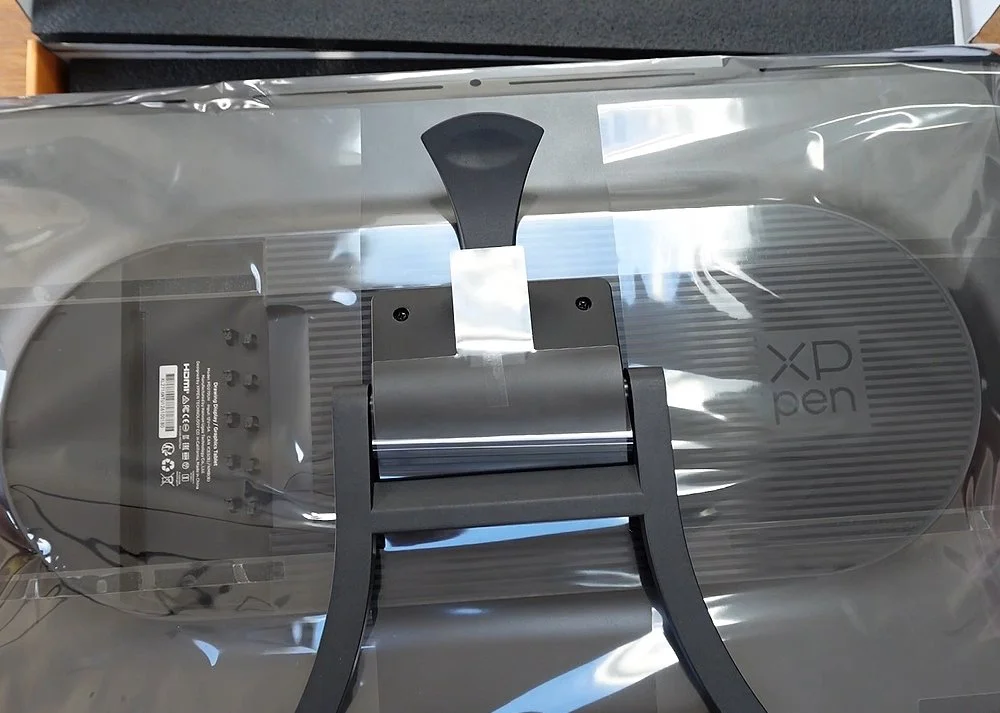
We then have the Artist Pro 27 itself which has the stand already attached to the back.
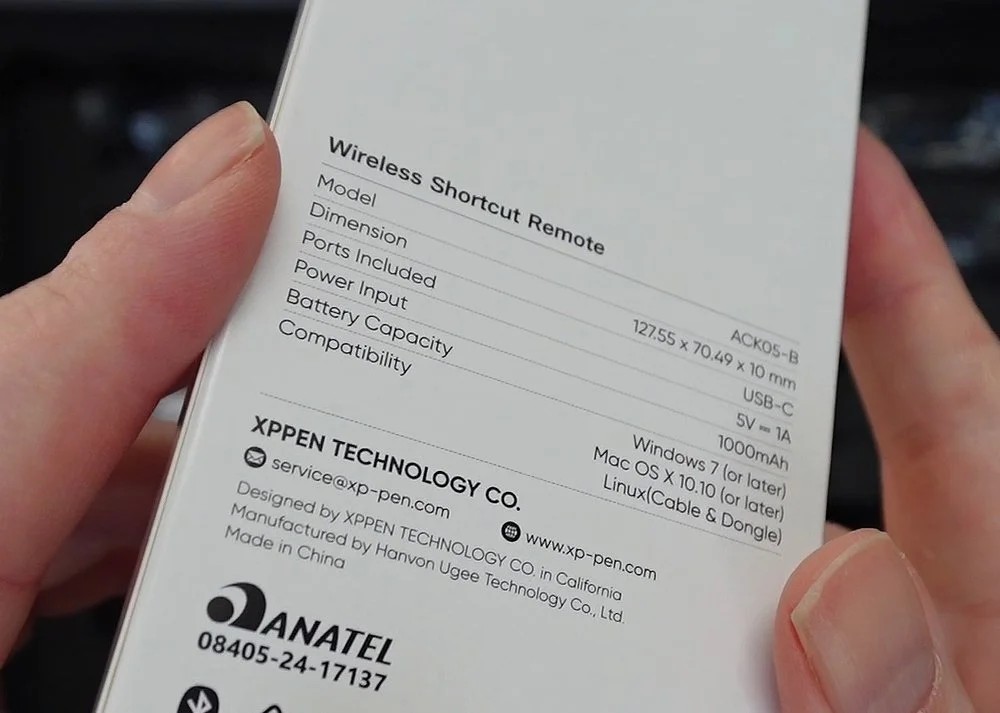
Beneath this we have the pen case, power supply and the shortcut remote in a separate box.
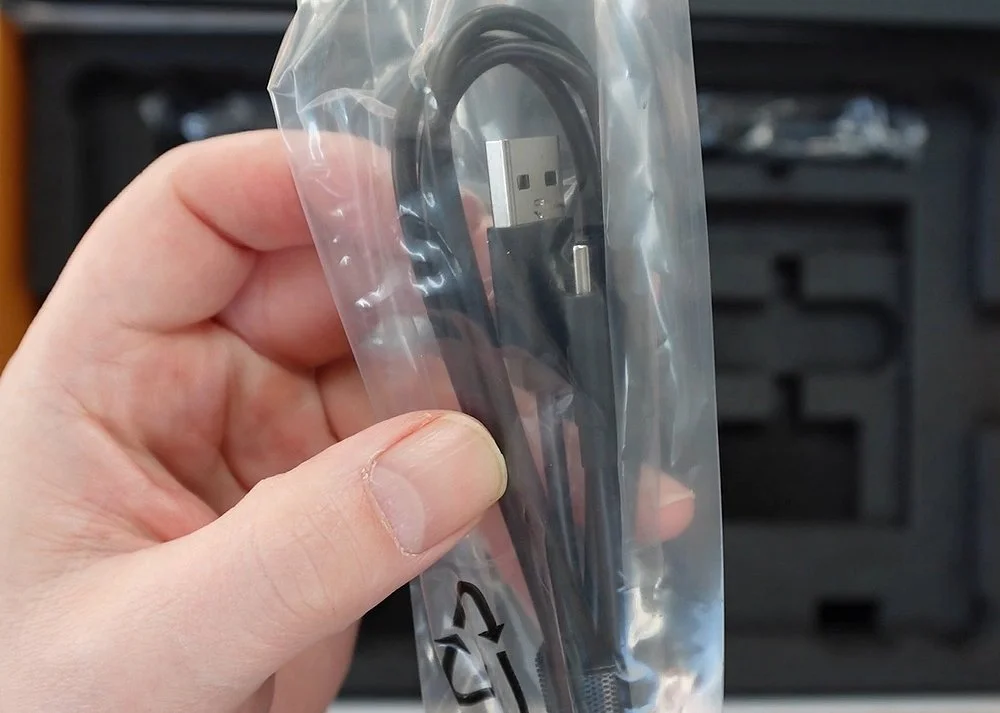
Next is the first of the cables, a USB-C to USB-A cable as well as two power cable options. A European and a UK plug.
We have the usual paperwork, and XP-Pen also give you a glove and cleaning cloth too.
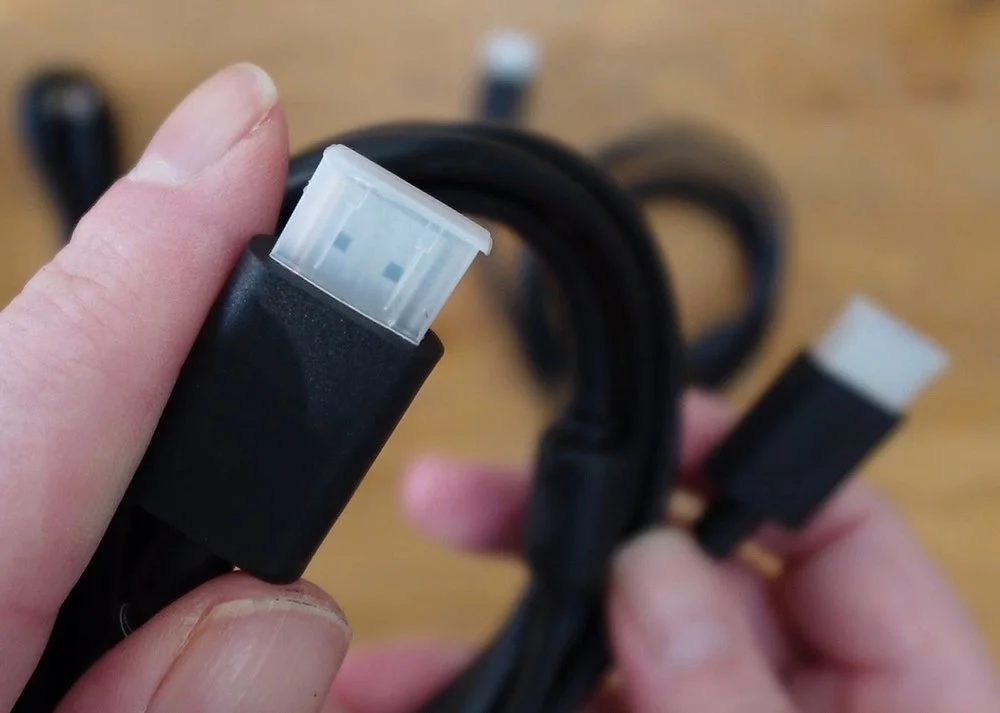
Next we have the rest of the cables, which include a USB-C to USB-C, HDMI and DisplayPort cable.

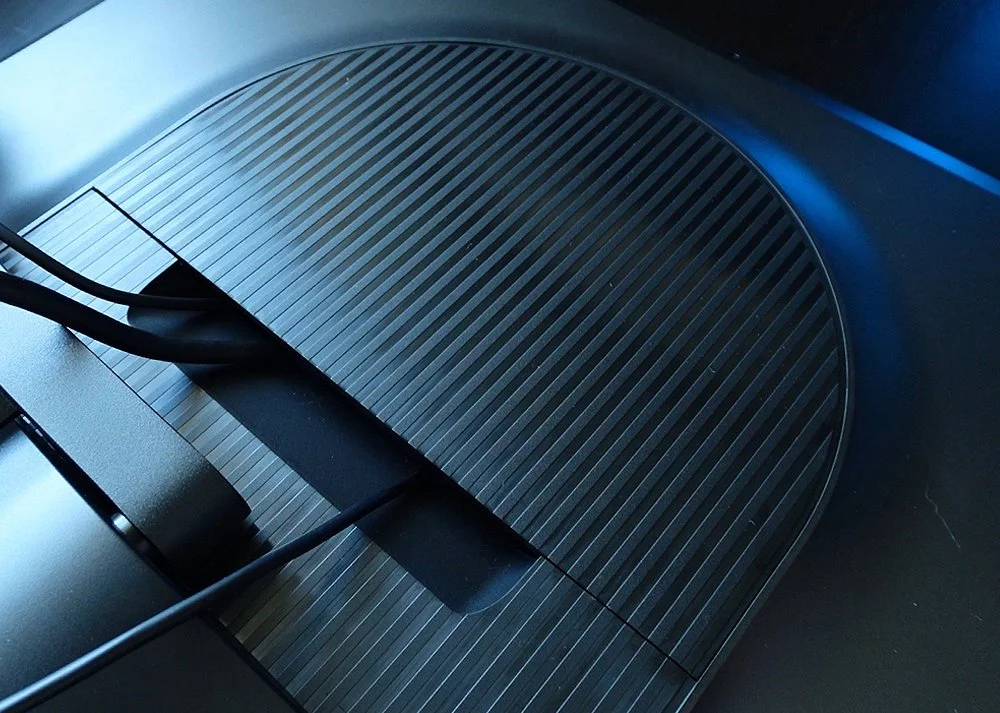
Theres also a panel which you use to cover the cables and ports on the back of the device once you’re setup.

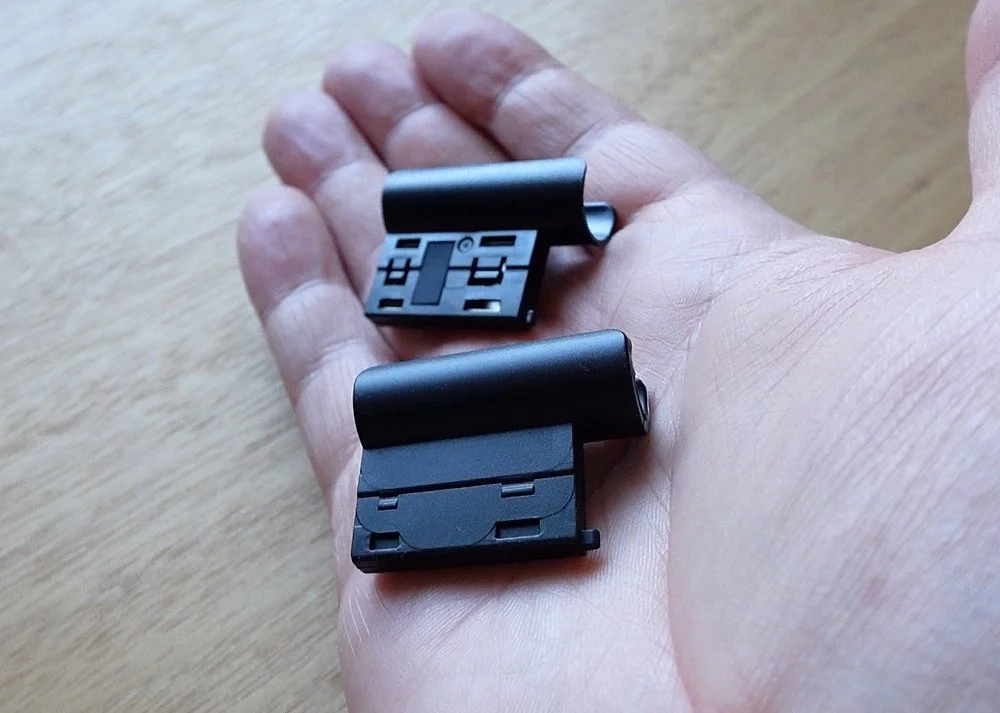
Finally, there are two clips which you can use to attach the pens to the top of the device, keeping them safe when not in use.
Ok, thats everything out of the box, so lets take a closer look.
The Artist Pro 27
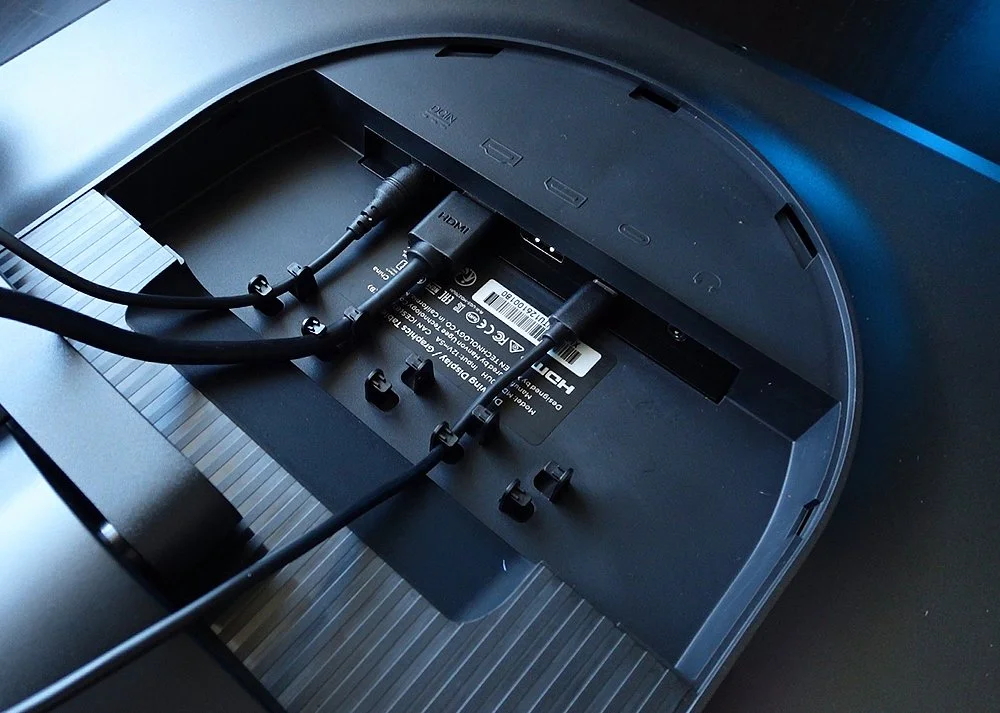
As you can see, the back of the Artist Pro 27 comes with the stand already attached, so there’s no assembly needed. There’s also a nice, striped design across the back too, as well as access to all the connection options.
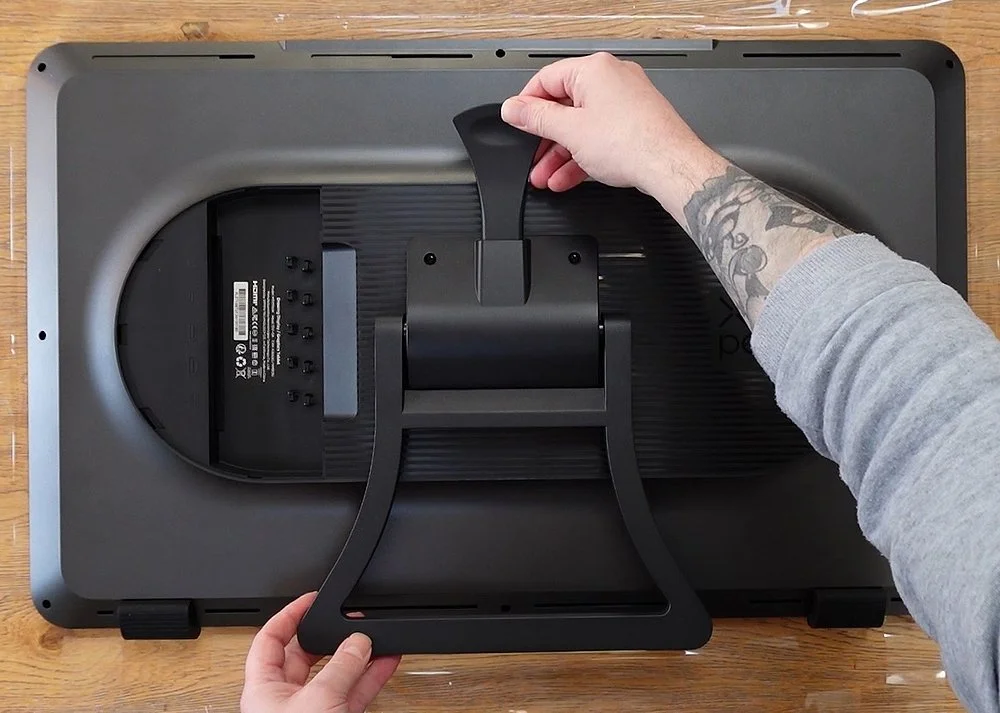
I also like that they've considered cable management too with clips helping to guide the cables, and once your setup, this area can be covered with the extra panel to keep things tidy. Around the back there are also vents, to help keep the device cool.

The device itself is a whopping 68 centimetres wide and 43 tall, with a thickness of just over 4 centimetres. It also weighs 7 kilograms, so it’s not something you will be frequently moving around the office or taking on the road, although it’s surprisingly easy to reposition on your desk, and adjusting the angle of the display with the stand can be done easily with just one hand.
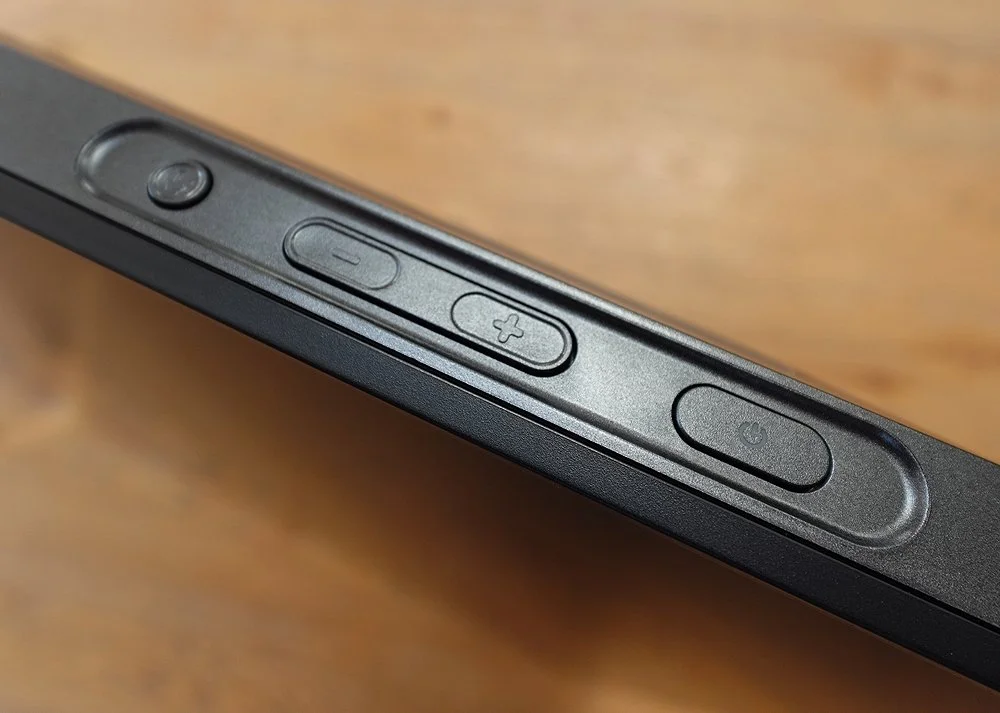
Across the top we have four buttons. The power key, two volume buttons which can also be used to switch the input source, and finally a touch switch so you can quickly enable or disable the touch input.
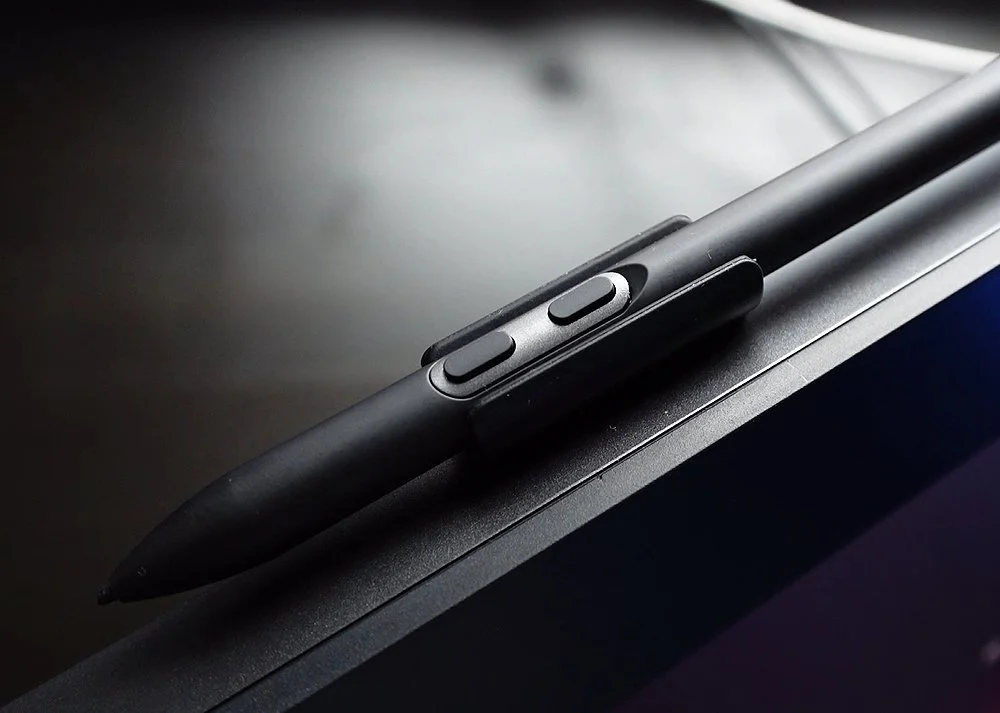
There are also two pen clip compartments where you insert the supplied pen clips. These are then used to hold the pens when not in use, meaning they are kept safe and within easy reach.
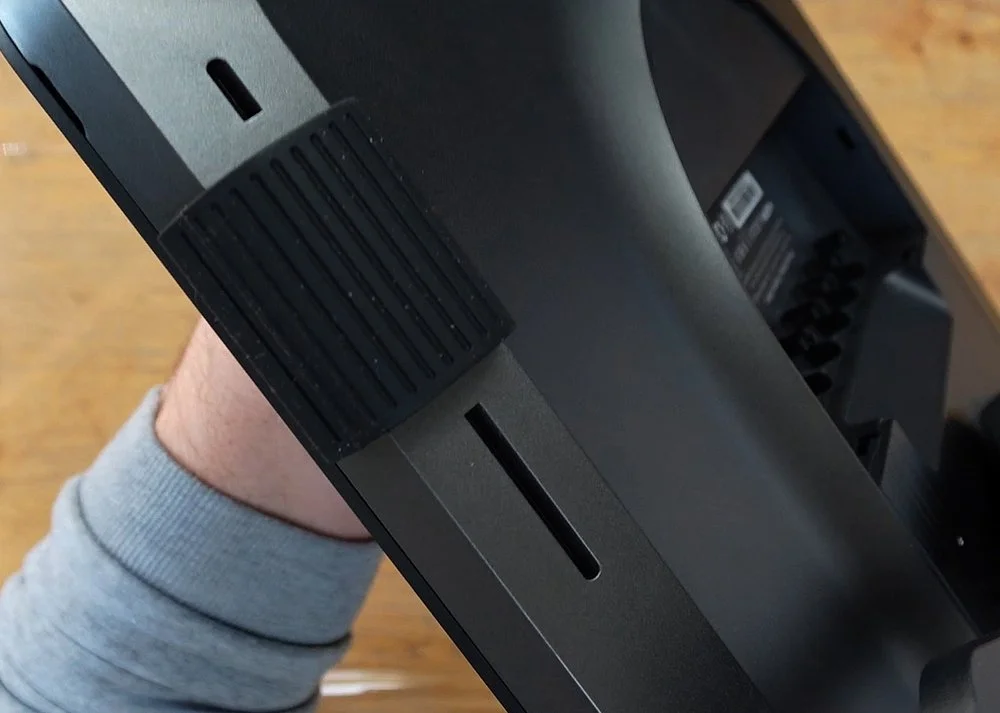
Finally, on the bottom are two large rubber feet which not only raise the screen off the table, but also help stop it from slipping.
The Pens
The Artist Pro 27 includes not one but two X3 Pro styli, a slimmer, pencil like stylus and a more traditional thicker one. Both are powered by the X3 Pro Smart Chip which offers its users over sixteen thousand levels of pressure sensitivity and sixty degrees of tilt recognition.
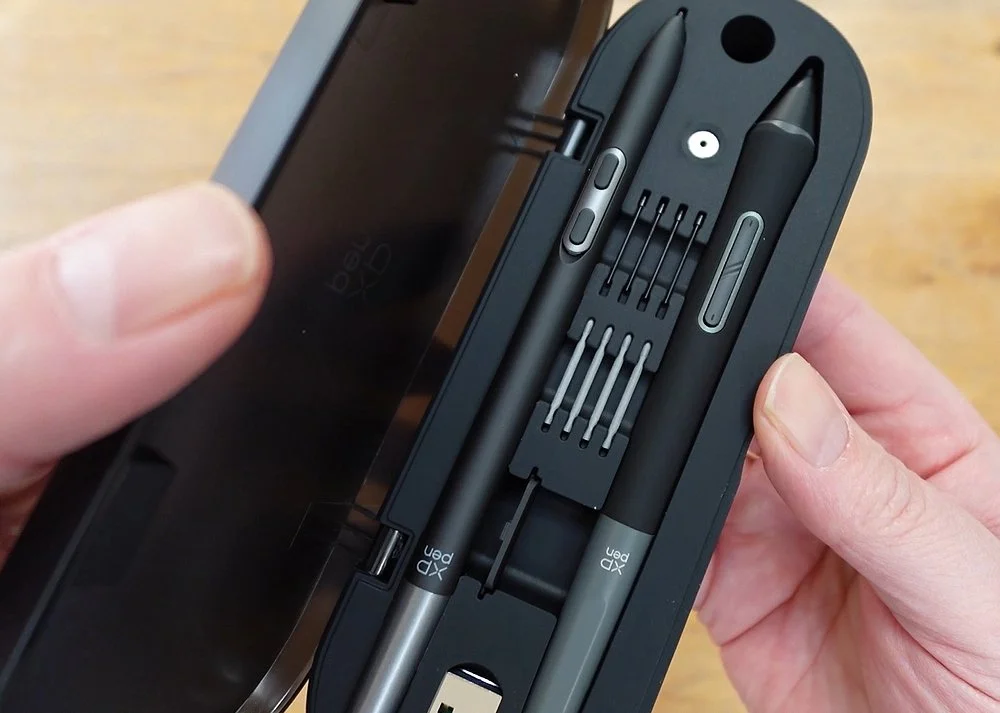
These have two buttons on the main shaft and the thicker pen also has an eraser on the end. Another difference with the thicker pen is its rubber grip but the thin pen has its own unique feature.
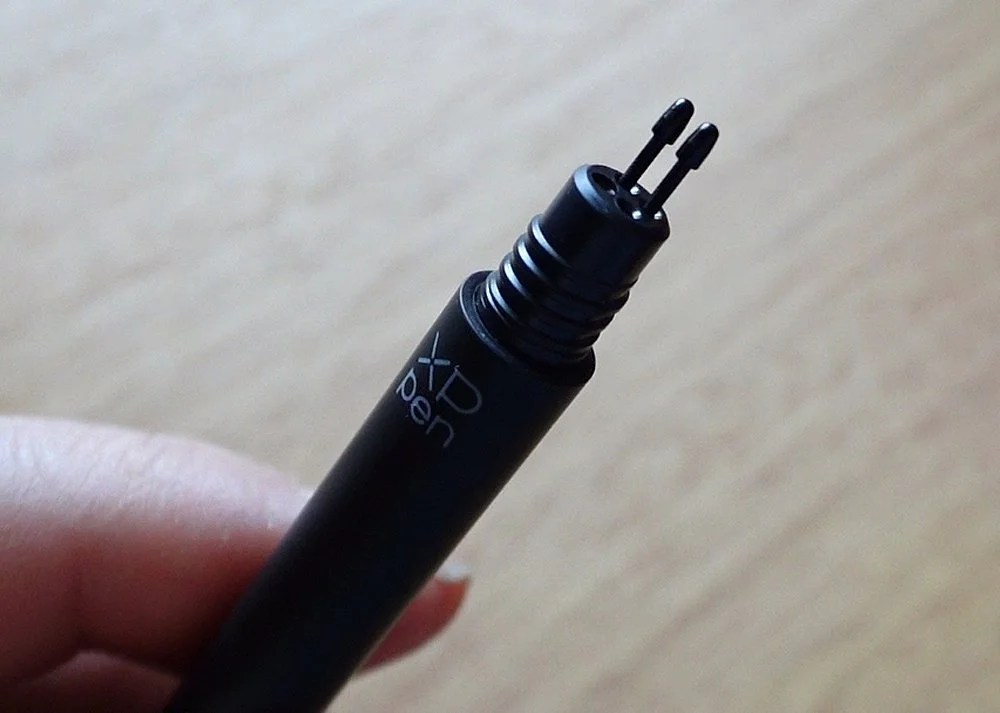
If you unscrew the end you will find a place to keep four spare nibs and XP-Pen include eight extra ones to get you started, four of which are felt.
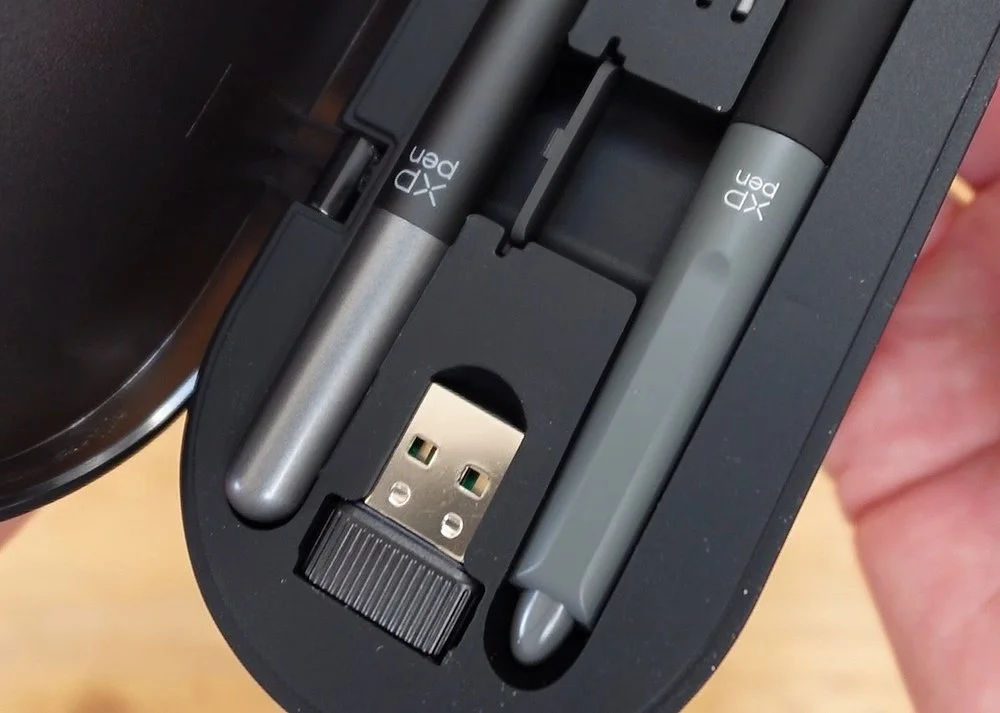
These are all kept safe and secure inside a neat case, along with the USB dongle, which you can use to connect the wireless shortcut remote to your computer.
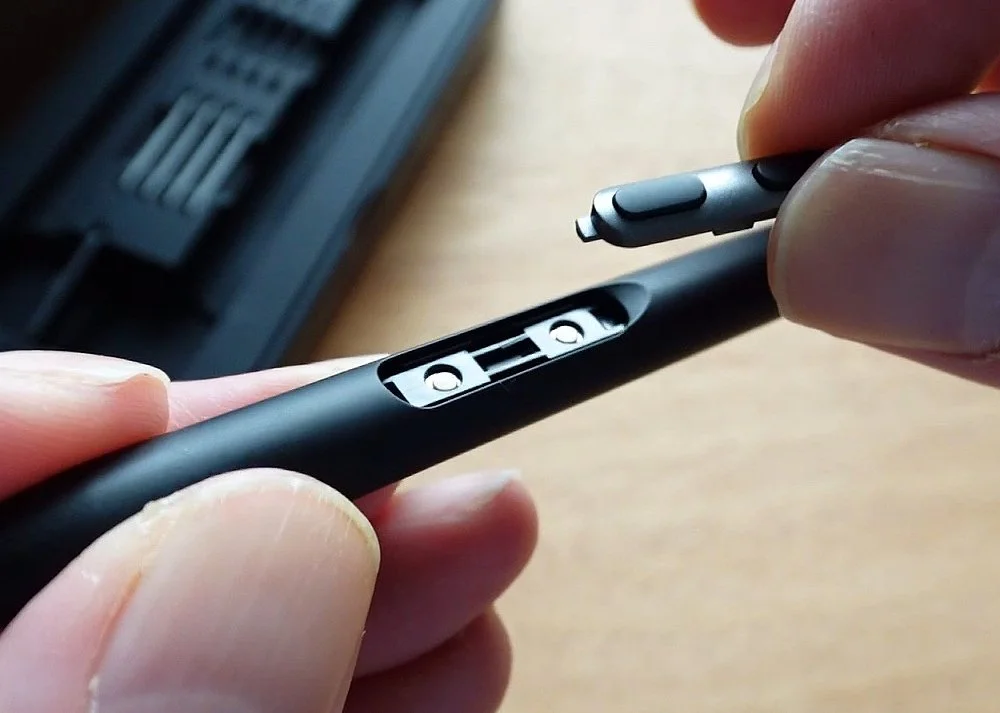
There is also a small cover too, and this can be swapped with the buttons on the slim pen, essentially removing them to make the pen more comfortable if you're someone who doesn’t use the buttons.
The Wireless Shortcut Remote
No large pen display would be complete without a shortcut remote. These are essential when working with bigger displays because they offer extra functionality as well as removing the need to have a keyboard within reach.
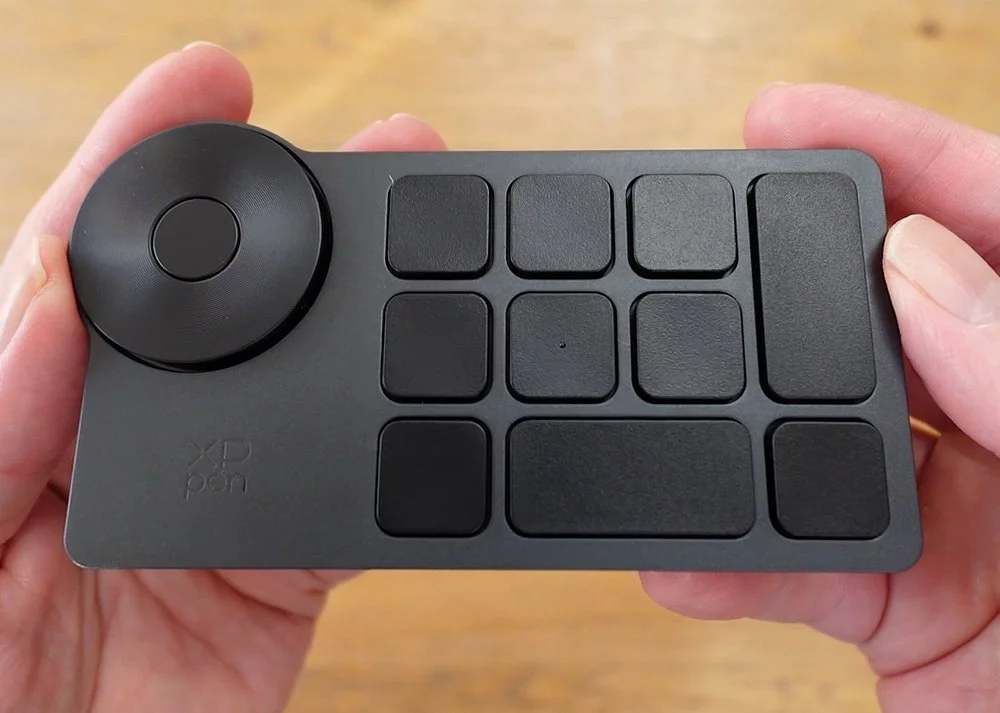
The one XP-Pen bundle with the Artist Pro 27 is small, light and includes an all important dial which has a nice click as you rotate it.
There are also ten hardware buttons too, eight square and two which are a longer, rectangular shape.
These can be configured however you like plus you can swap between four groups, essentially giving you forty buttons for the price of ten.
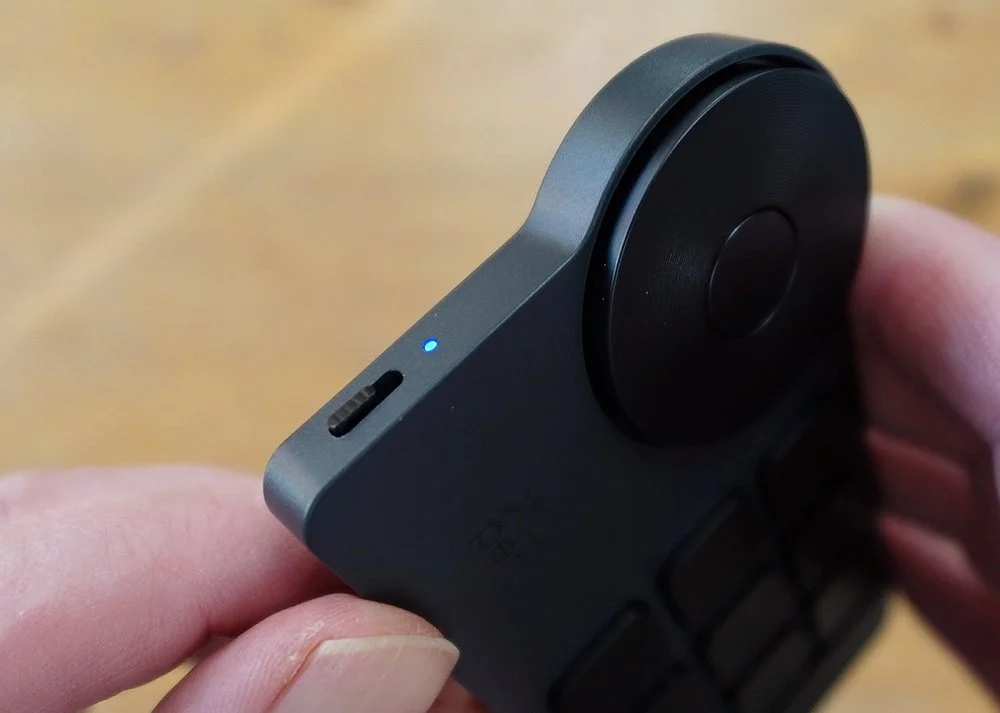
On the sides are a simple power slider switch and a USB-C port for charging or connecting directly to your computer.
The remote can be used wirelessly with Bluetooth, but you also have the option to have it connected directly too.
On the back are four rubber feet which keep the remote gripped to your desk.
In practice, the remote does feel nice to use with your fingers easily reaching the buttons and dial, however, what would’ve been nice is if it had the ability to sit on the screen when being used. The rubber feet don’t have enough of a grip at certain angles, so the remote slowly slides off.

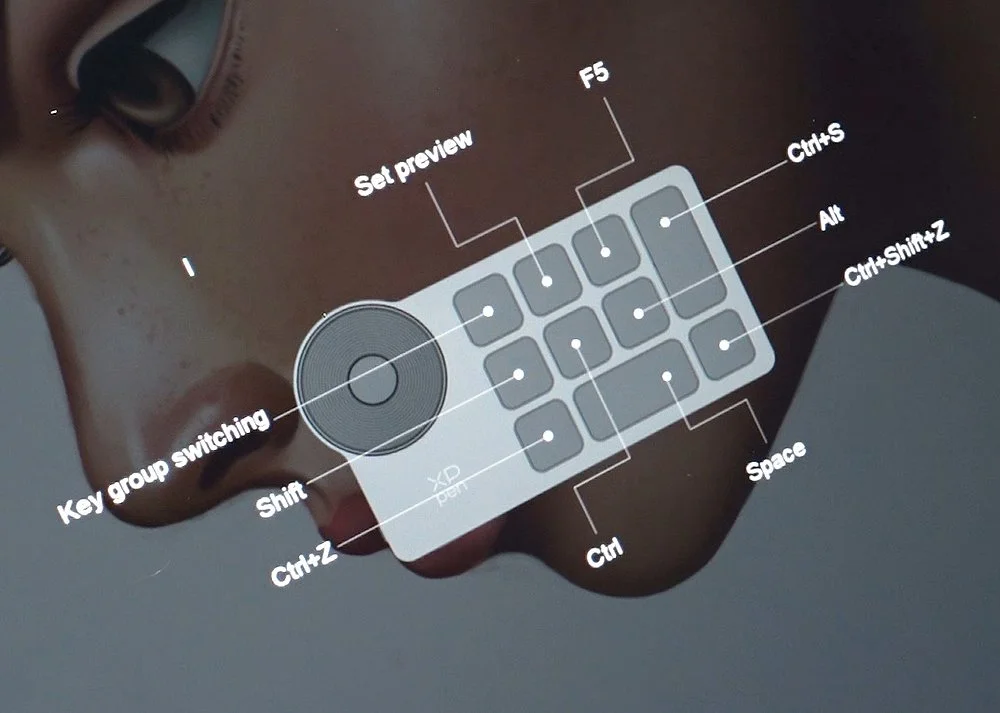
I ultimately ended up using it on my desk which, with a screen of this size, wasn’t ideal. As with any new gadget you need to be able to see it as you learn the various button locations. There is a button option which will display the current configuration on the screen for you though, which serves as a quick reminder.
The Stand
As mentioned, the Artist Pro 27 comes with a flexible stand attached to the back.
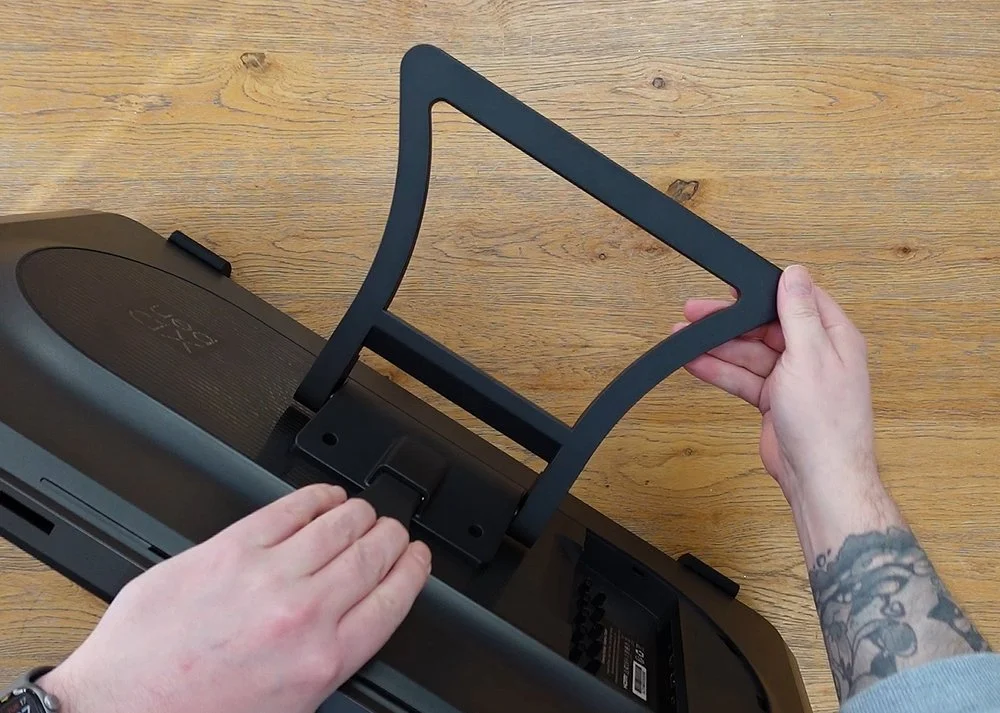
There’s nothing fancy here, but it has a job and it does it well. Using just a single hand you can reach over the top and adjust the angel of the display anywhere between 16° and 72°.
Its sturdy and keeps the screen steady as you work.
Setup
Initially, getting the Artist Pro 27 up and running is a piece of cake. XP-Pen give you a few options when it comes to connecting it to your computer. A direct USB-C to USB-C connection if your USB-C port supports DisplayPort Alt mode, or you can use the supplied HDMI and Display Port cables, along with the USB-C to USB-A cable which is needed for data.
There are no overly complicated three in one cables here, these are just direct connections with generic cables meaning you could use your own, longer cables if needed. Plus it means they are easy to replace.
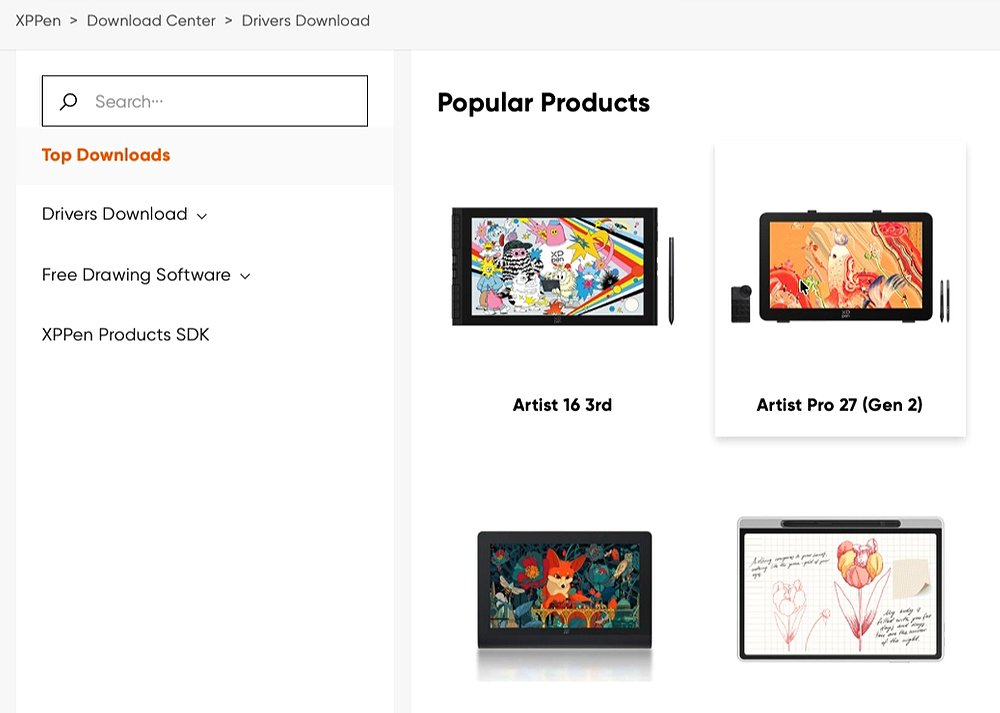
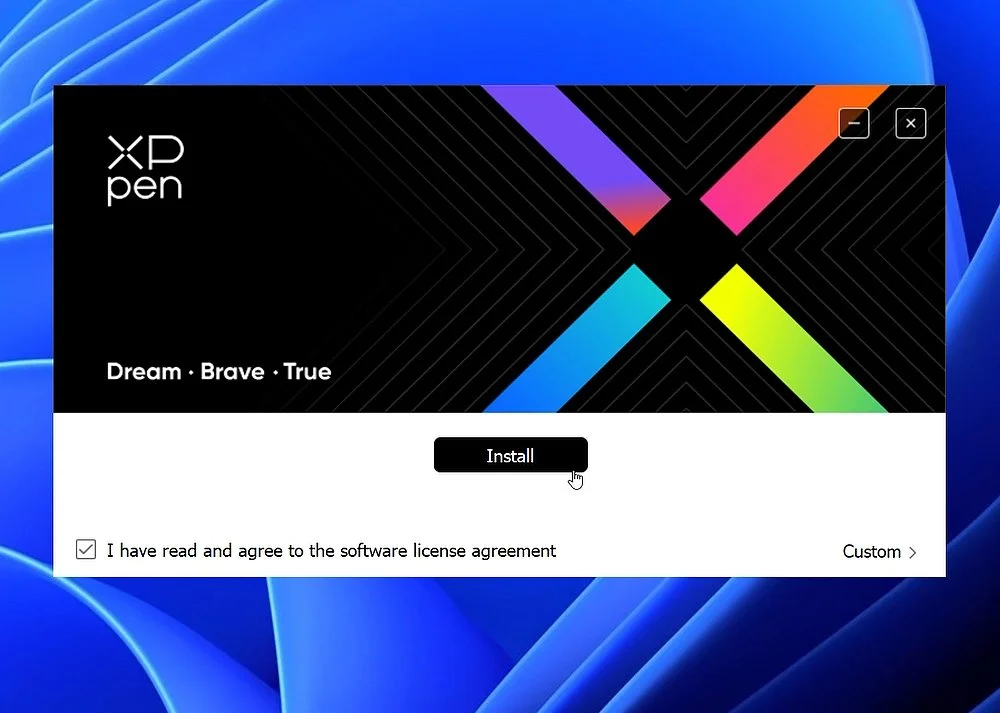
Once setup you simply download the drivers, install them and you are all set…well, in theory thats how it should be. Unfortunately, this is where things got a little more complicated for me.
My first problem came when I connected to my MacBook, which is my primary working device at the moment. Just like most people, I have multiple screens connected to my computer so adding another shouldn't be an issue.
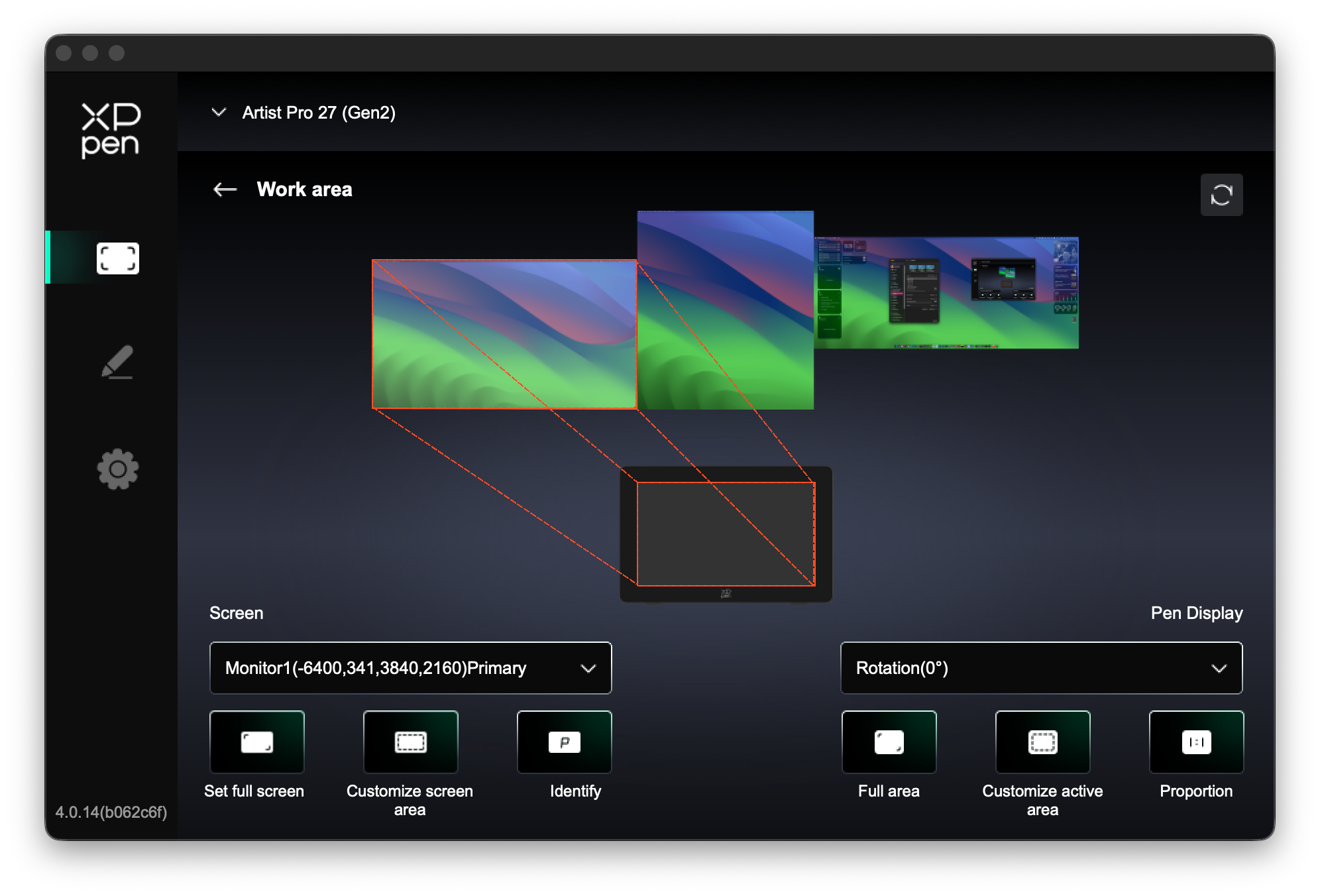
At first it wasn't, I had the Artist Pro 27 all the way to the left, which is where it sits relative to my other screens.
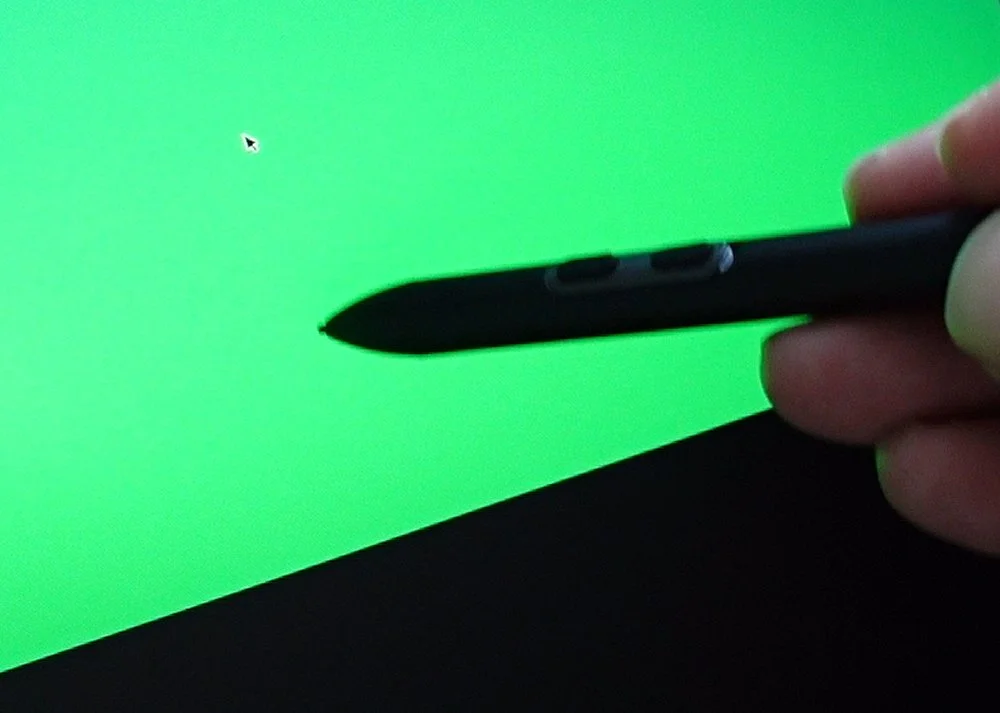
The XP-Pen software wasn't a huge fan of this and thought the screen resolution was smaller that it actually was, meaning the pen cursor wouldn't move to the bottom of the screen.
It worked with the mouse, but not with the pens.
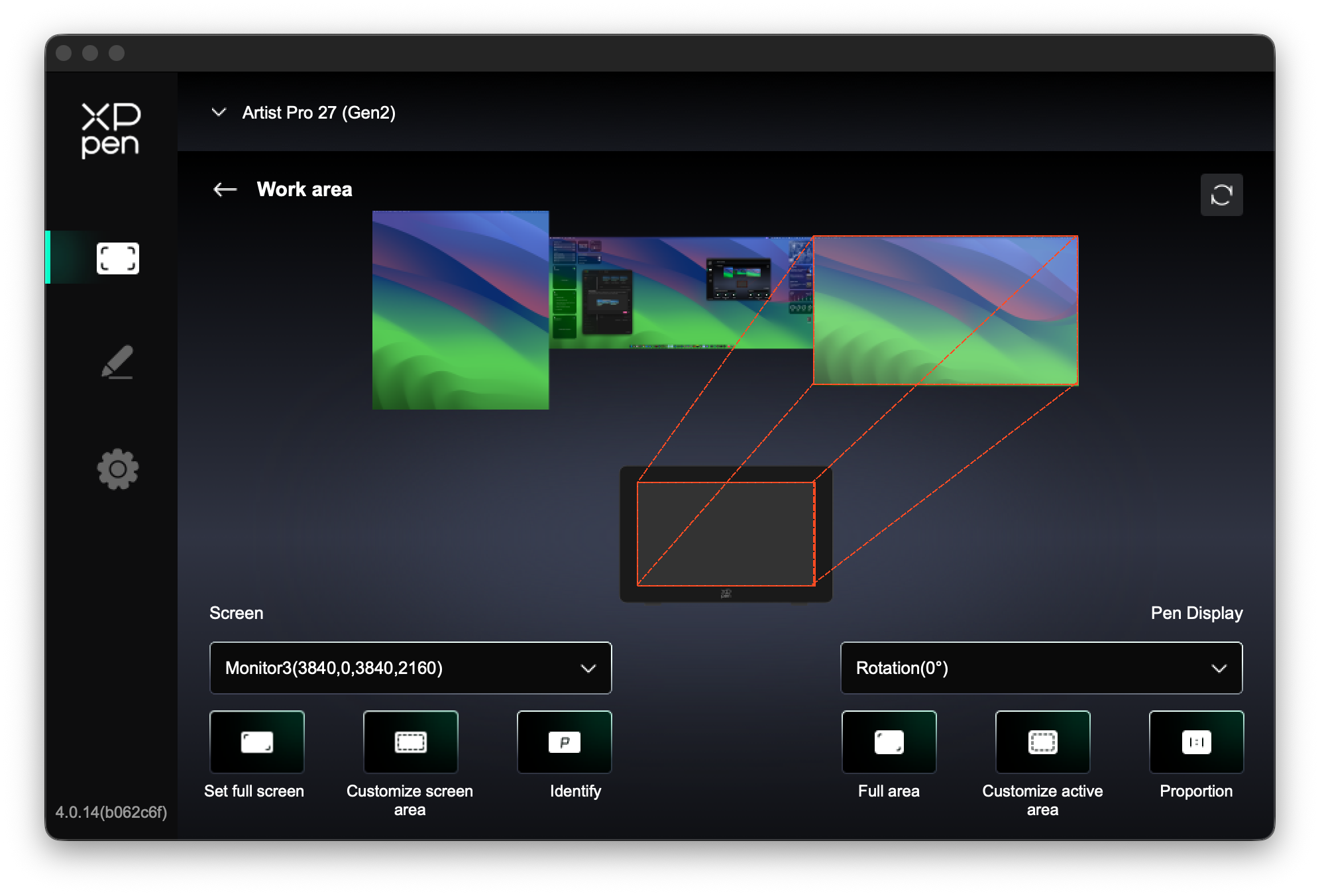
I eventually found a workaround for this which was to move the monitors position to the right instead, so the XP-Pen software would think it was the first in the chain.
Not ideal as I had to remember to move my mouse cursor off the opposite side of my monitor to access the Artist Pro, but at least it worked.
Next came problem two.
It seems that touch input isn't something that macOS is comfortable with.
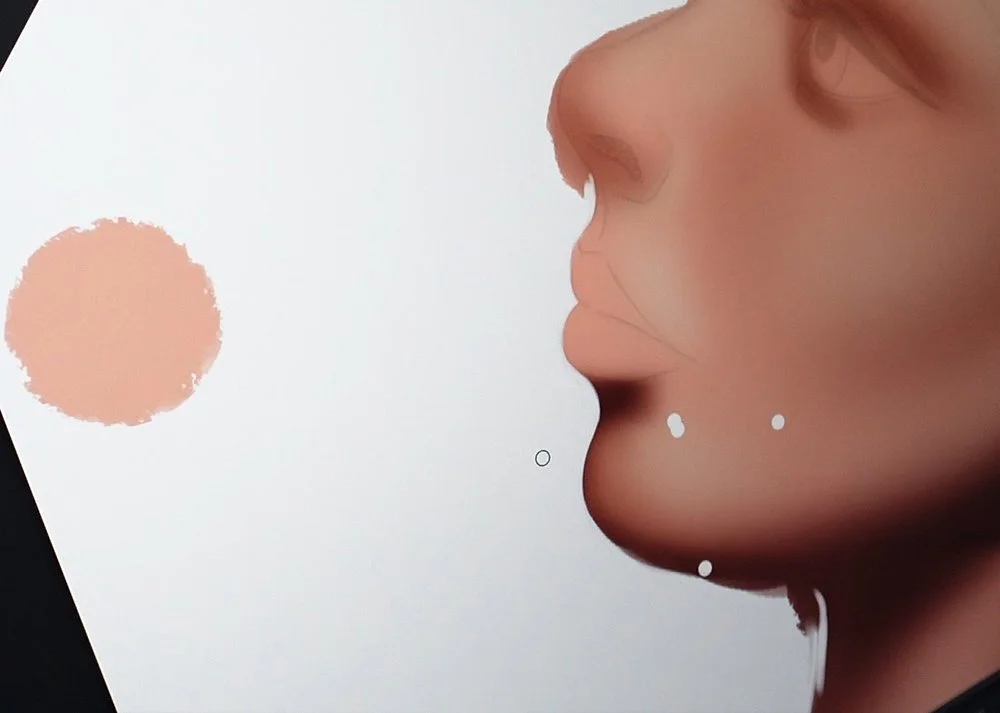
Moving the canvas with two fingers was restricted to either horizontally or vertically and palm rejection was non-existent, so my hand either kept leaving marks on my work, or would inadvertently move the canvas.
In the end I disabled touch input altogether which made the whole experience a lot less stressful.
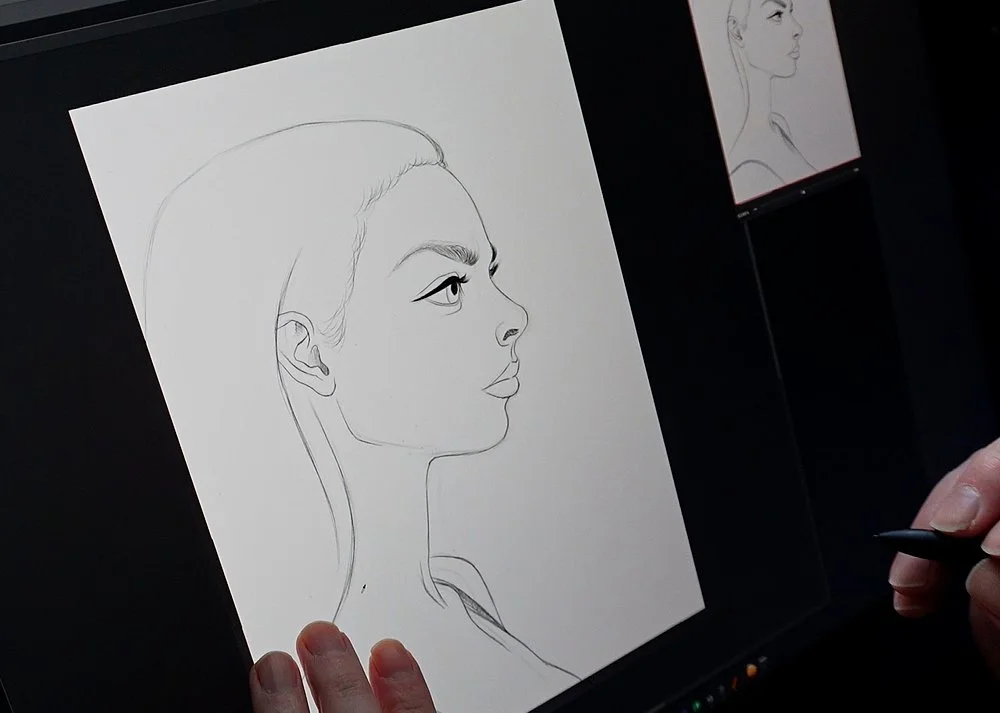
When asked, XP-Pen said that the issues were a down to Photoshop and macOS rather than a configuration issue on their end, and due to the way Mac (and iOS) handles touch input, their touch functionality usually worked more smoothly on Windows.
The restricted movement for example, is a Photoshop limitation which is unfortunate as thats the app I mainly use.
Interestingly though, after speaking with other manufacturers, this doesn’t seem to be the case with all pen displays.
After a while I decided to move to my PC. Now this is an older system, so probably five years old now, but it was the only option I had of fully testing the Artist Pro 27 and all its features. Thankfully I had plenty of connection options thanks to XP-Pen, so I was up and running using the Display Port and USB-C to USB-A cables in no time. My PC doesn't support DisplayPort Alt mode so I couldn't use the direct USB-C option.
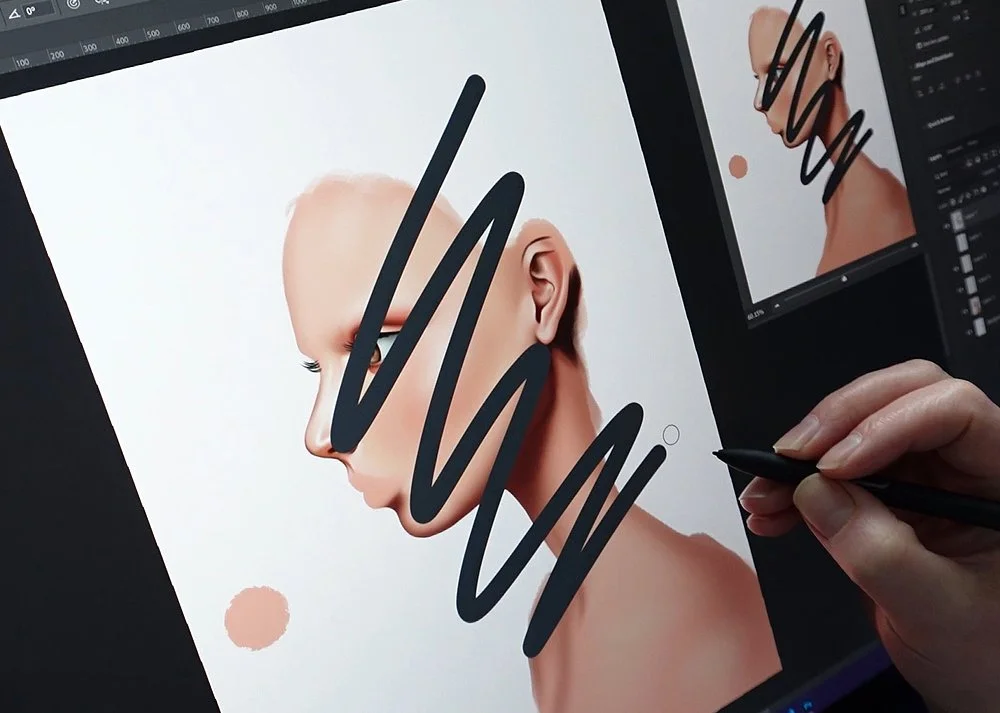
The only issues I had were firstly a conflict with another companies pen display drivers on my system.
This caused a similar problem to the Mac, with the monitor position on the OS not working correctly, plus I lost pen pressure.
Once the conflicting drivers were removed and the XP-Pen software reinstalled, everything worked, touch screen, pen pressure, everything.
I was so happy!
What I will say is the team at XP-Pen were excellent throughout this whole process and helped me to trouble shoot these issues and come up with solutions.
The Screen
There’s no getting around how big this screen is. At 26.9 inches, you have plenty of room to work. After using smaller devices for a while, it felt quite liberating being able to spread out and have multiple windows open as I worked.
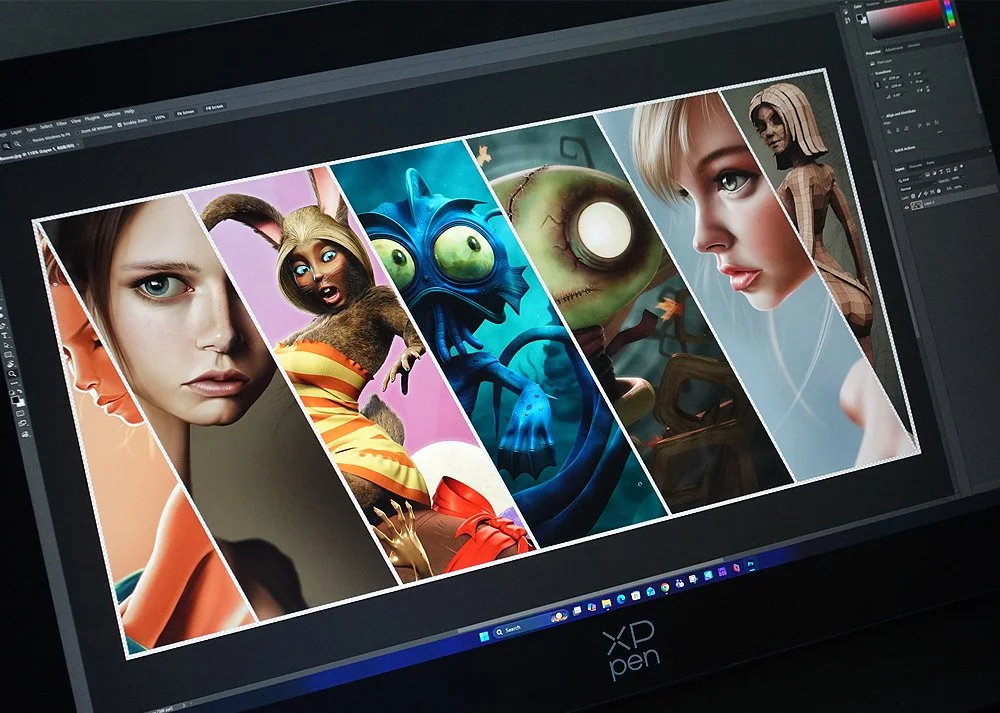
It’s not just large, the 3840x2160 resolution meant everything was crisp and clear, although I did have to scale up my UI slightly as the font was a little small for my ageing eyes.
Although this isn’t an OLED screen, the colours were vibrant and the blacks dark. Not the inky emptiness you get with OLED, but overall the colour range was still impressive.
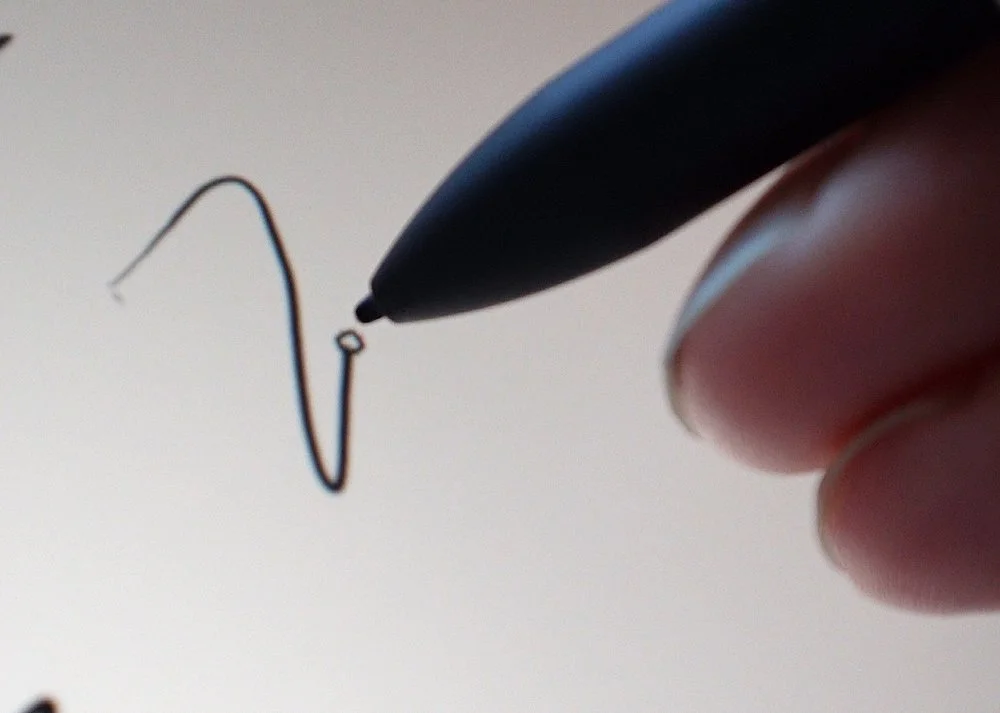
The screen itself features XP-Pens new-generation luminous etched glass which is just 0.7mm thick.
This not only helps to give you that all important texture as you move the pen across its surface but it reduces glare too, and boosts light transmission by 30% to help make the screen brighter.
With that said, even with the thinner glass panel, I did still notice a slight gap between the pen tip and the cursor.
Configuration
The XP-Pen software is certainly streamlined. Its focus is purely on what’s important without any excessive features bloating the UI.

From the main screen you have a few options allowing you to change the floating menu, work area and general settings.
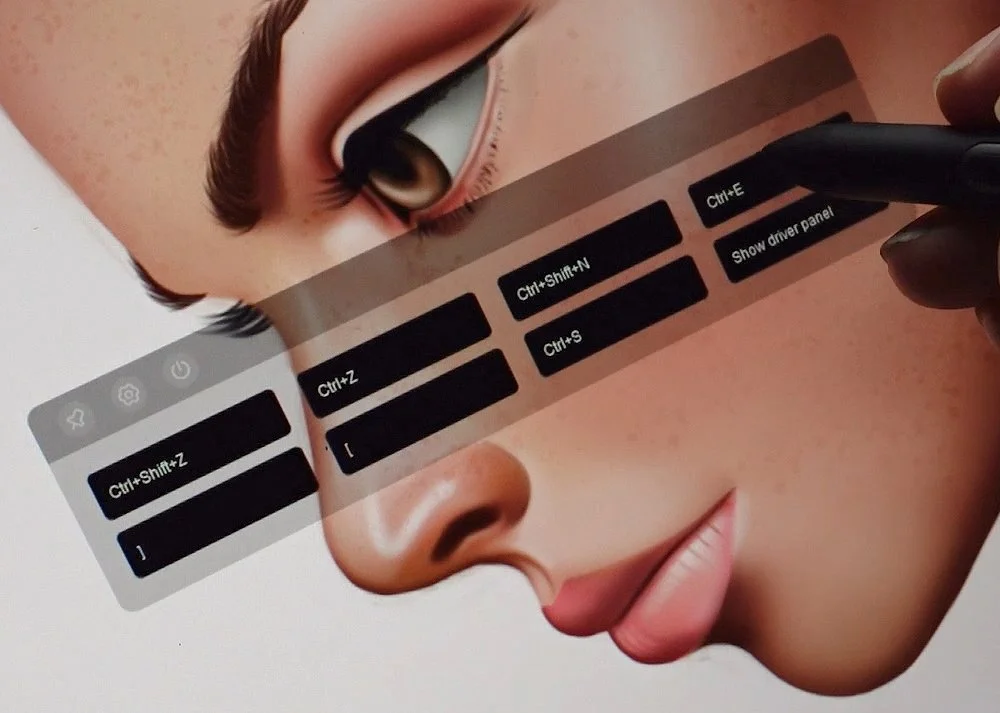
The floating menus are configurable buttons which will appear on your screen, allowing you perform tasks quickly and easily, or access specific keys without needing a keyboard.
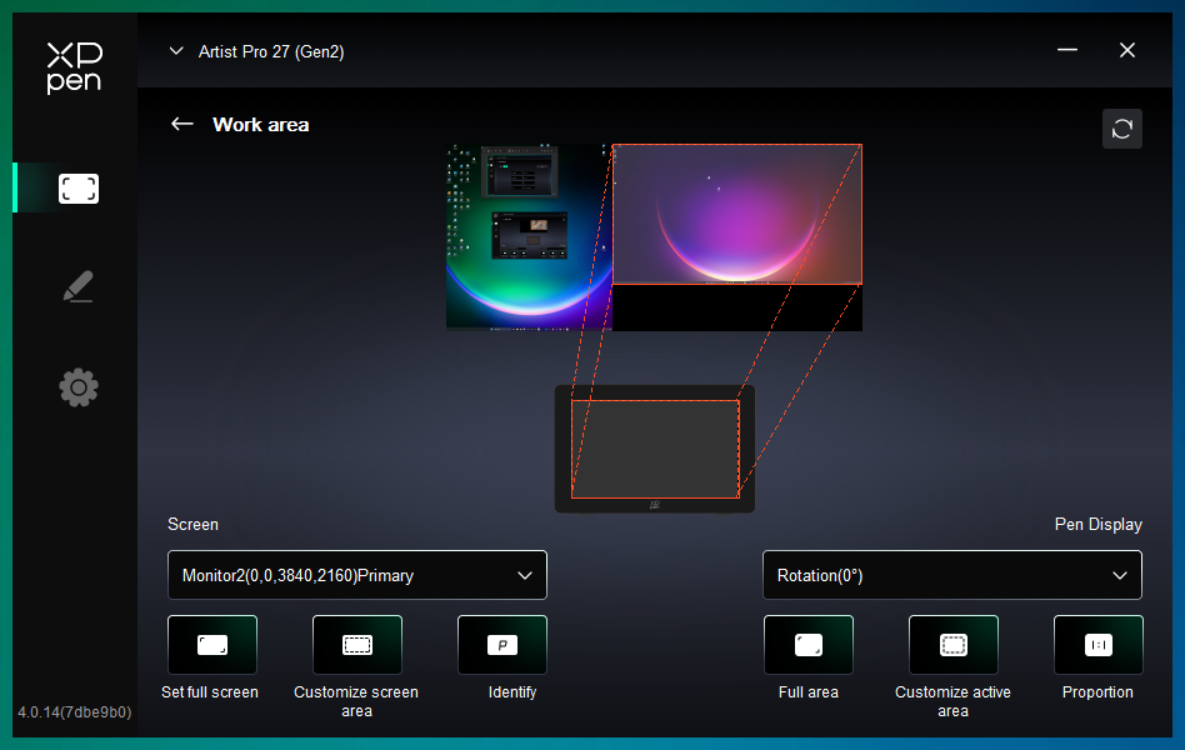
The work area lets you to customise how the screen will work with the current monitor setup. As with other devices, you can change this to work on the full screen, or just a section.
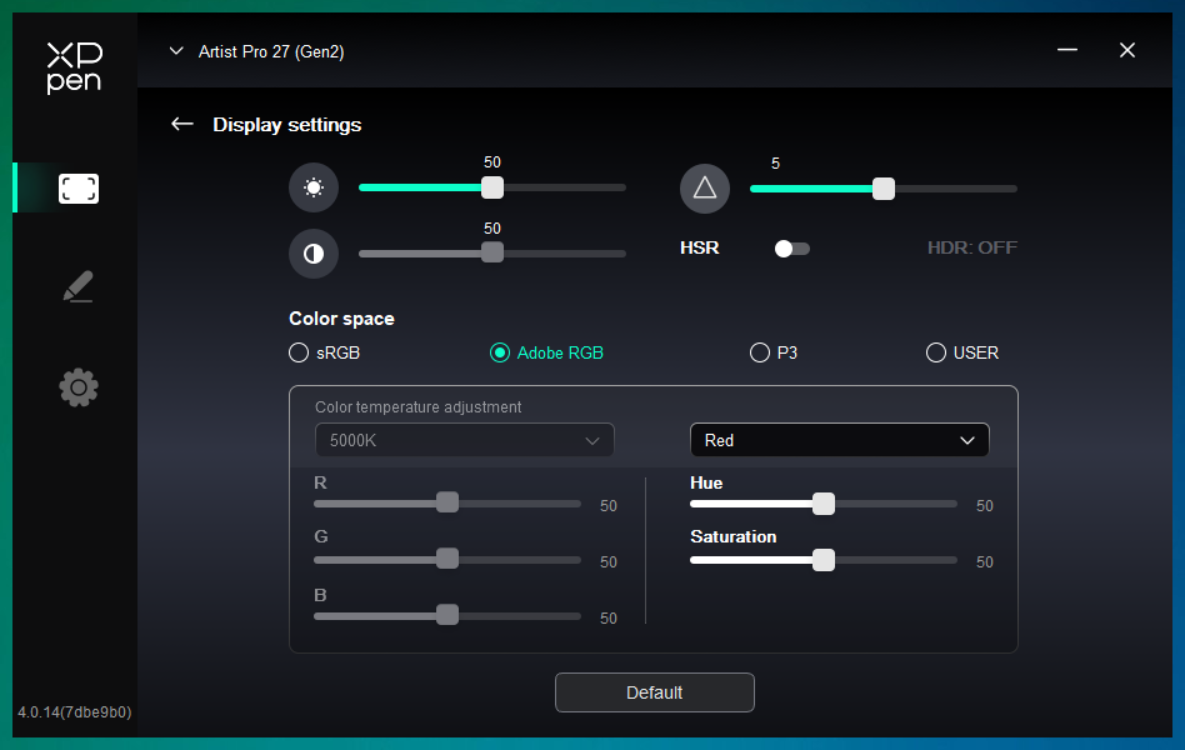
The display settings area lets you update the colour space, brightness, contrast and HDR settings.
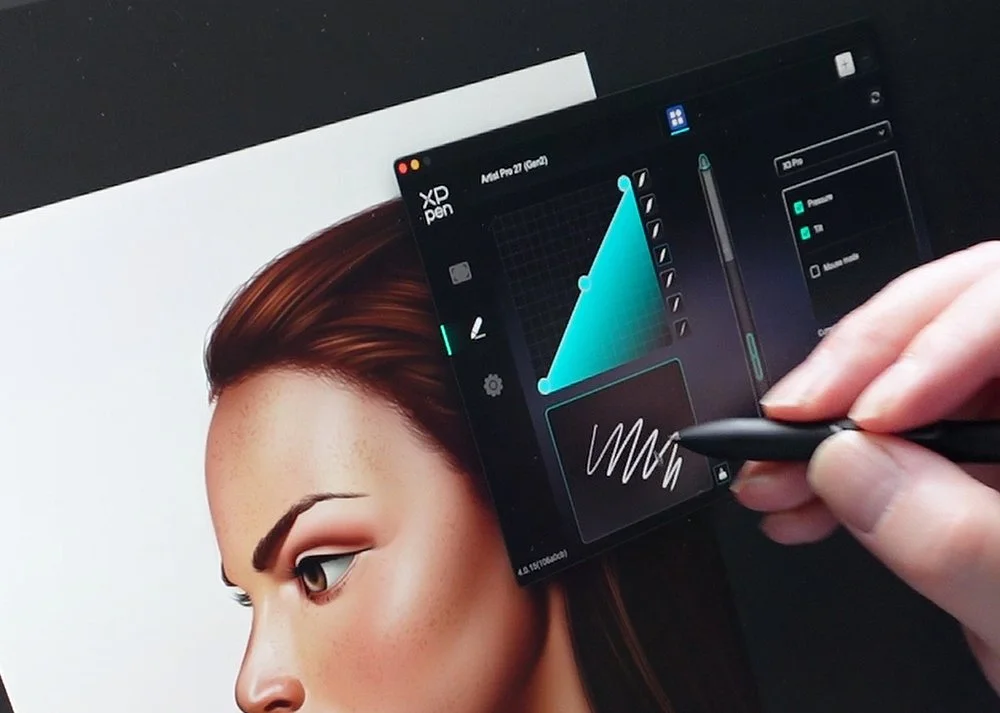
When it comes to the pens, again there’s nothing fancy here. You can adjust the pressure curve as well as the configuration of each button.
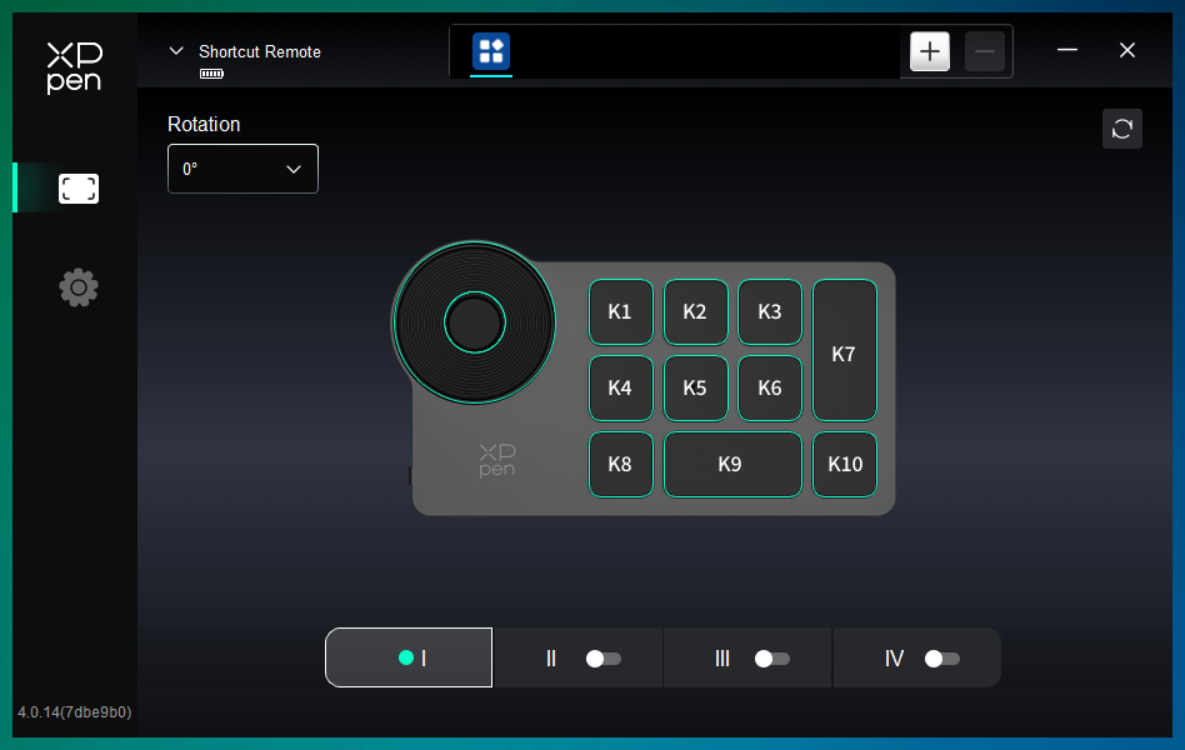
With the Shortcut Remote you can obviously configure each of these buttons too, but you have the option of four different layouts which you can cycle between to give you much more flexibility.
All the configurations can also be changed on a per-application basis, so you could have a different setup on Photoshop compared to ZBrush for example.
The only thing I felt was missing was some pre-made configurations for popular applications, like Photoshop or Clip Studio Paint. It would be good to offer users an initial layout to use, as configuring your own does take time.
Sketching & Painting Test
As mentioned earlier, I ended up jumping between a Mac and PC when testing this device due to issues with touch input on the Mac. With that said, when I disabled the touch screen it was great to use. To quickly pan, zoom and rotate the canvas I used the Shortcut Remote instead, so I was happy.
If I was just a Mac user though, who bought this device with a view to using the touch screen, I would be disappointed, although the team at XP-Pen told me that apps like Clip Studio Paint, Krita, Affinity, and Medibang all support free-direction canvas panning with touch. Photoshop, on the other hand, is limited to horizontal or vertical movement due to how macOS handles touch natively.
After hearing this I did go back to the Mac and try a few different apps, including Affinity, but this time only basic OS gestures would work, and no touch input was registered at all inside any apps, so I gave up and went back to the PC.
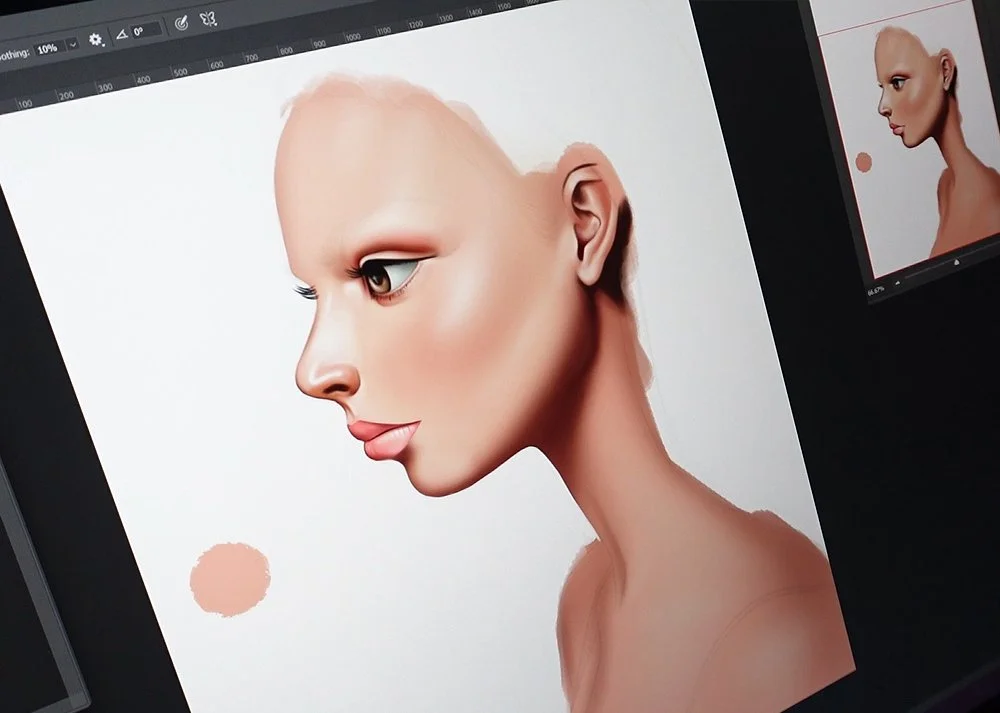
Overwhelmingly the best experience was on the PC, although it still wasn’t as perfect as I’d like.
Being able to move around the canvas using my fingers was a joy, although it wasn’t as smooth as id expect and often felt laggy, but that could just be my PC.
There were also times when dragging on the screen wouldn’t register which did break my concentration and become frustrating.
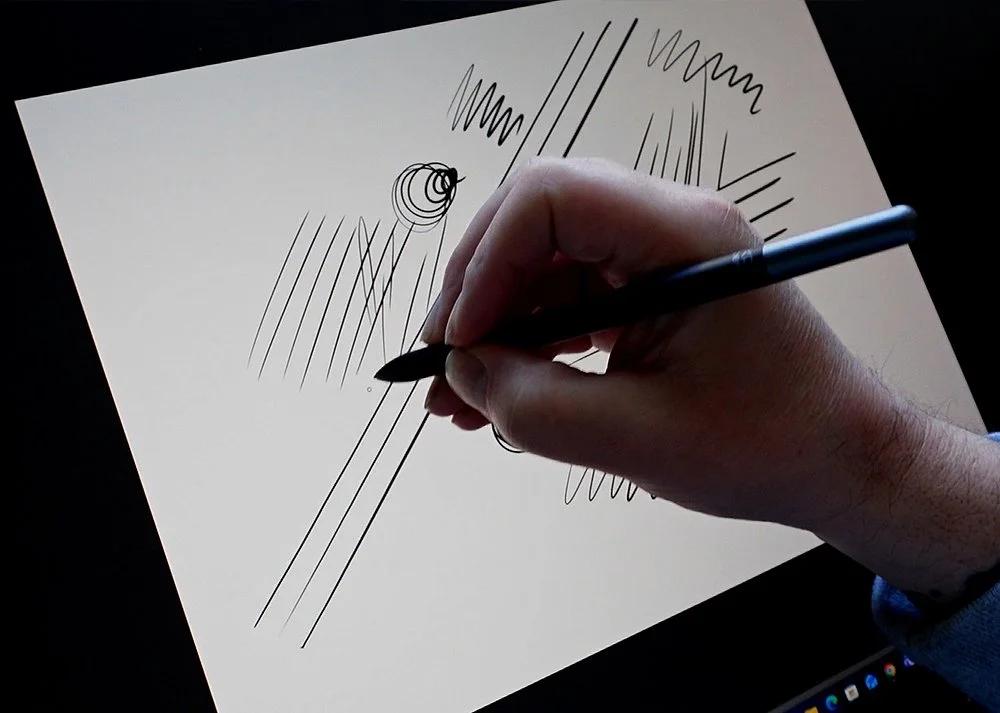
With both systems pen pressure was good and the input was smooth and responsive.
Ive said this before but I'm not entirely sure if you can feel all sixteen thousand levels of pressure sensitivity when compared to the industry standard of eight thousand, but it still offered a great degree of variation in my strokes.
Also, having the larger canvas really helped my workflow. I could have all my windows open, brushes, navigator and reference, and the workspace didn’t feel cramped.
As for the temperature, the screen did start to get warm on the lower right after a while, but not anything uncomfortable.
3D Test
With all my reviews I try to include some tests which include polygons as well as just focusing on pixels because most of us digital artists now use 3D in one form or another.
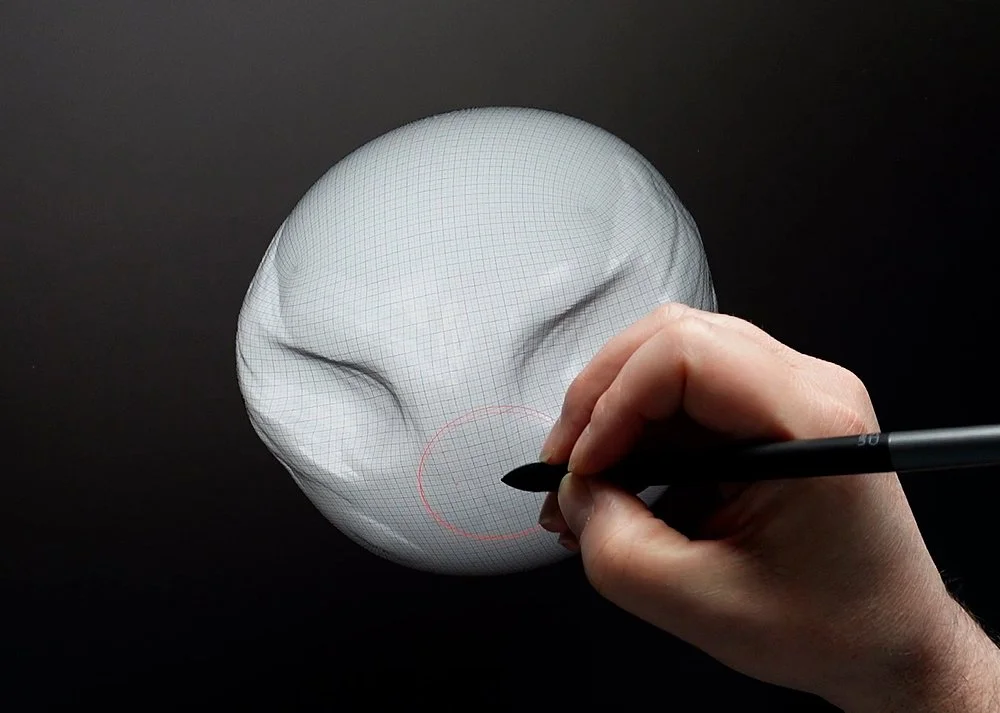
As expected, on PC, the device worked well. Pen pressure came through nicely when sculpting, and the 120Hz screen made my viewports smooth and responsive.
Again, touch input was fine overall, but I did still have issues when it would stop responding.
Should You Invest?
I really wanted to love the Artist Pro 27, in fact, Id made room in my office specifically for it, and had plans to be using it as my main work device from here on. Ive been looking for a larger pen display to use with my day to day work, one with touch input, so this looked perfect.
Unfortunately, due to the problems I had with the touch controls on both Mac and PC, this won’t be the case.
To be fair, these were more of an issue with Photoshop on Mac, but I did still have minor problems on PC too with various apps.
If we look at the price first, which initially sounds quite steep at £1,799, but when you compare it to its closets competitors it is actually quite competitive.
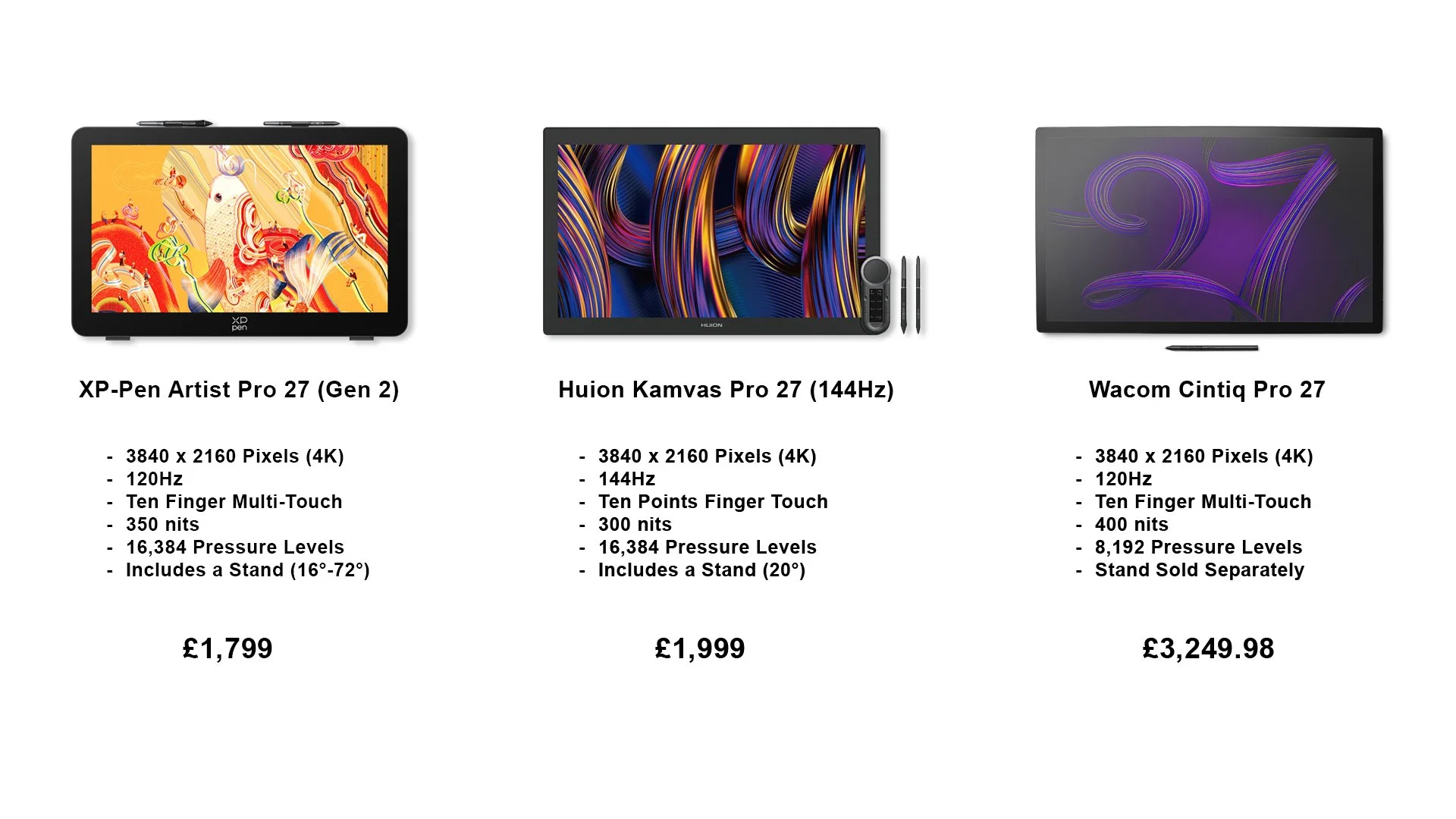
The Huion Kavas Pro 27 (144Hz) for example is slightly more expensive at £1,999. It has very similar specs but also boasts a 144Hz refresh rate, as stated in the name. Although it doesn’t come with a flexible stand, instead you have two feet which fold out to offer you a single, 20 degree angle.
If this is still too pricey you could go for the standard Kamvas Pro 27 with its lower refresh rate of 60Hz, which is still pretty decent, and that would drop the price to around £1,649.
What about the Wacom Cintiq Pro 27? Again, this does offer the same 4K resolutions and 120Hz refresh rate but you're looking at a whopping £3,249 for this piece of kit. On top of this you would also need to invest in the Cintiq Pro 27 stand which would add £499 onto that.
So from that angle the Artist Pro 27 does look quite attractive.
Touch issues aside, there’s a lot to love about the Artist Pro 27 (Gen 2). The huge screen which is bright, colourful, crisp and clear. The silky smooth pen pressure and the way the pen tip glides across the surface. Even the simplified connection options are a welcome change.
This all makes it enjoyable to use, if you don’t use touch input, and here lies the problem. Touch controls were just too unstable with Photoshop on macOS, and even on PC I had problems which turned a relaxing painting session into a frustrating one.
Granted, this is a new device and was only released a few months ago, so lets hope XP-Pen can update the drivers soon solving the touch issues, and turn a good device into a great one.
Where the Mac is concerned, lets hope Apple can also update their software to make using pen displays, with touch input, as stable as using an iPad.
I just wanted to add a disclaimer here too. It seems there are plenty of other reviewers who have tested the Artist Pro 27 (Gen 2) and had no real issues with touch input on PC, so if your thinking of investing in one, please keep that in mind and check out some other reviews before making your decision.