
Wacom MovinkPad Pro 14

Last year, Wacom introduced us to a new series of devices called Movink.
The first was an ultra-portable 13 inch pen display which came with a glorious OLED screen.
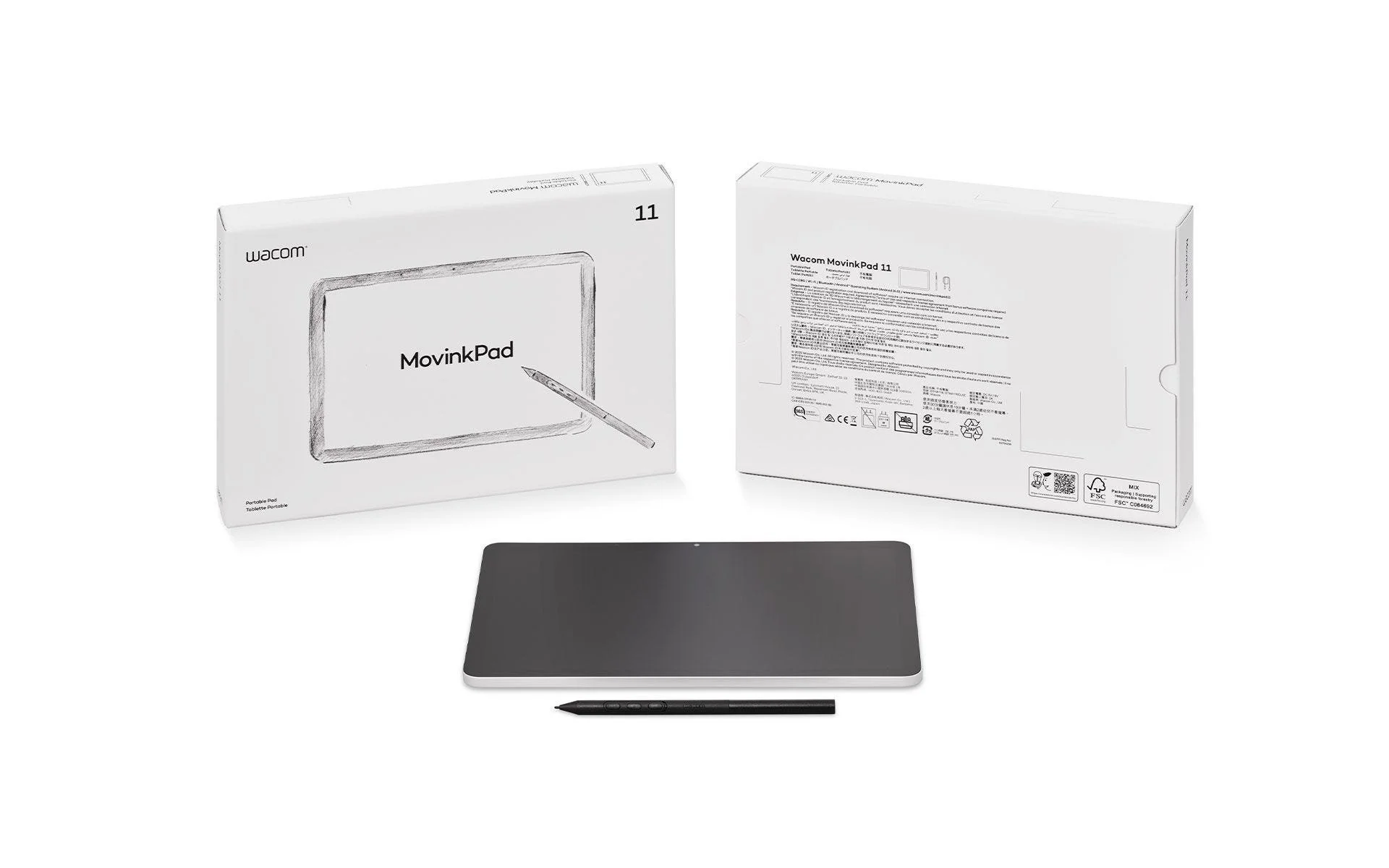
This was quickly followed by the first of their new stand-alone tablets, the MovinkPad 11.
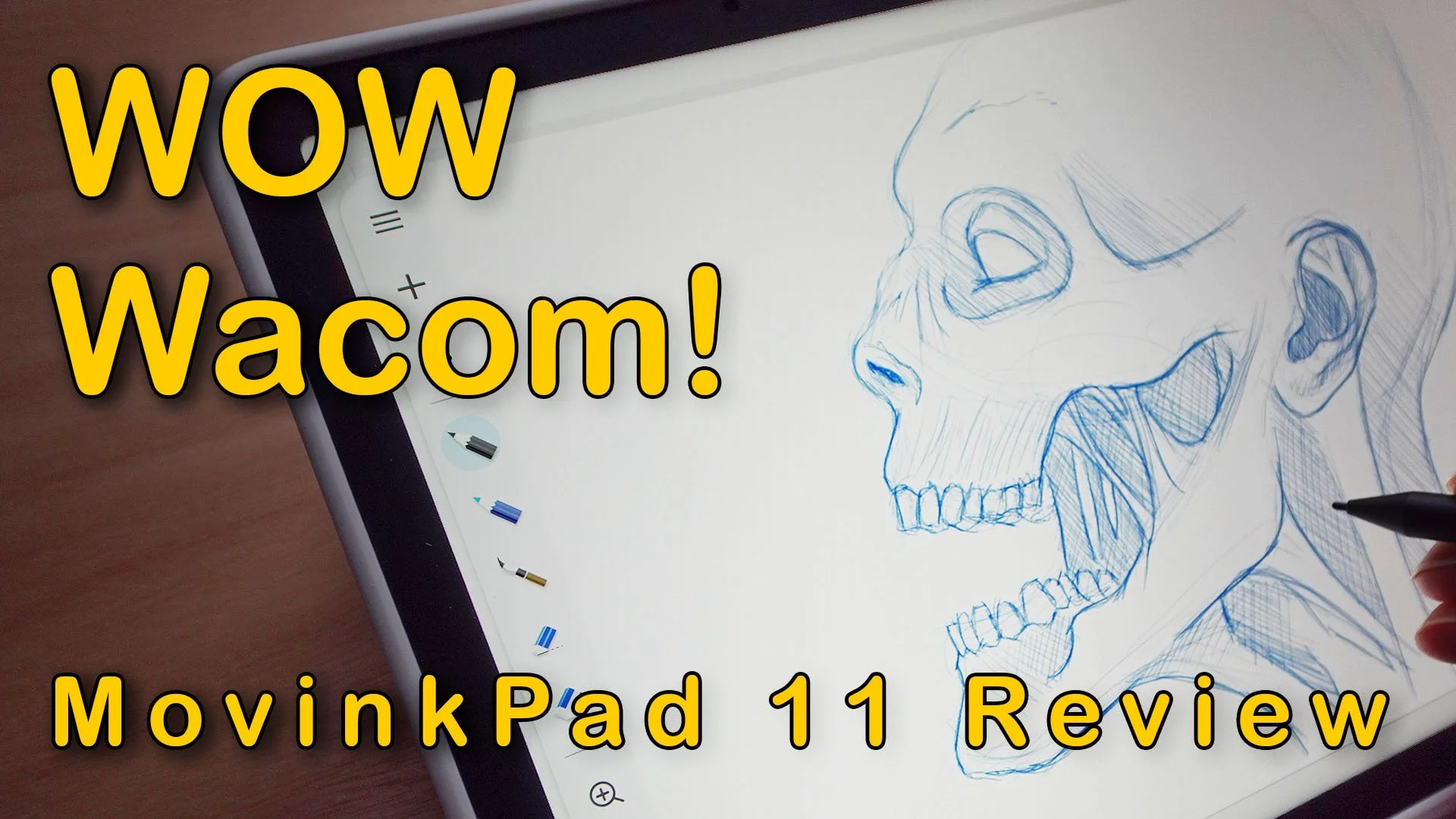
I was fortunate enough to get some hands on time with one, and in my review I mentioned that I felt it was an excellent device, if a little underpowered, something which may put more professional artists off investing in one.
With that said, it did end up taking over as my main sketching device, simply because it felt so much better to draw on than the iPad Pro.
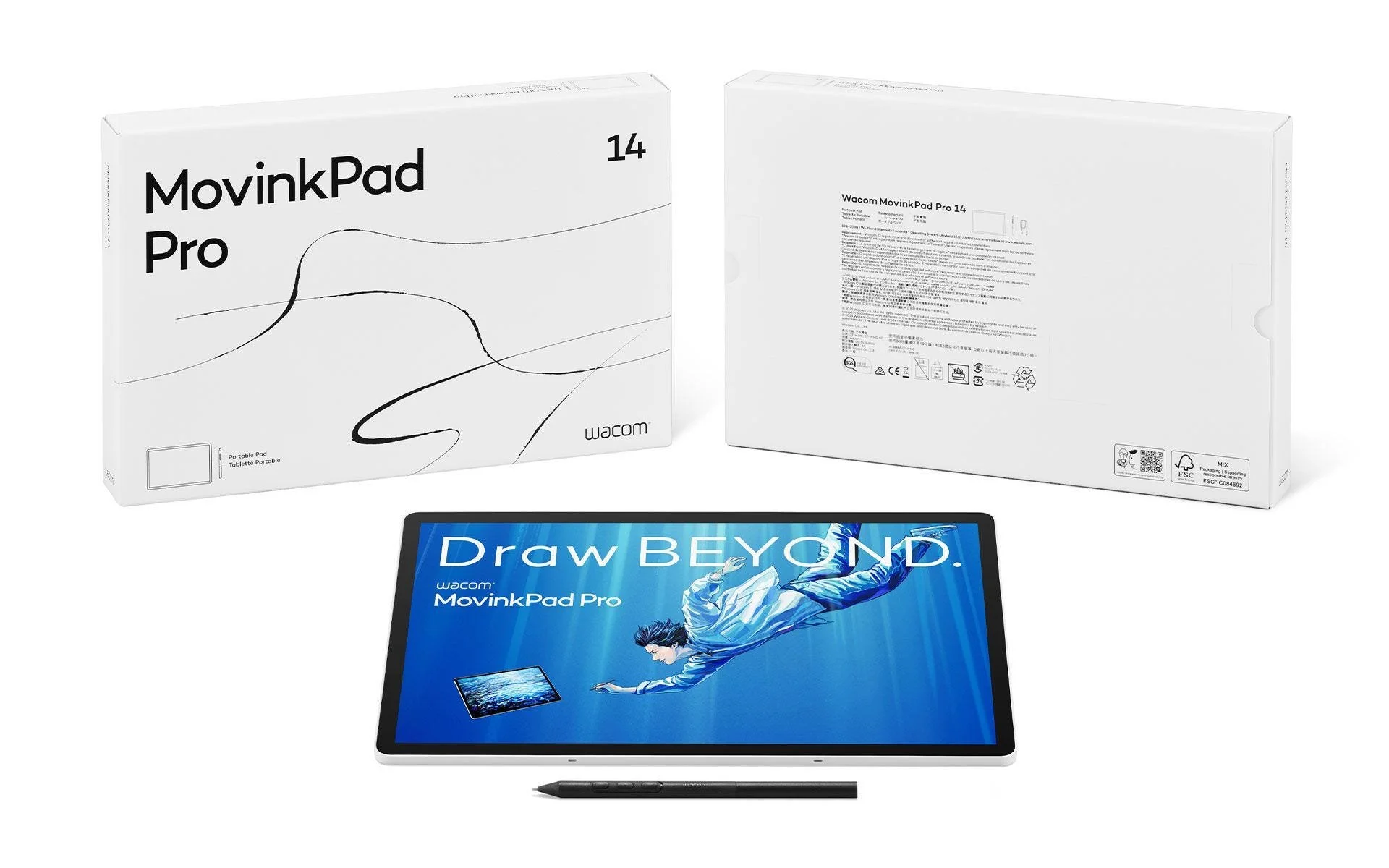
Thankfully it wasn’t long until Wacom released the MovinkPad Pro 14, which seemed like it gave me everything I felt was missing from the MovinkPad 11.
It was larger which would give me more space to work, more powerful so it could potentially handle more demanding apps and it had a 120 Hz OLED screen, so not only would everything look great but run buttery smooth too.
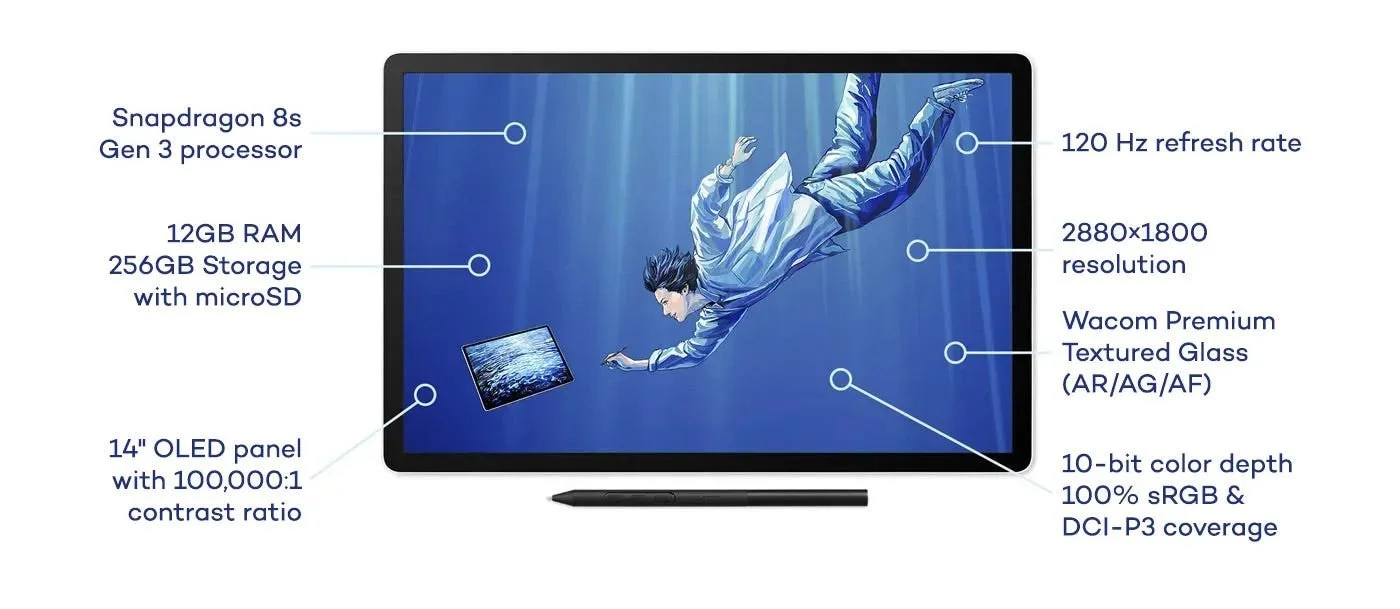
Now these are just a handful of the improvements, but now I've had some time to play with one, did it live up to my expectations? And how does it compare to the MovinkPad 11?
Well, continue reading to find out…
Although Wacom supplied the MovinkPad Pro 14 for me to test, the opinions offered in this review are completely my own and remember, that clicking the links in this review helps to support future content.
Unboxing
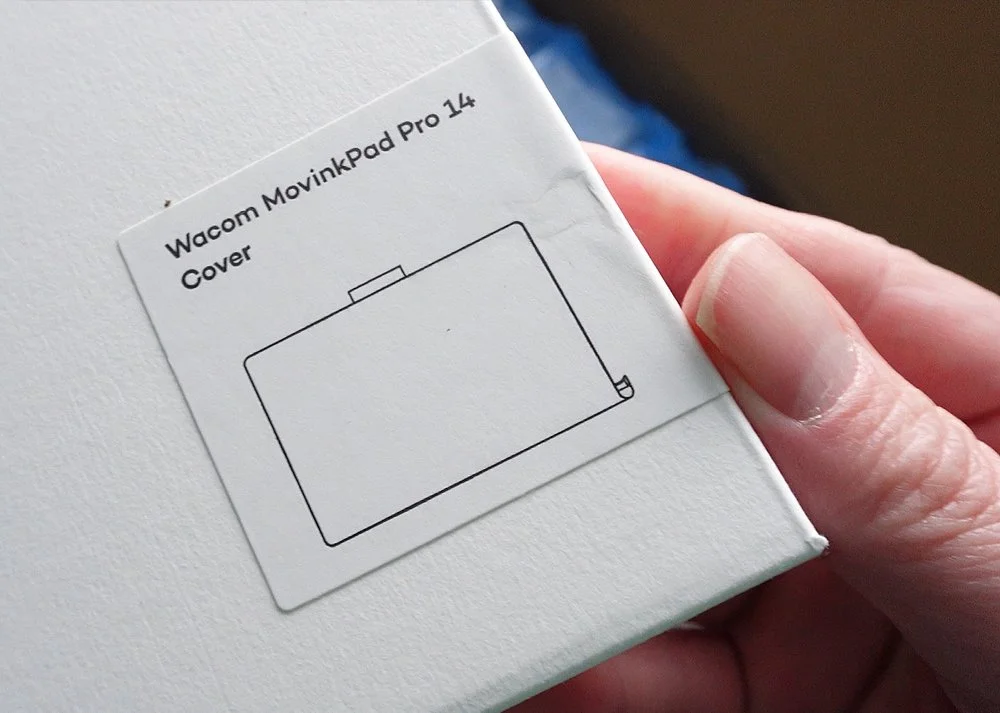
First we have a new cover, which was developed exclusively for the MovinkPad Pro 14 which i’d say is something thats essential for a device of this size and price point.
We will take a look at that later.
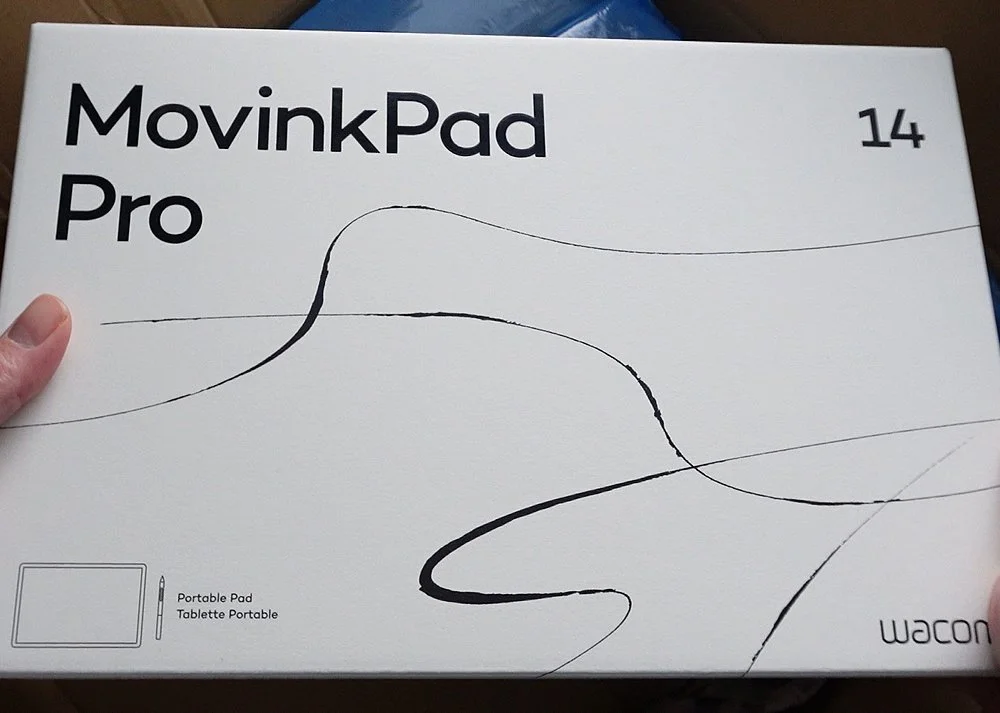
The box for the MovinkPad Pro 14 has a familiar but distinctly different feel to the MovinkPad 11. It has the same paper look and feel but instead of the focus being on sketching, this time we see more ink strokes across the surface.
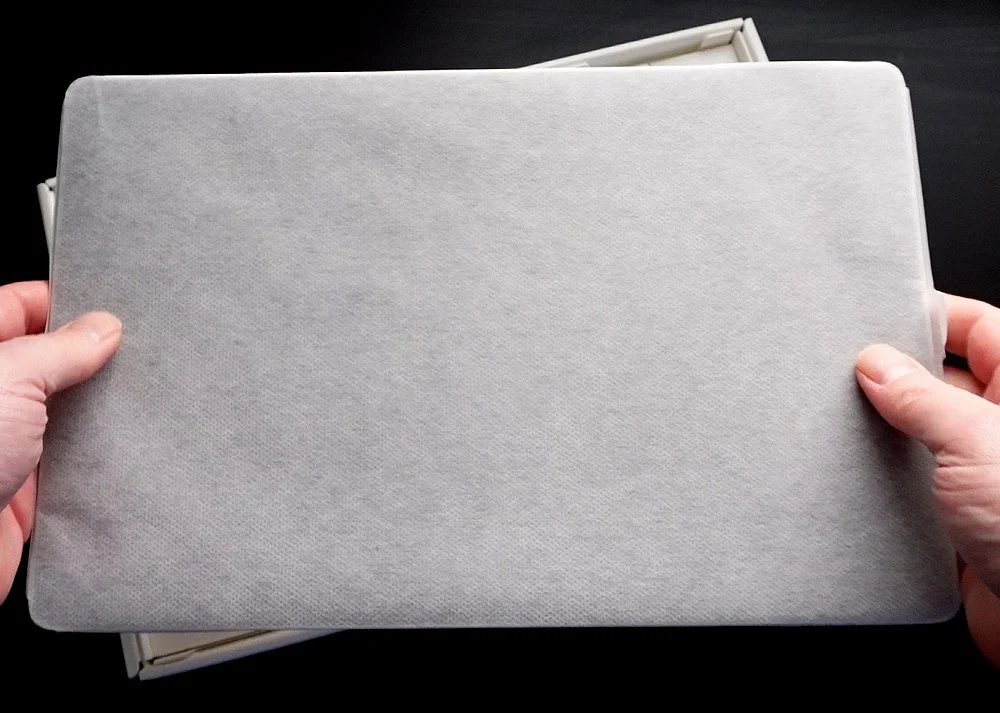
The layout inside the box is the same as the 11, with the device sitting on top in its protective cover.
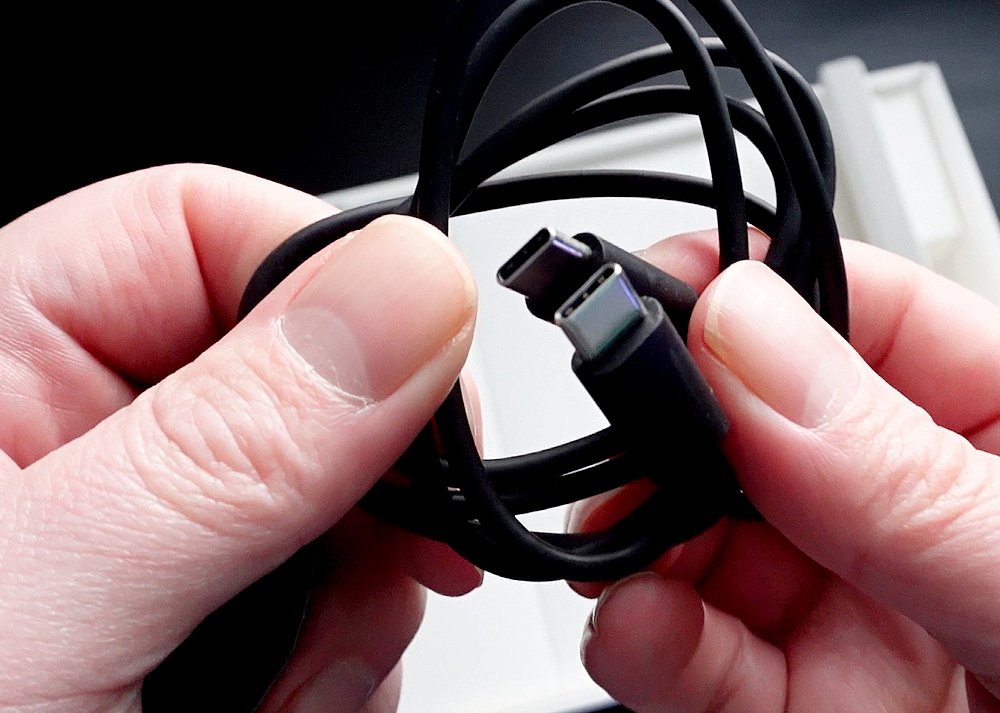
Beneath this we have two main compartments and on the right we find a USB-C to USB-C charging cable, but no adapter.
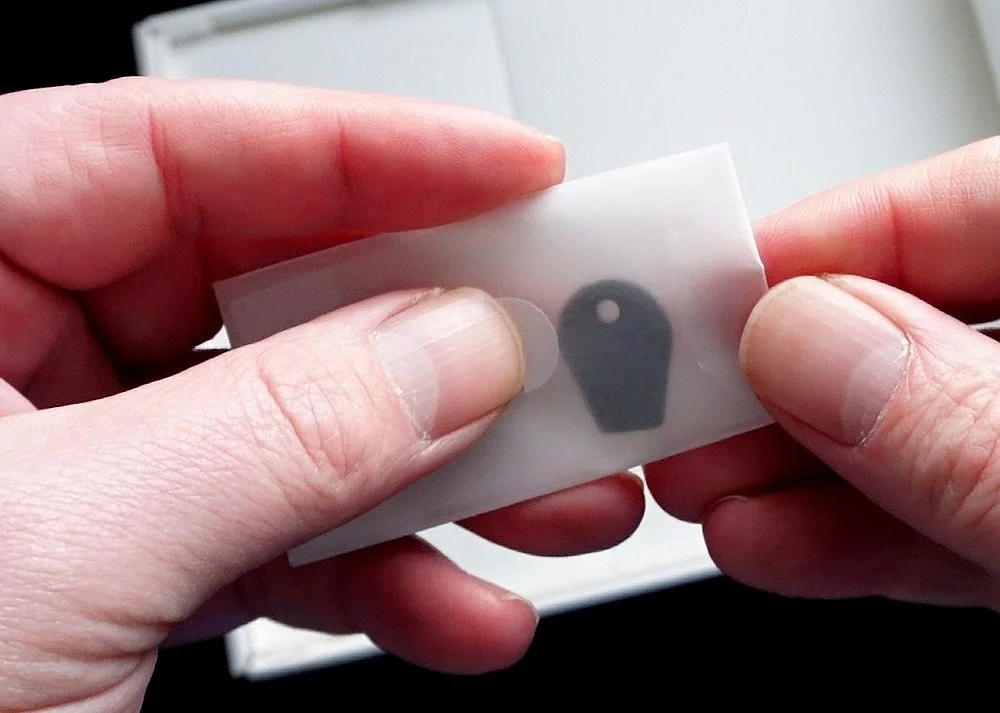
We also have the SD card tool which is used to help you remove a microSD card. Yes, you can expand this MovinkPad’s storage if needed, something you couldn’t so with the 11.
Across from these are a series of documents, plus the all important Pro Pen 3.
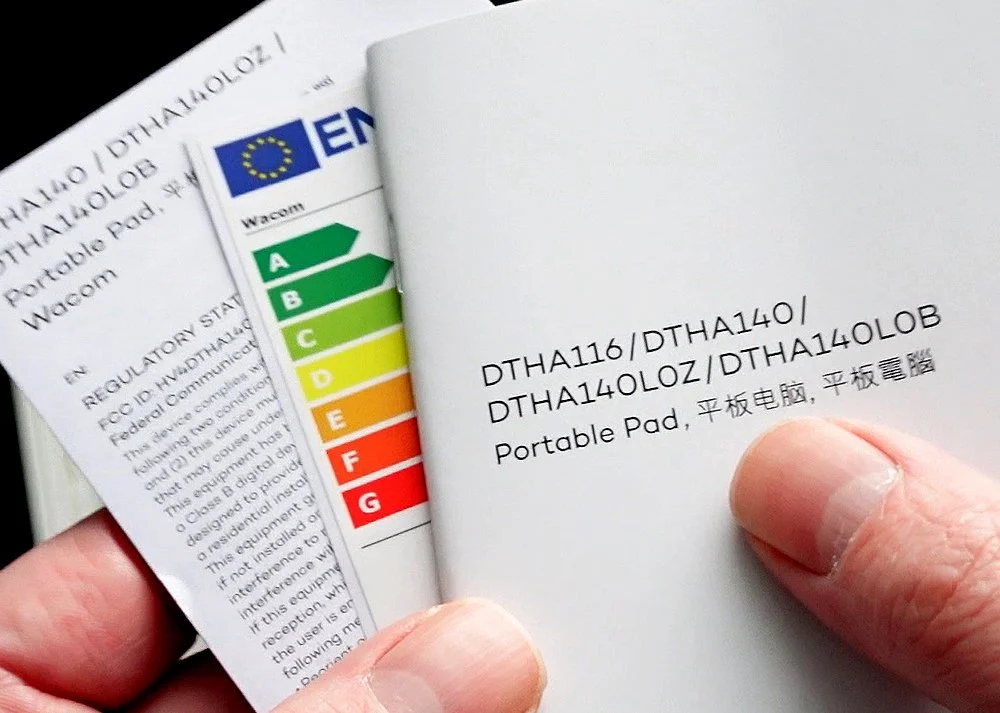
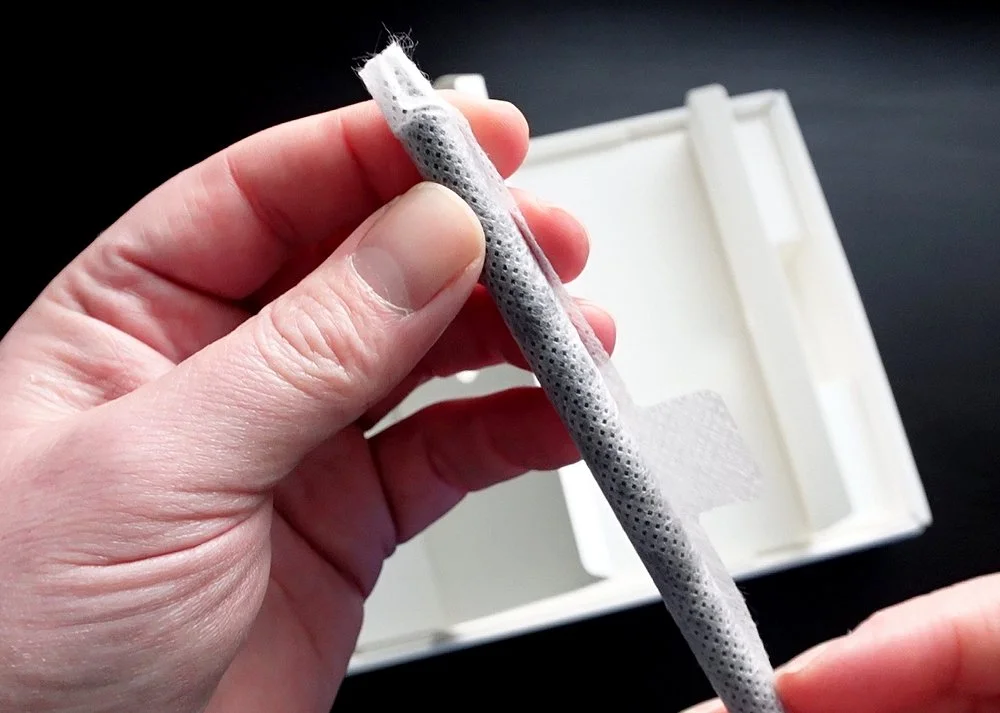
So not much in terms of contents, but what more do you need?
Thats everything out of the box so lets unwrap them and take a closer look.
The SD Card Tool
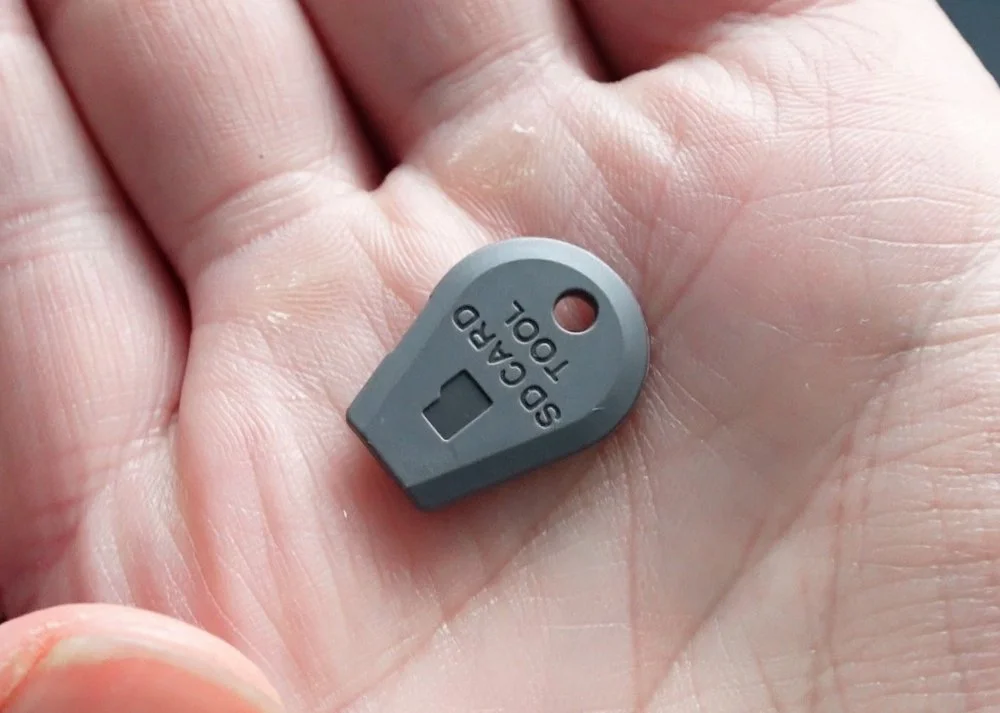
Unlike the MovinkPad 11, the Pro 14 storage can be upgraded from its standard 256GB using a microSD card, and Wacom have given us a small tool to help when removing it.
This isn’t essential because you can still eject the card using something else, like a finger nail or a coin, which is good because I feel the SD Card tool is so small it will eventually be lost.
I do love that this device can be upgraded though, especially if its aimed more at the professional user.
The Pro Pen 3
With the MovinkPad Pro 14 Wacom have supplied the same pen they give you with the MovinkPad 11, which is their new generation Pro Pen 3.
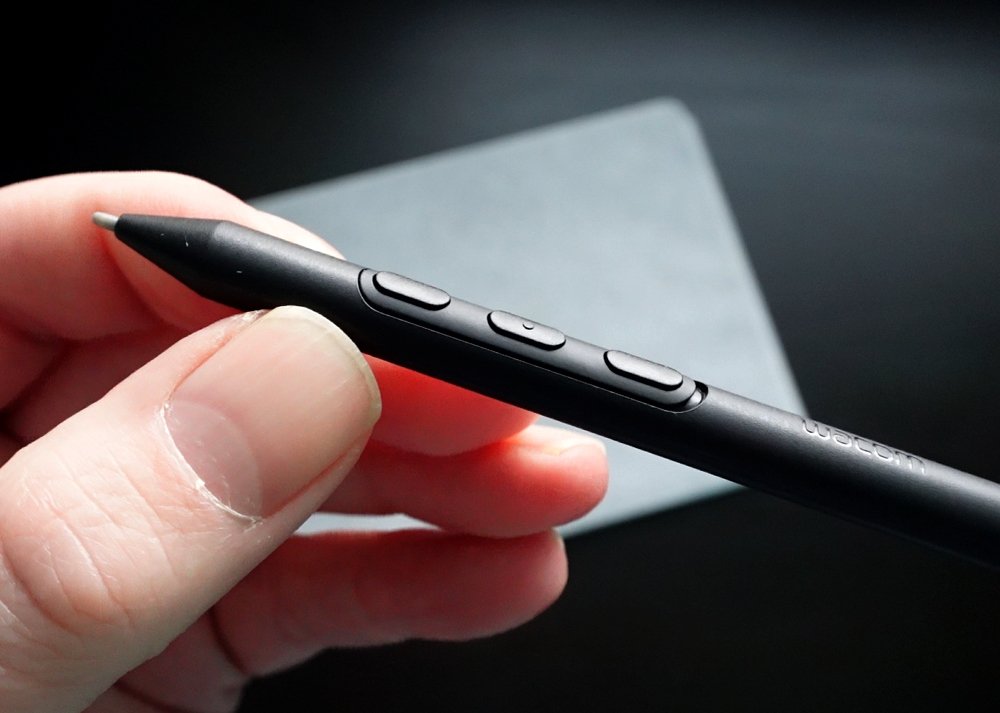
This may seem strange given that the 14 is a Pro device so why not offer an improved pen too? Well, the truth is that the Pro Pen 3 is a great stylus, so it seems a sensible choice, plus it helps to keep the overall costs down. Developing a new pen just for the Pro 14 would be a big investment which would drive up the costs of the base device for very little benefit.
The Pro Pen 3 is slim and light and features three configurable buttons on the main body.
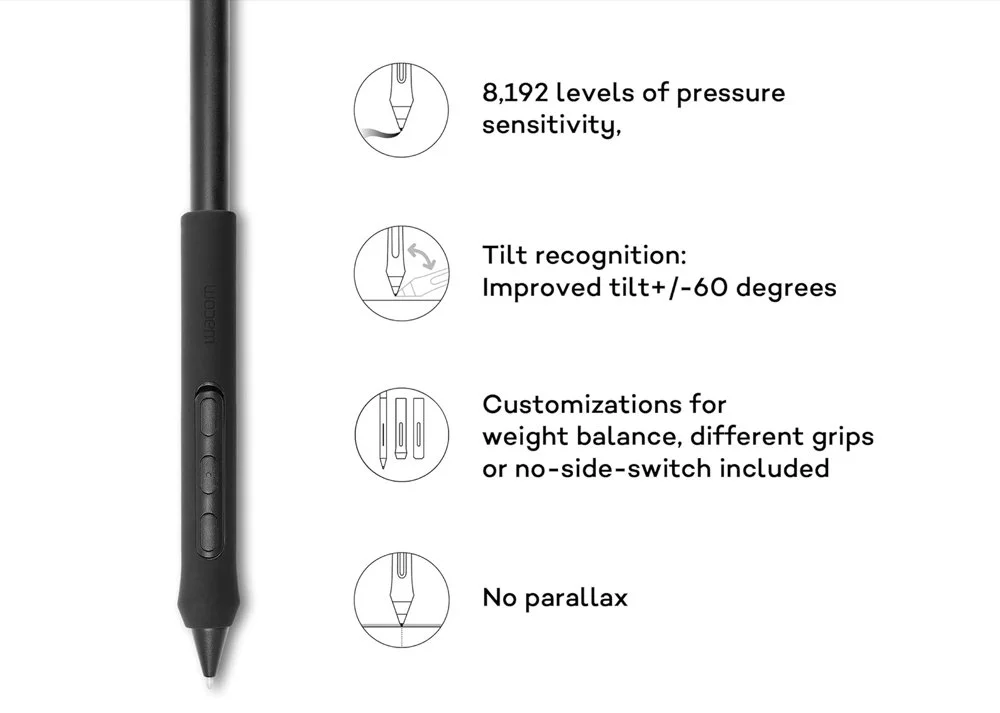
As standard, it offers over eight thousand levels of pressure sensitivity and sixty degrees of tilt recognition. Its also doesn’t need a battery or a bluetooth connection to use it.
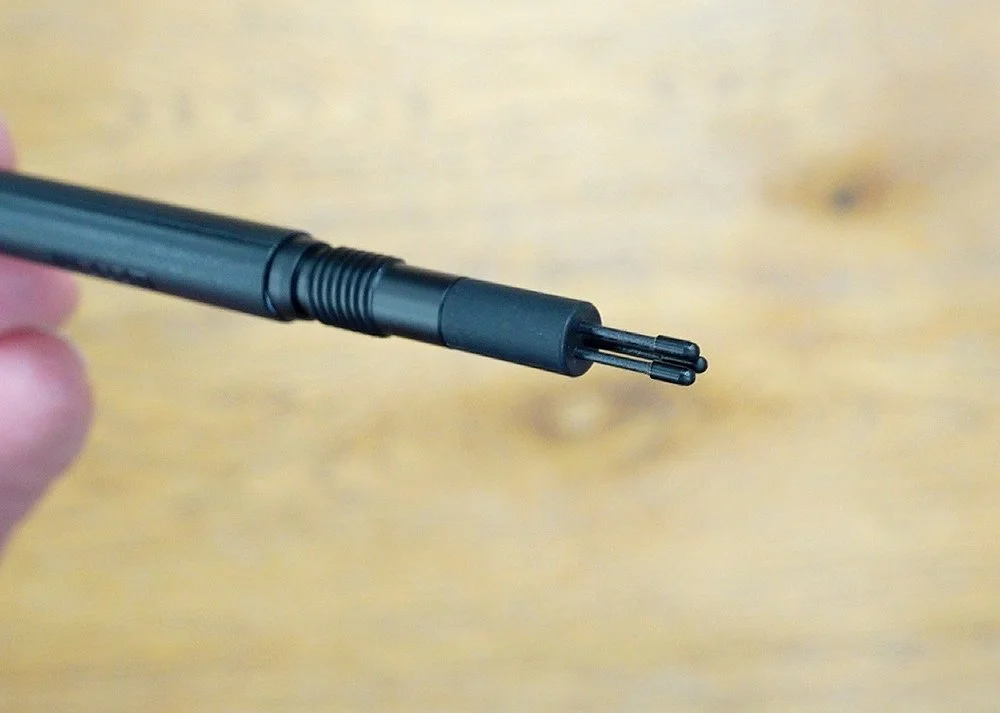
While unboxing we didn’t see any extra nibs for the pen but don’t worry, these can be found hidden in the shaft of the pen.
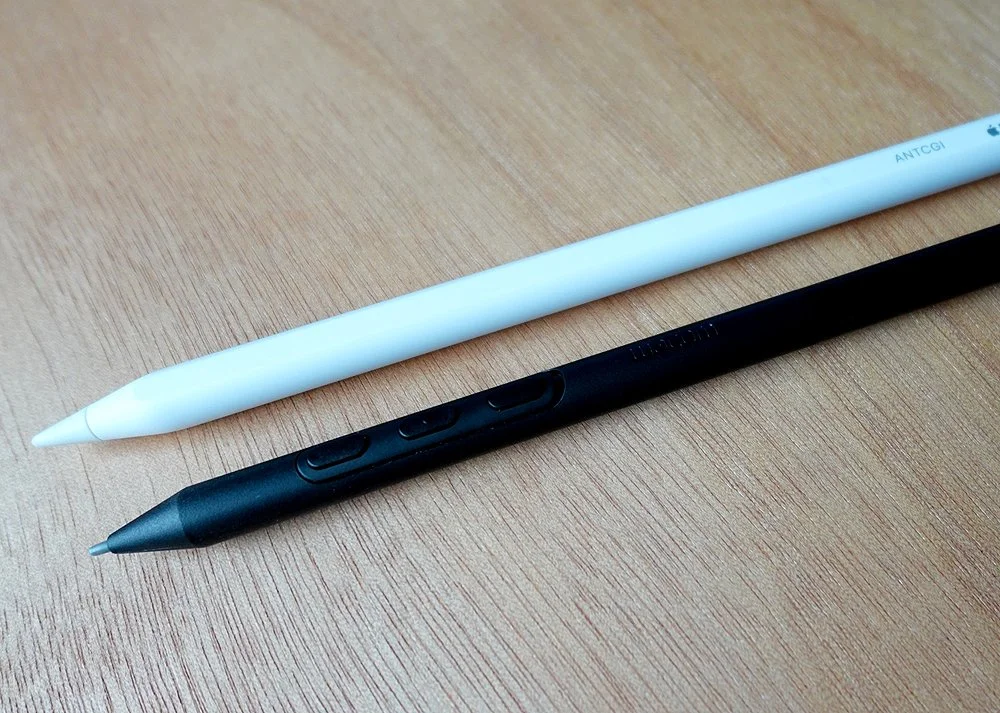
When held, it feels similar to a pencil. Thinner than the Apple Pencil but also lighter.
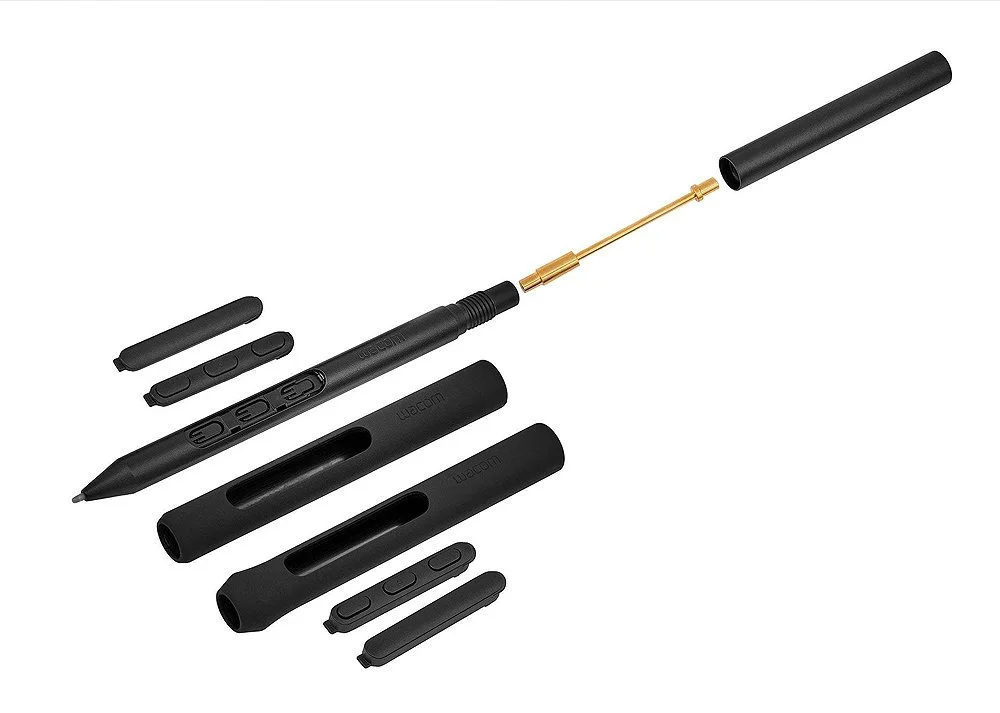
What puts the Pro Pen 3 above its competitors are its configuration options. So if you want a thicker grip for example you can buy additional components.
The straight grip for instance would set you back a further £20 though.

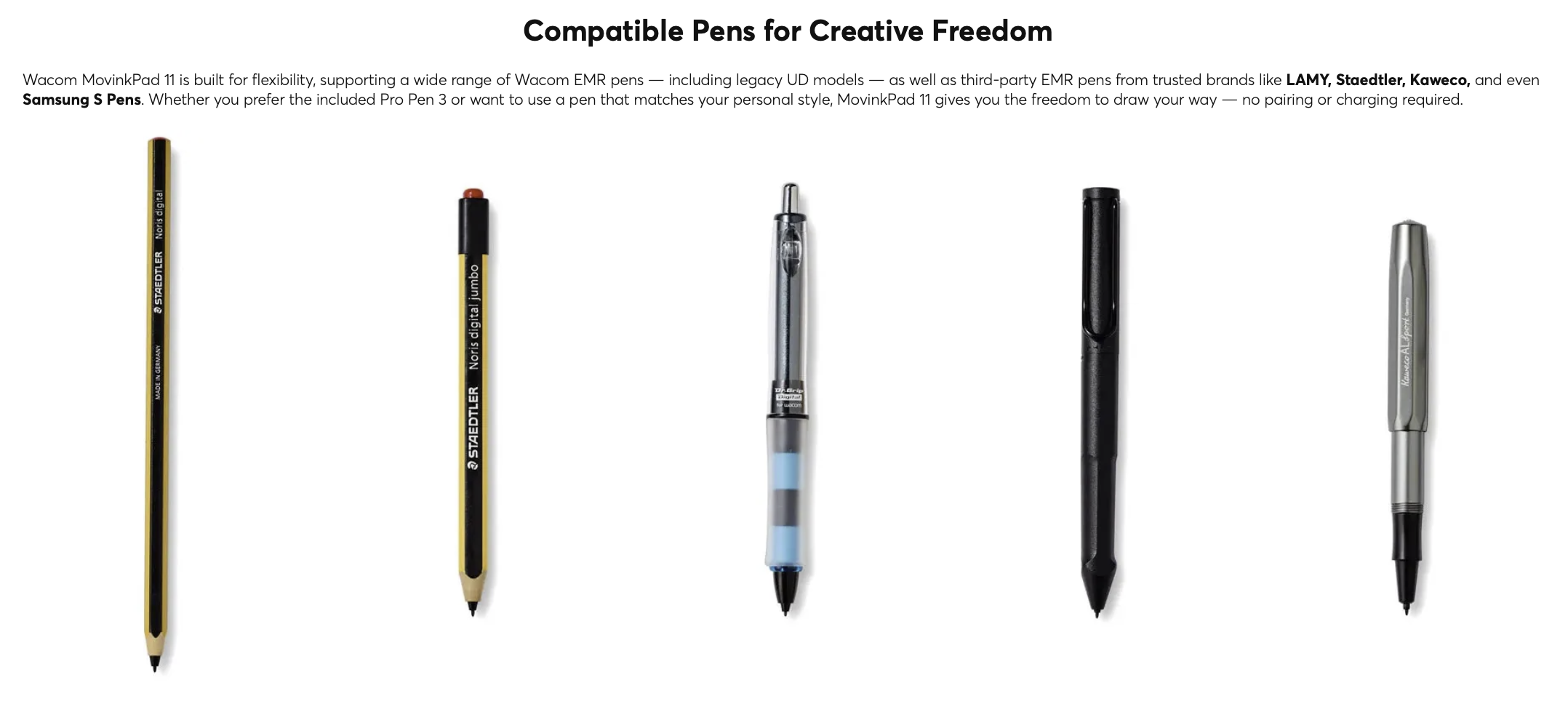
Interestingly, you are able to use some of Wacoms other pens on this device too, if you already own one and prefer using it, which is a nice feature. This is limited to a few pens though, so check the website for a list of compatible devices.
The Cover
Rather than being a full case which protects the whole of the MovinkPad Pro 14, like you can purchase for the 11, the Pro’s is simply a cover which folds over to protect the screen.
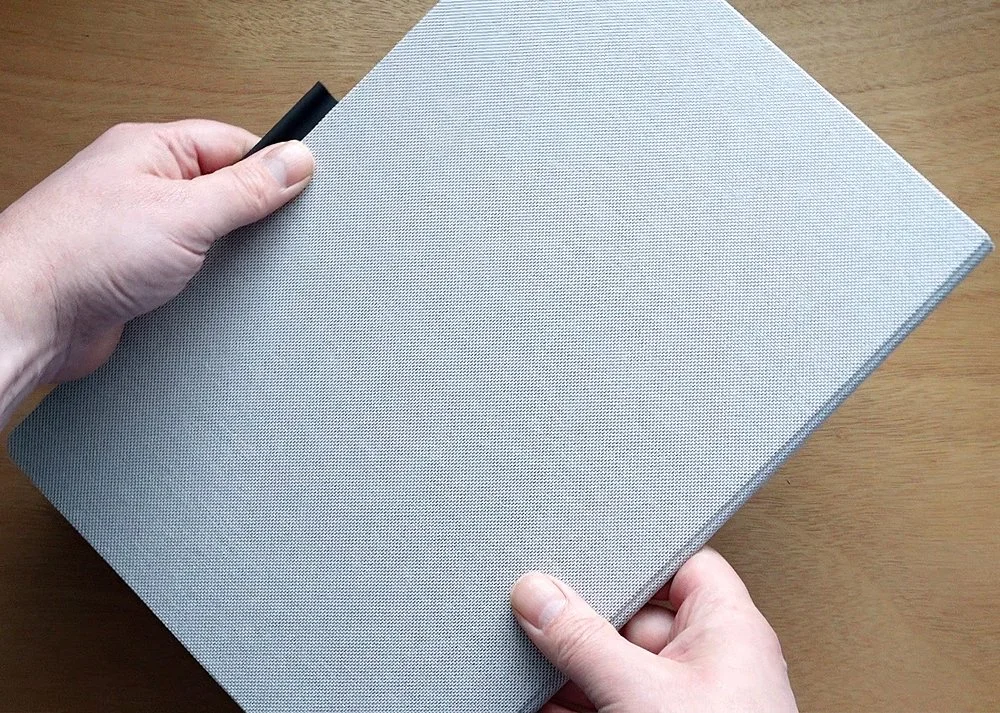
It has the same woven fabric texture but it feels very solid and what I love is that it connects to the MovinkPad Pro 14 using magnets, which are quite strong.
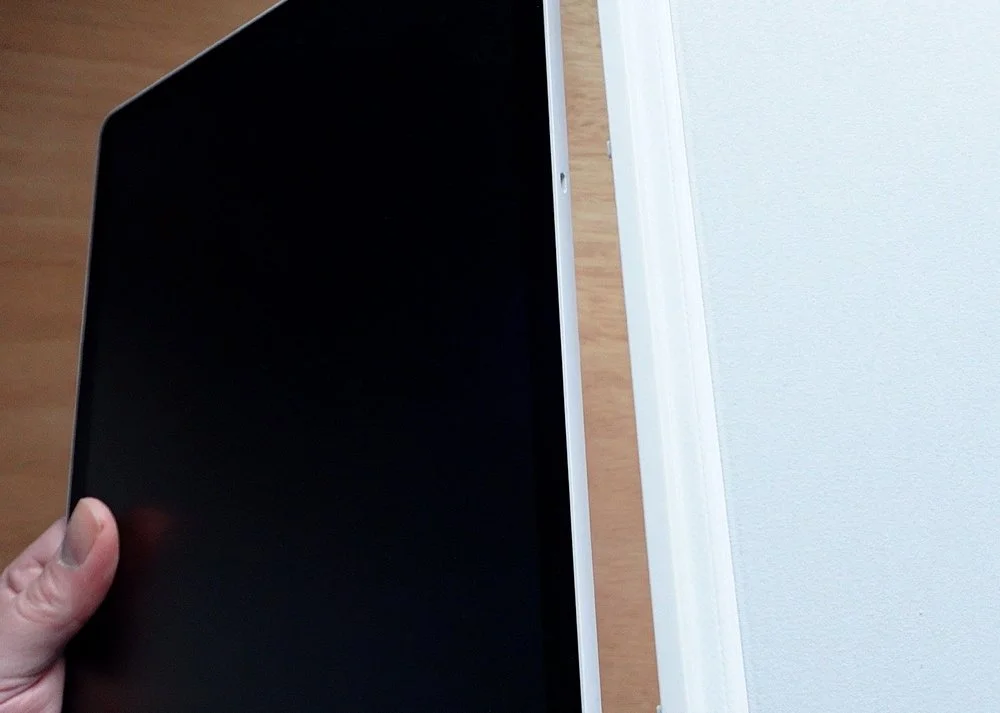
Its super easy and convenient to use, you just flip it around the back and you are ready to get to work.
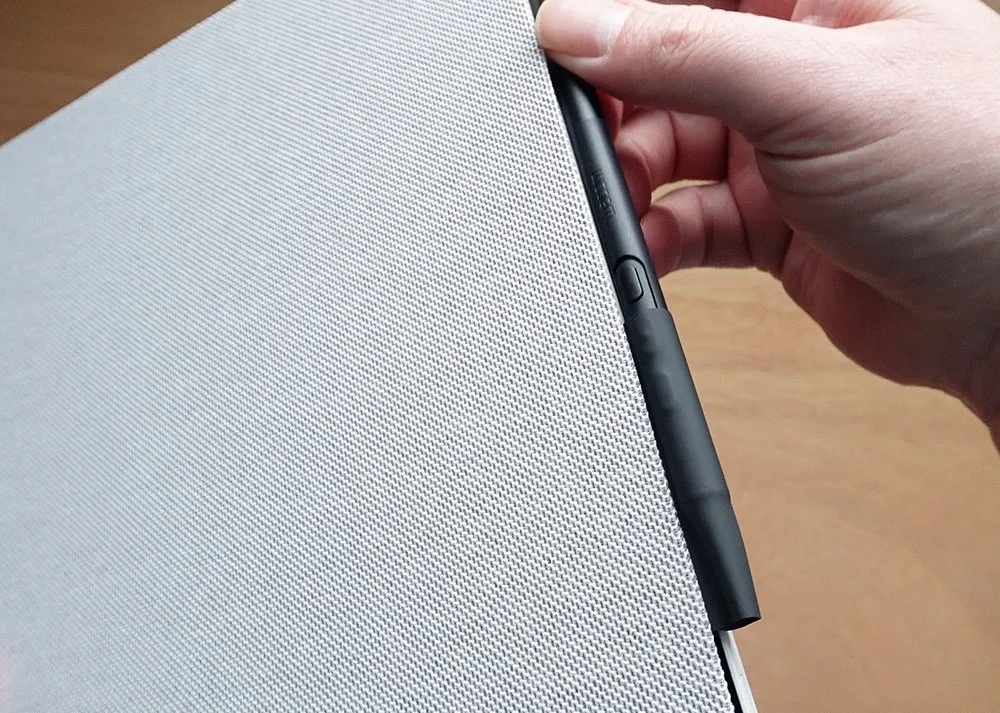
Whats more, there is a handy loop at the top where you can store the Pro Pen 3 to keep it safe and remove the risk of losing it.
The only issue with this cover is that its not a case, so the back of the Pro 14 is left bare and open to damage if dropped or even banged.
The MovinkPad Pro 14
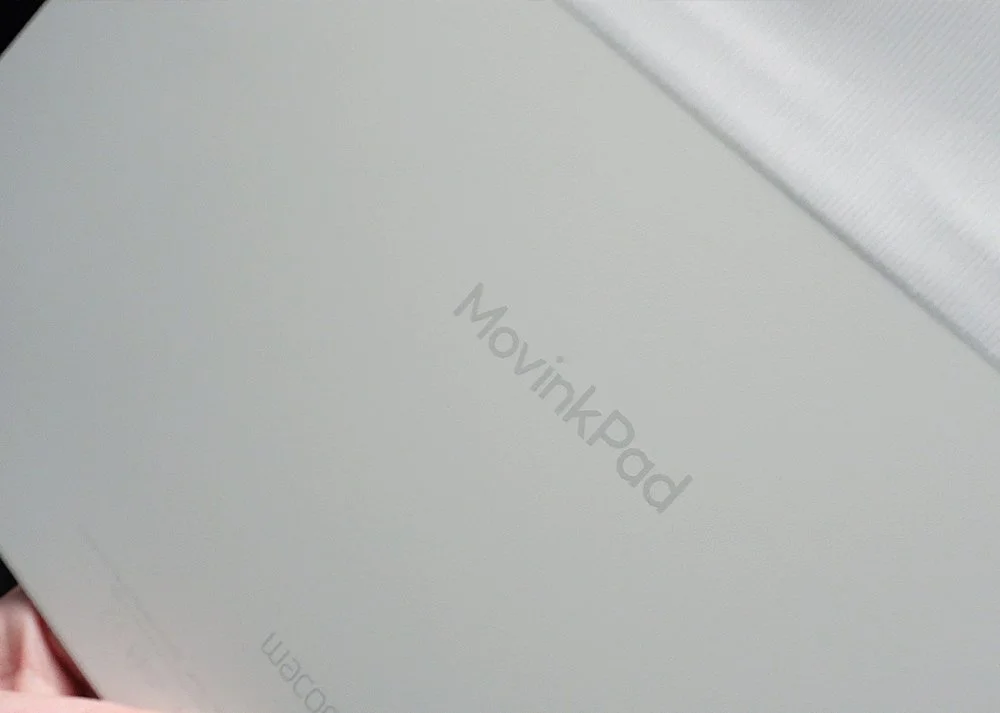
The first thing that stands out is the size. Its roughly 33cm wide by 21cm high and only 5.9mm thick, so very different to the 11. It weighs just 699 grams, so roughly 100 grams more than the 11 yet it doesn’t feel heavy. You could quite easily sit and hold it for a painting or sketching session and it not feel uncomfortable.
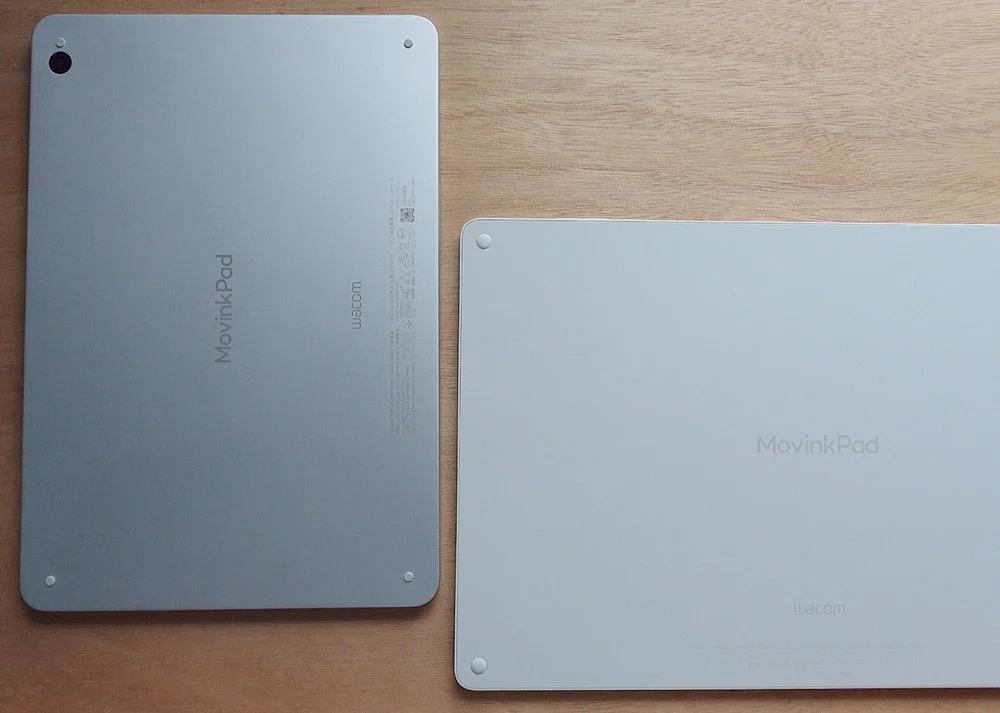
On first inspection it looks very similar to the 11, although that has more of a brushed metallic look to the back and sides, whereas the Pro 14 has more of a plastic feel to it. I would’ve thought Wacom would add the more metallic looking material to the premium model, but then again, the plastic may be more durable and lighter.
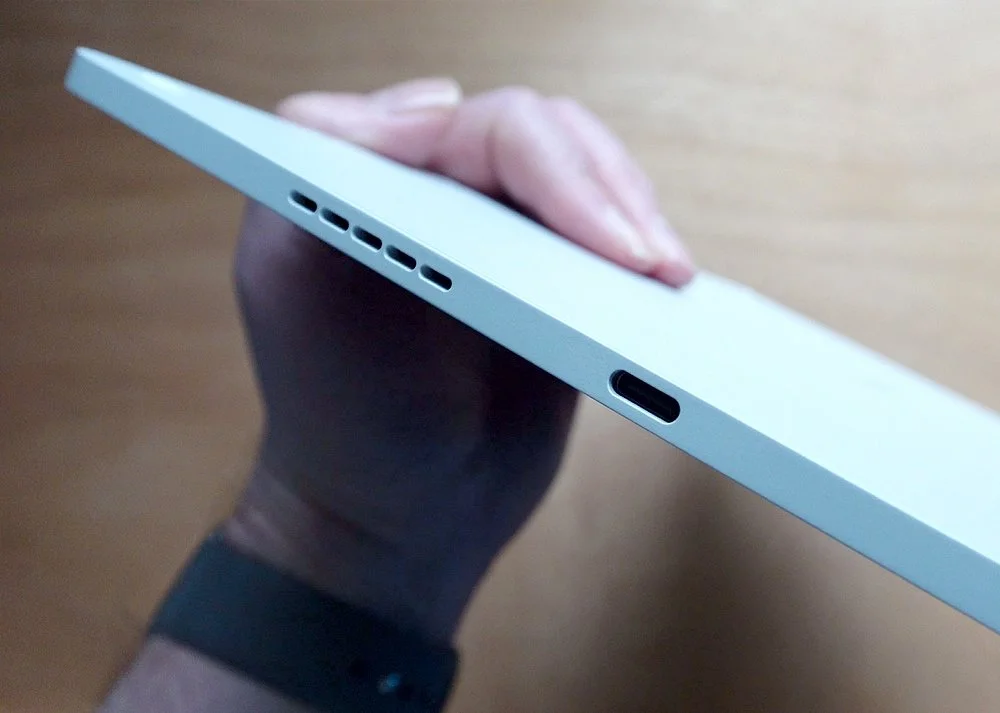
On either side you have the speaker vents, plus a single USB-C port.
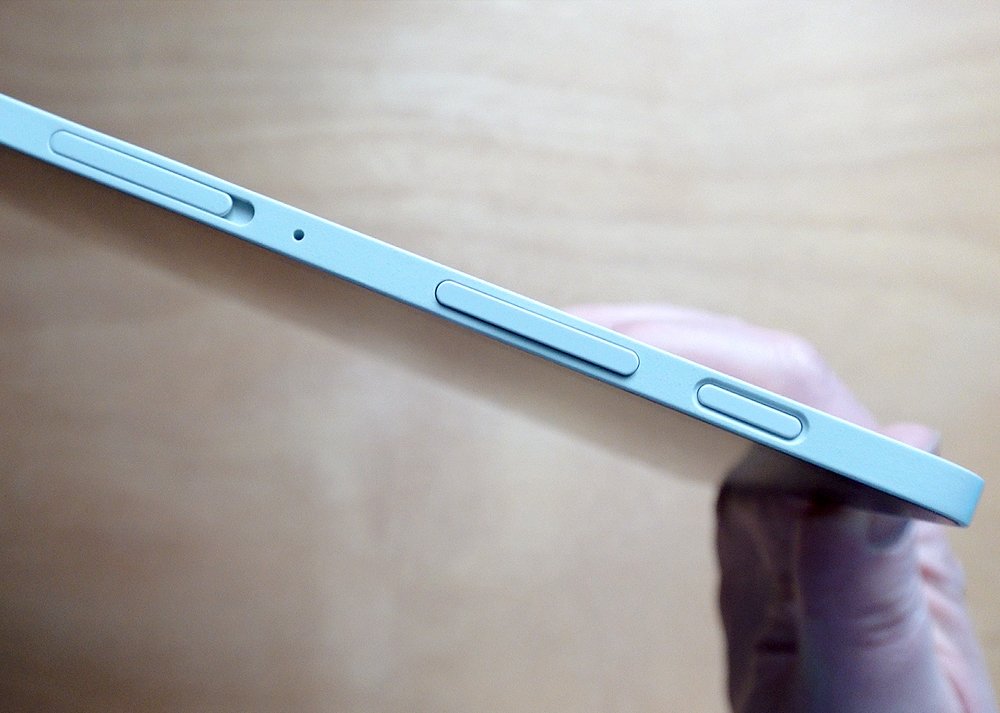
Across the top are the power button, volume rocker switch and the microSD card slot.
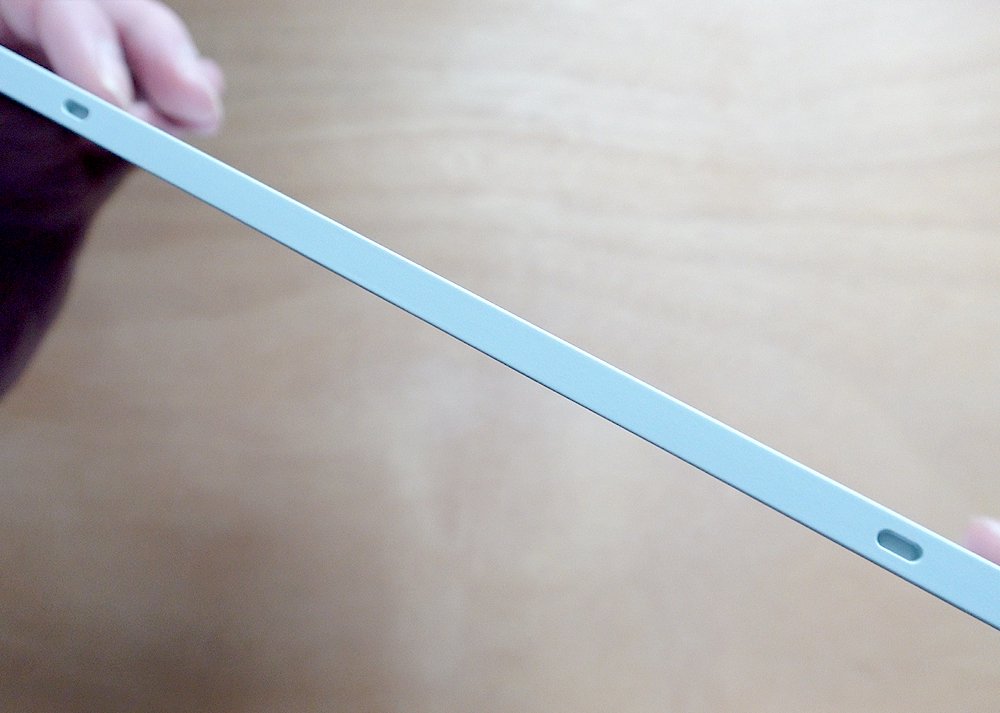
You can see on the bottom the two holes where the cover slots into, and as mentioned, is secured with magnets which are quite strong.
Whats interesting is the lack of any cameras on this device, something you do get with the 11, but to be honest, it’s not something I would use.
As you move it around you can see the premium textured glass, which helps to remove reflections but also gives you more texture as the pen moves across it.
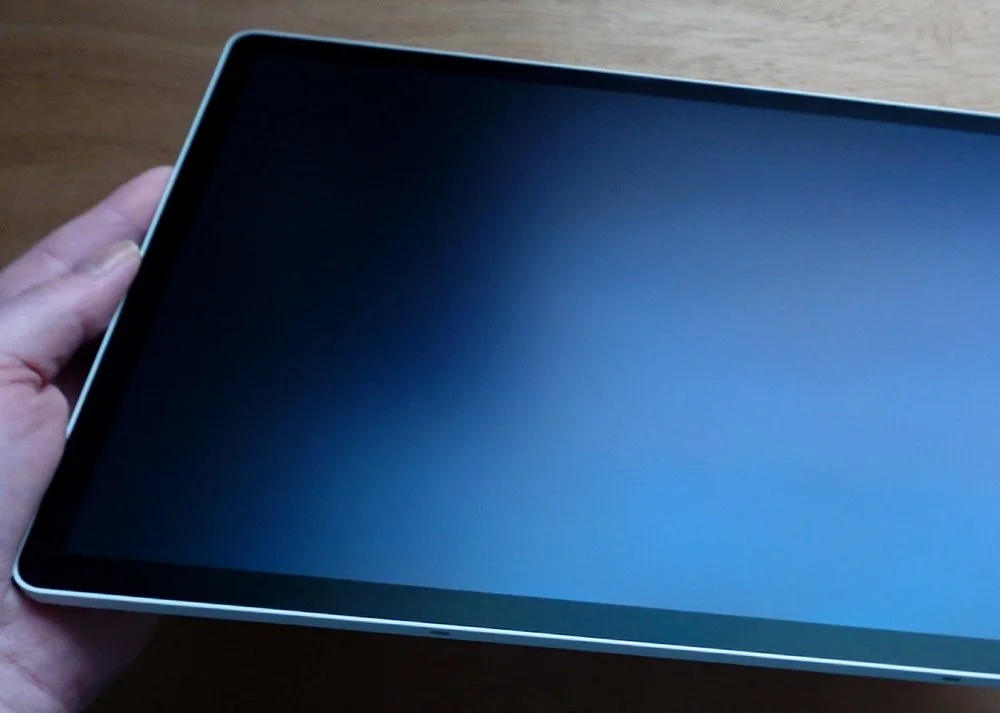
All in all this is a solid device and the build quality feels excellent.
Setup
When everything is out of the box its time to get the MovinkPad Pro 14 setup which is a very simple process.
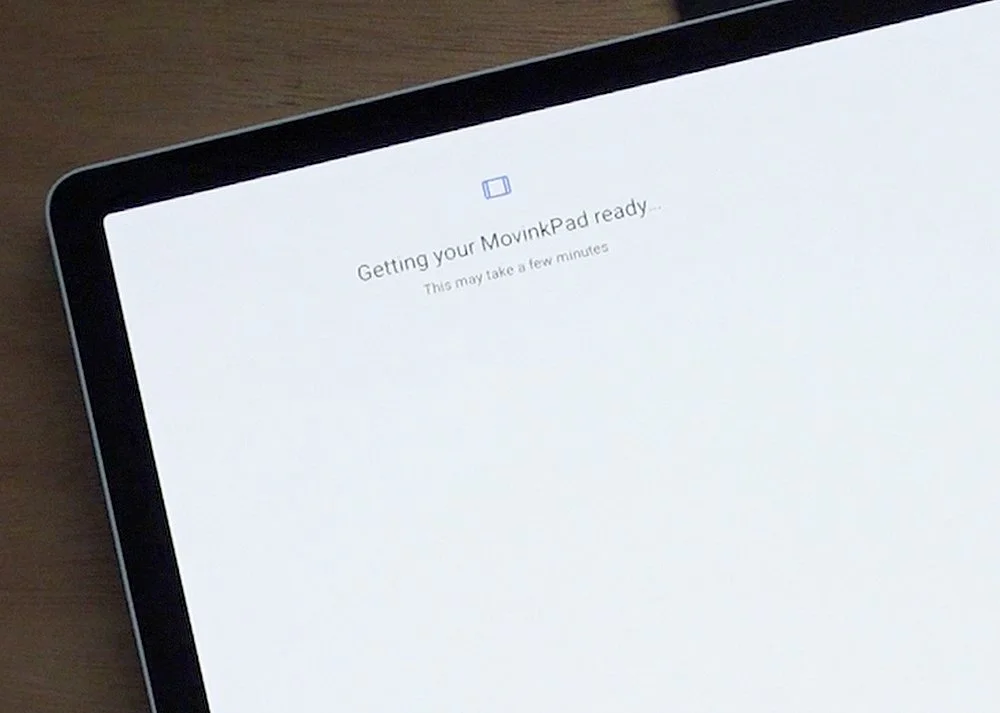
All you do is power on the device and follow the on screen instructions.
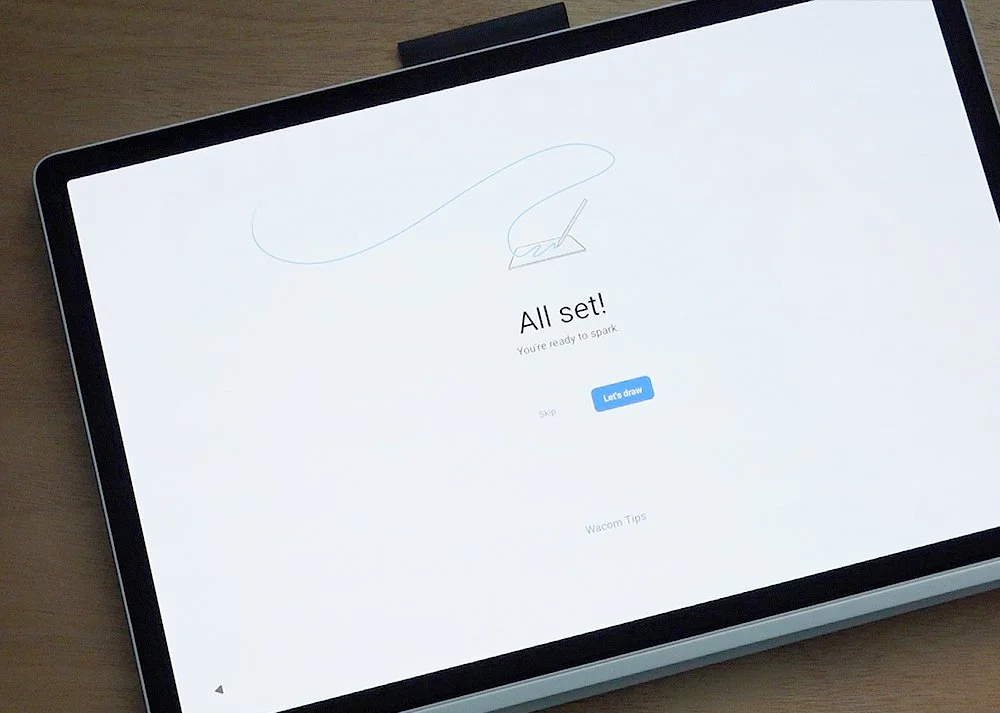
As this is an Android device, running Android 15, you can connect it to your Google account if you have one, just like with any Android phone or tablet, and can restore from a backup.
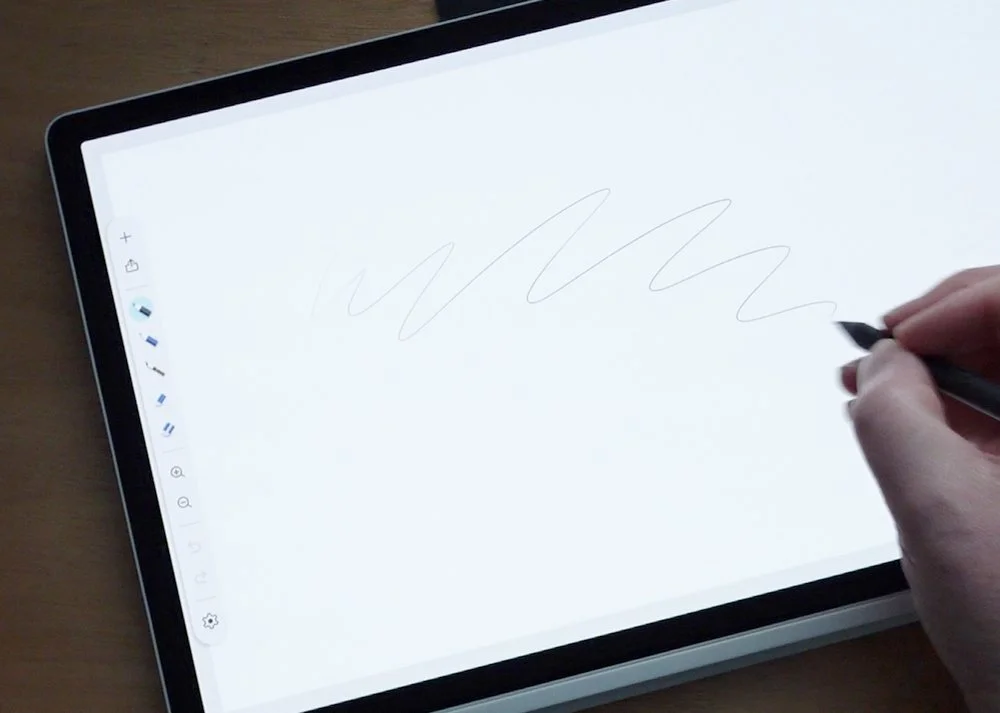
Once setup is complete you are given the option to dive right into Wacom Canvas, Wacoms new sketching app, and start doodling and I couldn’t resist having a quick scribble.
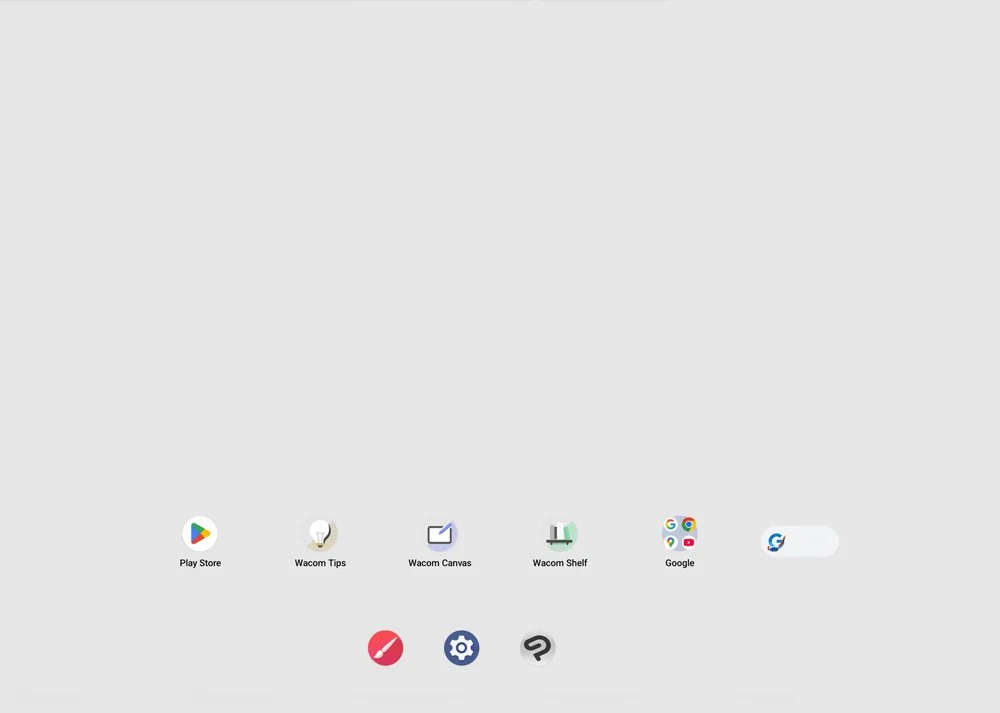
As you can see the main home screen is very minimalistic, with the plain grey background continuing the sketchbook theme.
Don’t worry though, you are free to download and use any other apps you find on the Google Play Store, so you aren’t just limited to Wacoms.
Android Art Apps
Since having the MovinkPad 11 I've actually found myself experimenting more with Android art apps.
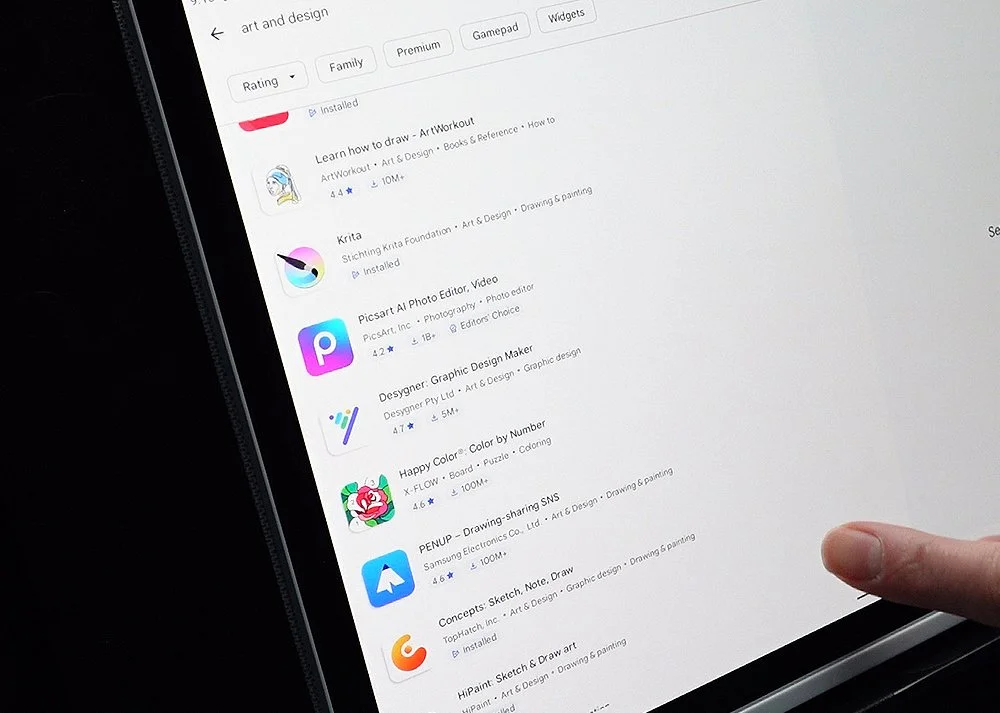
Unlike with iOS, there doesn’t seem to be a stand out painting app for Android, not so far anyway.
There are a lot of “free” apps available, and I say free in inverted commas because some initially come with adverts but do give you the option to remove them with either a one time purchase or more commonly, by signing up to a subscription.
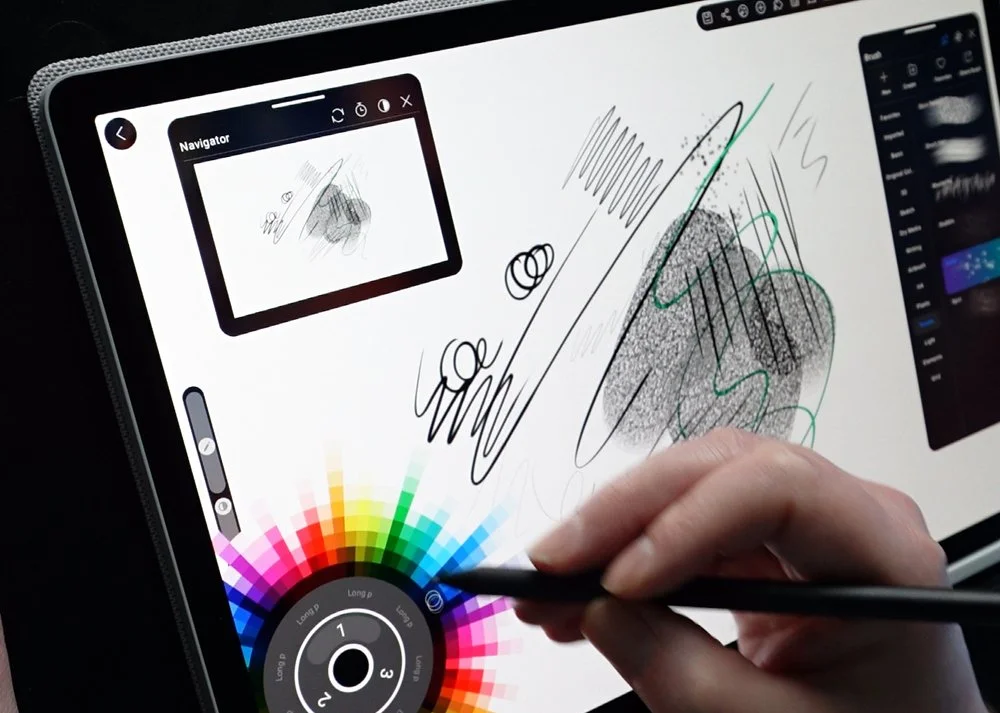
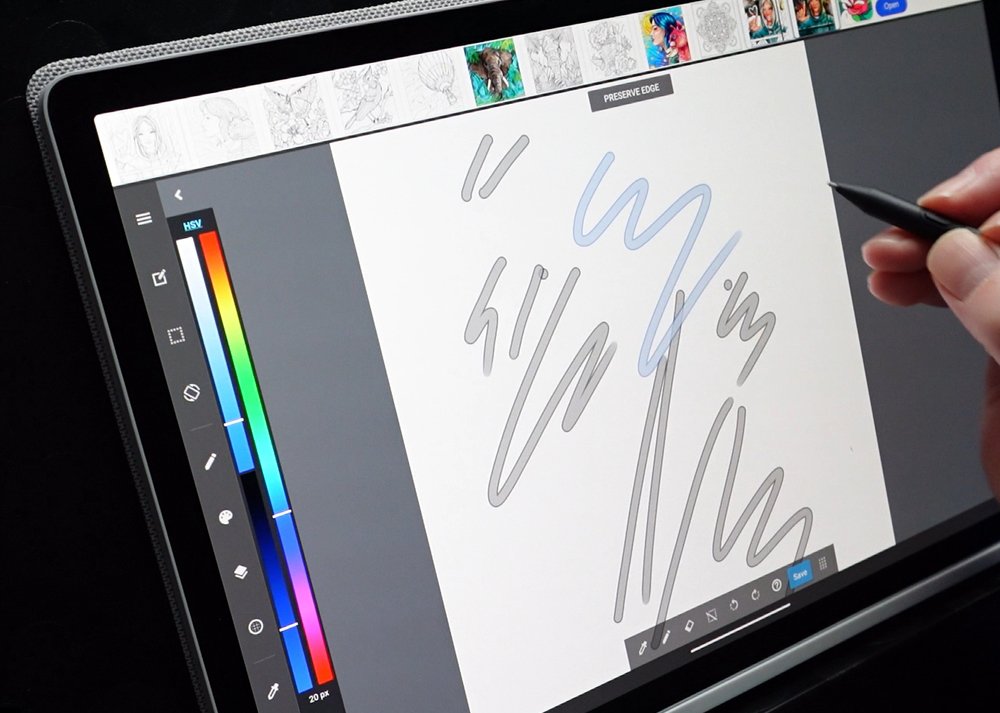
Hi-Paint and Medibang are two such apps, but after using them I couldn’t recommend them for use with this device.
Although the pen strokes felt smooth and fluid, they lacked some fundamental features, like tilt support or even pressure sensitivity, plus felt clunky to use.
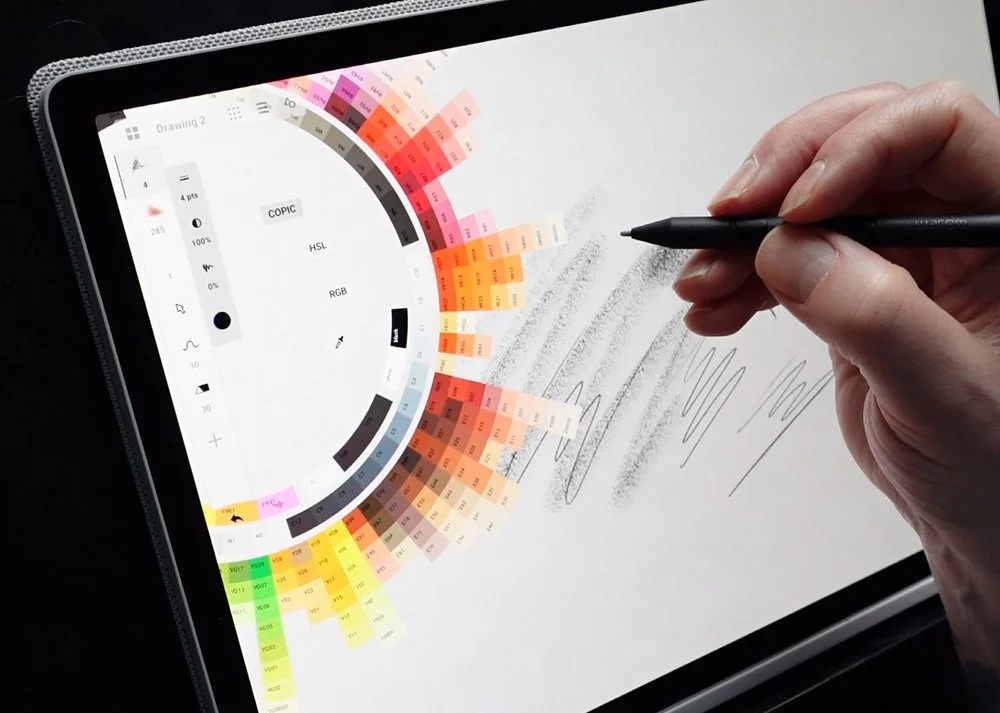
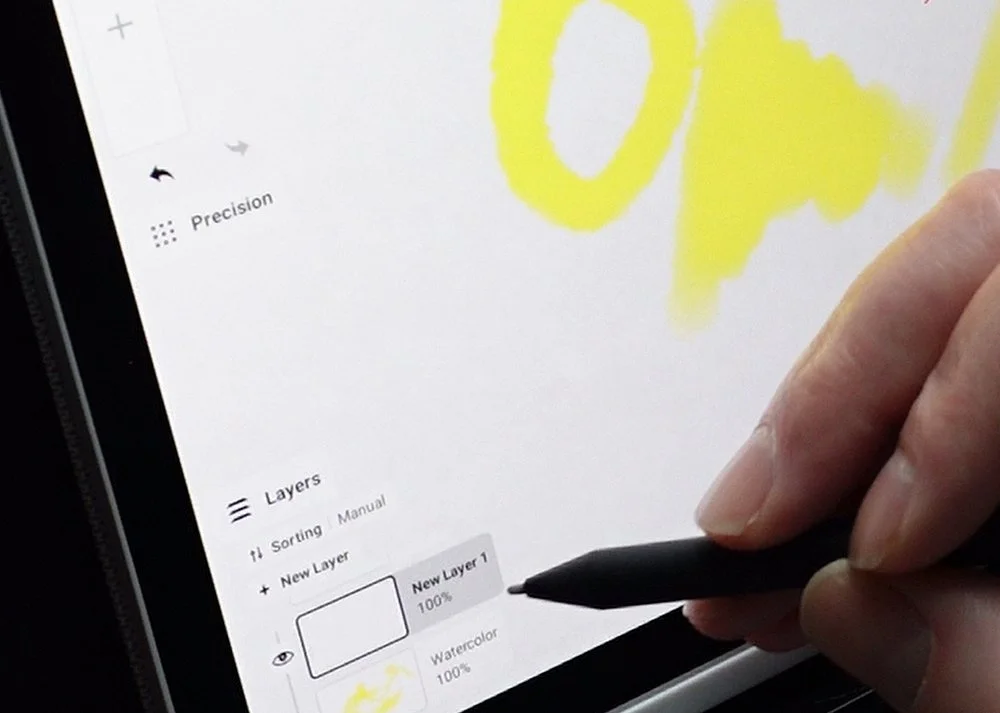
Concepts is an app thats new to me, but I do like its infinite canvas. Its also nice to use but some of the UI elements, like the layers, do feel cramped. It also lacks some basic features like adding a reference image. This doesn’t rely on adverts either and there is a limited free version, but you do get the option to buy it with a one time purchase of £28.49 or subscribe for £26.99 a year, which gives you more brushes and assets to use.
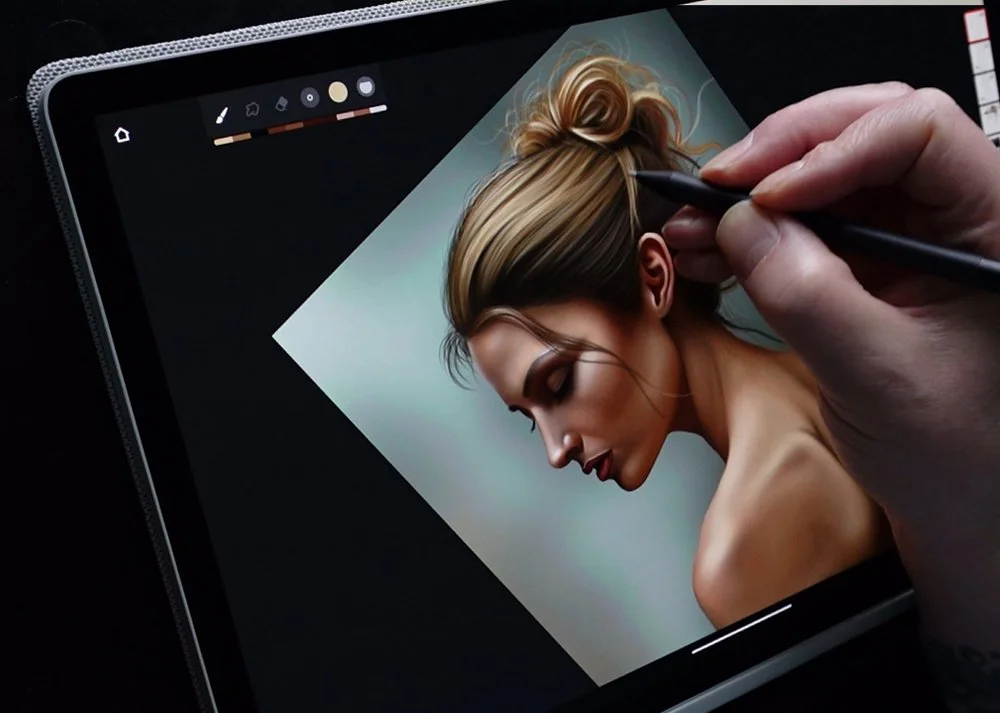
Infinite Painter has to be my favourite Android app so far, and is also available on iOS. Rather than rely on adverts and subscriptions you are offered a free version with limited tools with the option to upgrade to the full version for just £7.99, a one off fee, which I love. Thats cheaper than a pint of beer in London!
Its also very similar to Procreate, maybe not as slick, but a very good option for the MovinkPad Pro 14.
If finding your art app seems daunting don’t worry, to get you started Wacom have partnered with the creators of Clip Studio Paint to offer you a free, two year licence which gives you access to Clip Studio Paint Debut, but you will need to subscribe after that if you want to keep using all the features.
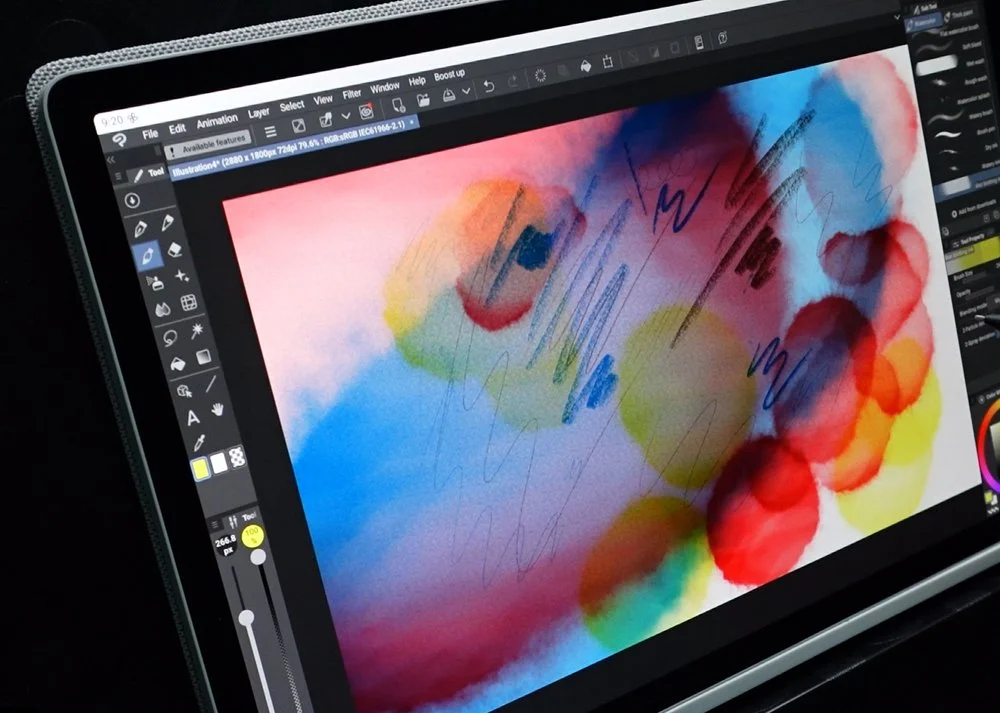
Now I do have my issues with Clip Studio Paint on Android. Even on the Pro 14 it did lag slightly and didn’t perform well with larger brushes. Plus it takes a while to load and the main UI is cluttered.
Thankfully you can use Simple Mode to help with this.
So overall most apps did work well on the MovinkPad Pro 14. The only major issue I found was with how Android devices handle palm rejection. It seems you can’t use touch controls when the pen was close to the screen plus on occasion dragging on the screen wouldn’t register at all, but I have to stress, these issues seem to be more an Android problem than a Movink one as I've had similar issues happen on other Android devices.
A potential fix for this has been released, check the details at the end of the review for more information.
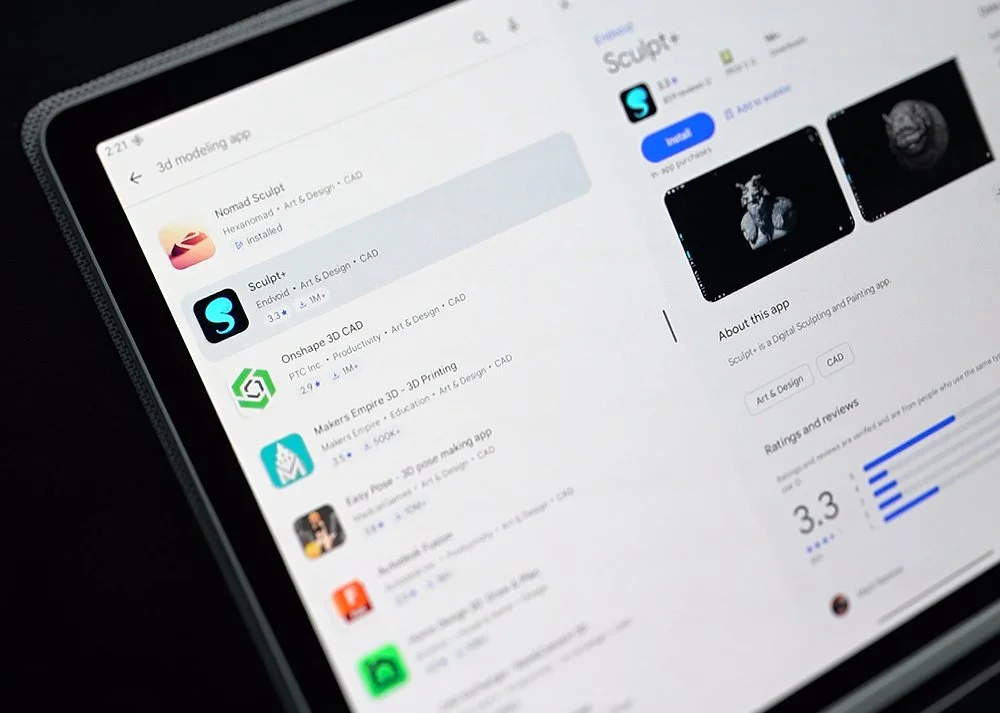
Of course, this being an Android device doesn’t mean we are limited to just painting apps, there are plenty of 3D modelling and animations apps too.
Unfortunately though, on the 3D side, there isn’t much on offer and what there is seems very basic and not up to a professional level, that is apart from Nomad Sculpt, but more on that later.
Wacom Canvas, Shelf & Tips

As well as continuing to expand the MovinkPad family, Wacom have also invested in their own suite of apps, Wacom Canvas, Wacom Shelf and Wacom Tips.
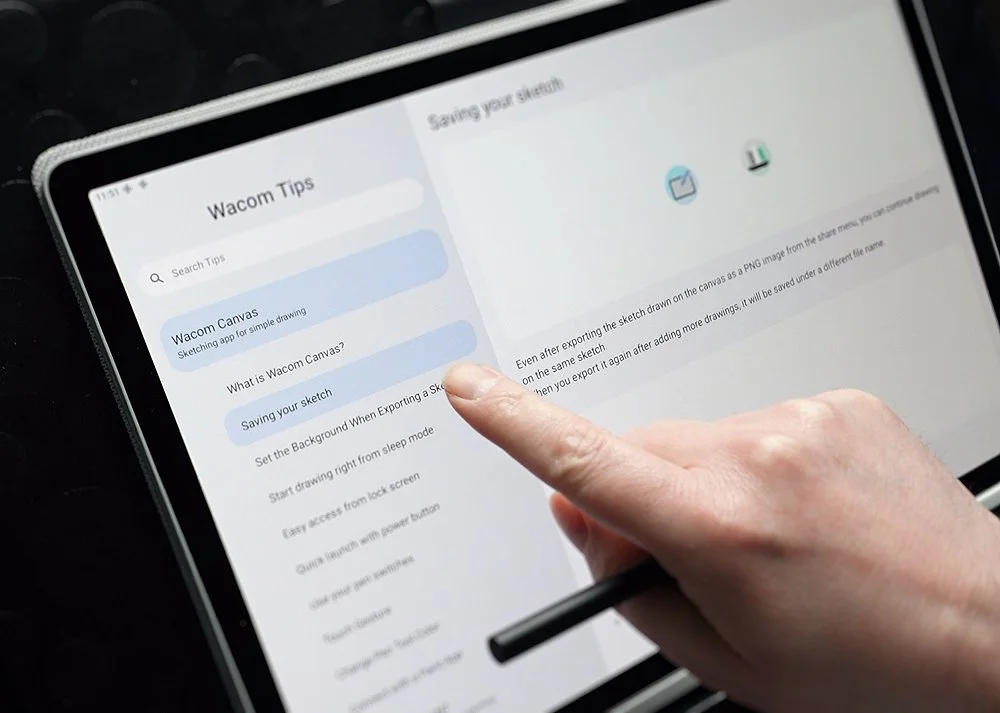
Wacom Tips simply shows you how to use the Wacom apps and has tips on using your MovinkPad.
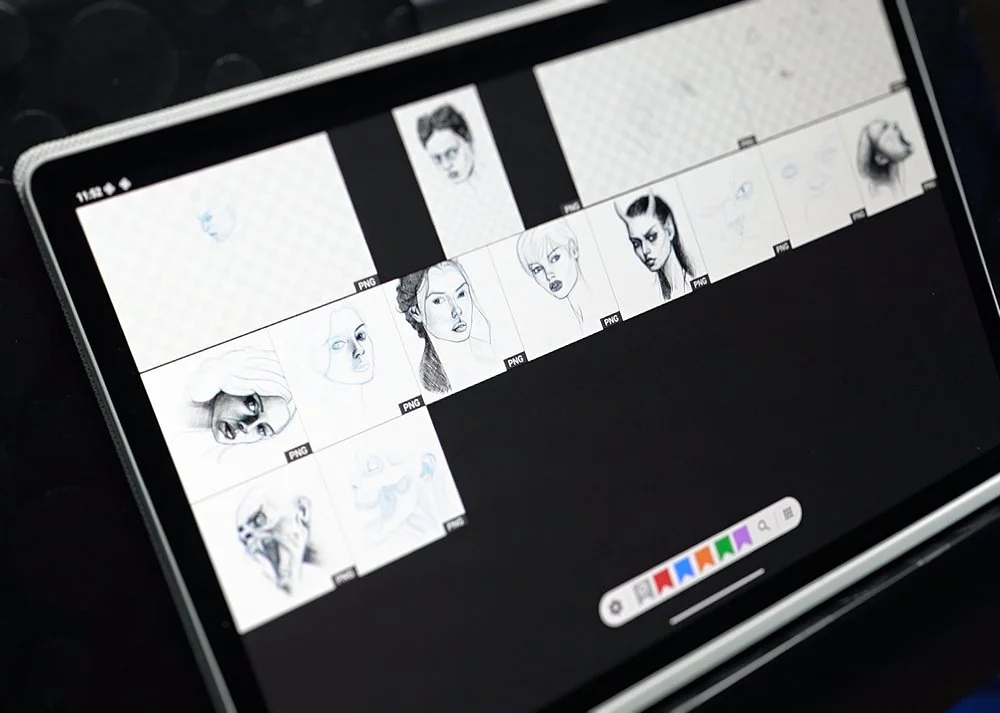
Wacom Shelf is a handy file manager which helps to keep your sketches organised.
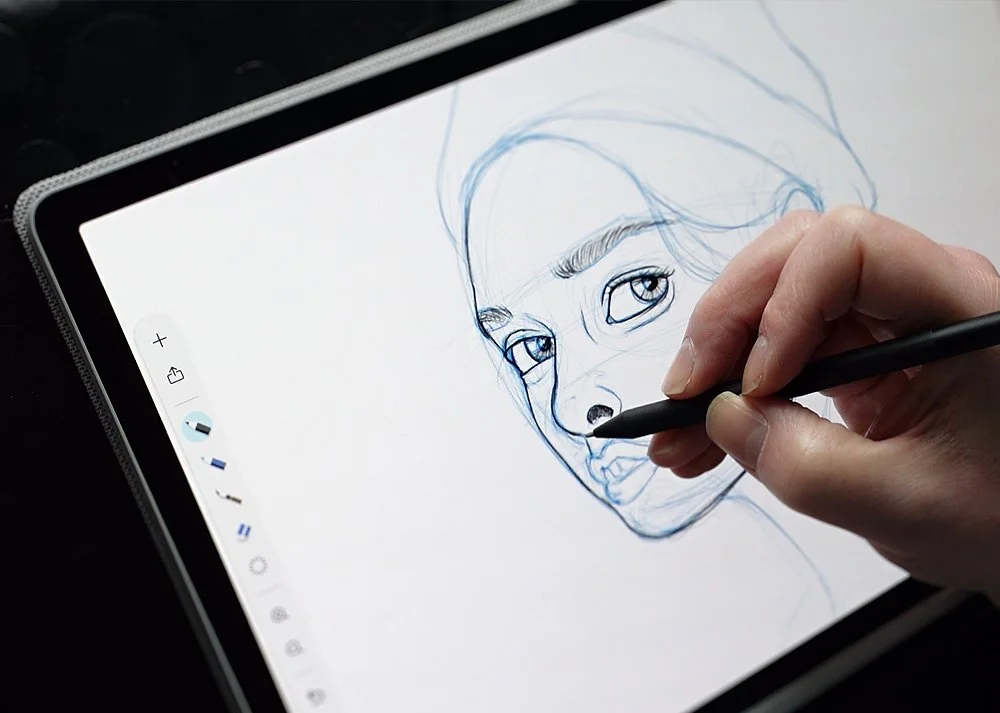
Finally, we have Wacom Canvas which is an art app focused purely on sketching. This may sound limiting but when you think about it, it makes perfect sense.
With portable devices like this, no matter how good your hardware is, the user experience is dictated more by the apps they use. So why not take your decades of research and development and create your own app? One that can be fine tuned to work in perfectly harmony with the hardware, and it does just that. Out of all the art apps ive used on the MovinkPad Pro 14 the sketching experience doesn’t come close to Wacom Canvas.
Its also been seamlessly integrated into the operating system meaning there are a number of ways you can access it. There’s the usual button on the home screen plus one on the lock screen, but if the MovinkPad is asleep you can quickly jump into Wacom Canvas with a double tap on the screen.
What I also like is if you have a sketch you want to take further you can instantly move it into another app. At the moment this is limited to Clip Studio Paint and ibisPaint X but I hope this will expand to also include Infinite Painter too.
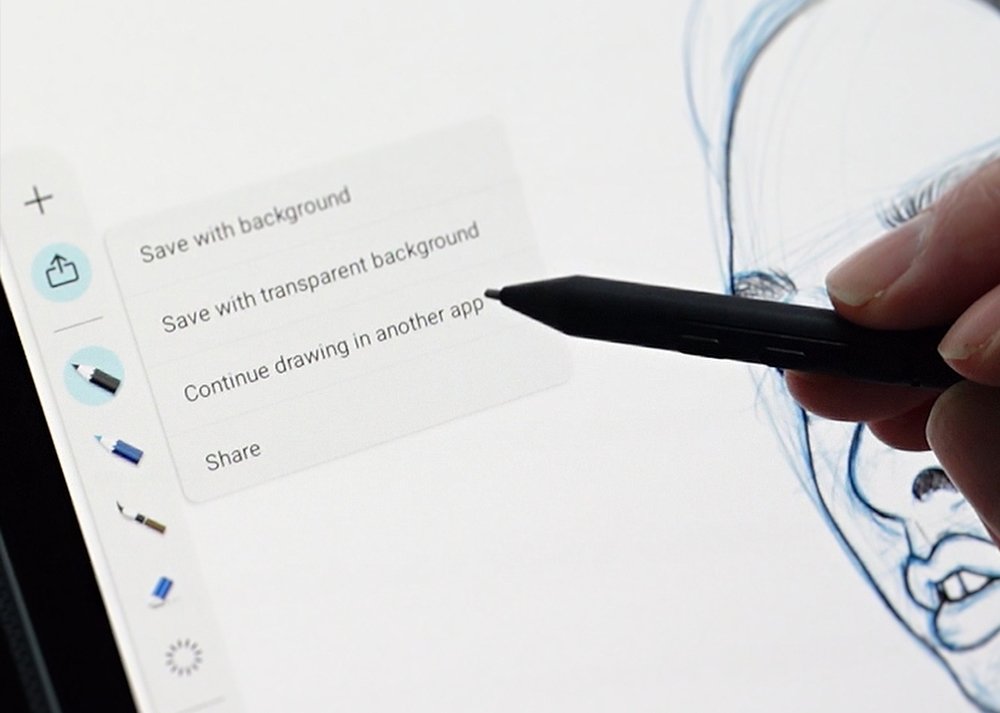
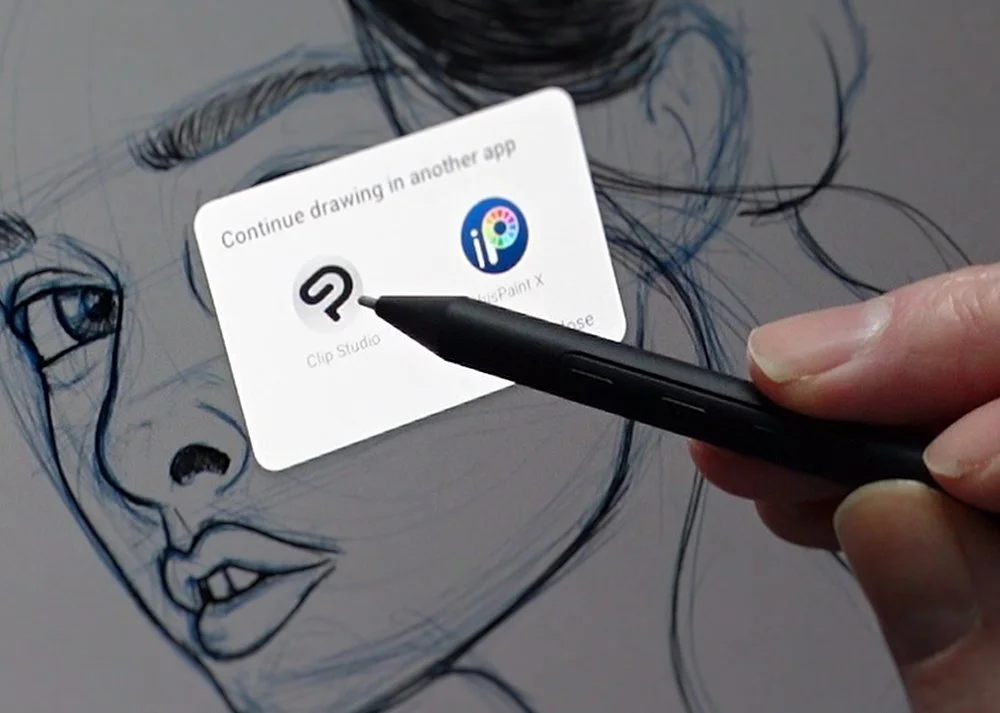
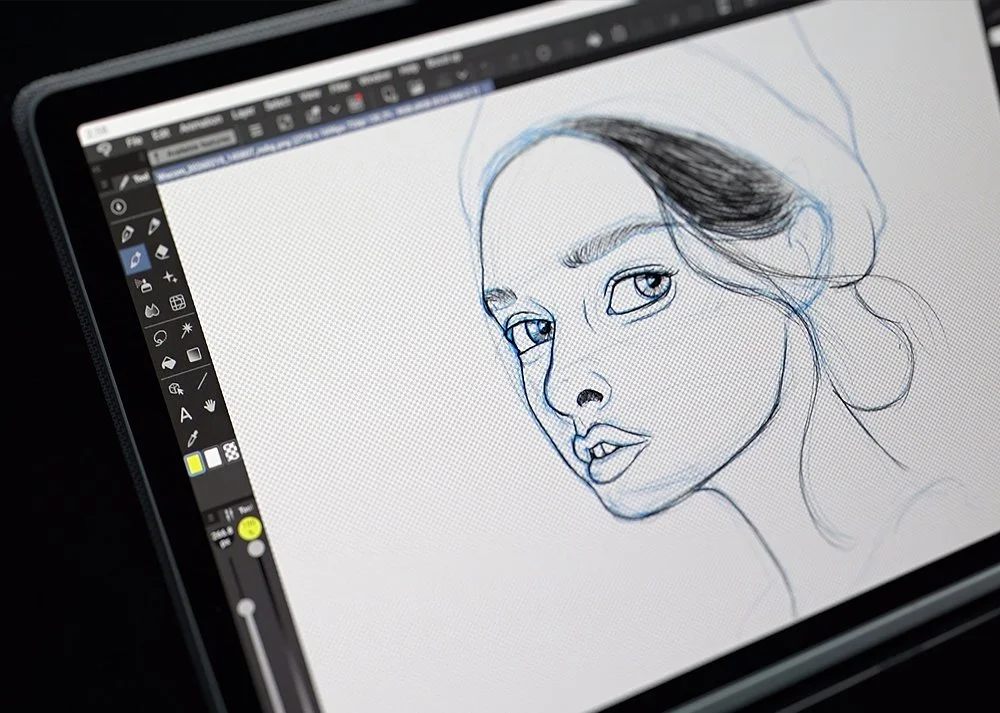
Whats great to hear is that the Wacom apps are being fully supported and frequently updated with new tools and features. When I first used Wacom Canvas on the MovinkPad 11 you were limited to just two pencil colours, black and blue but this has since been increased to also offer a red pencil. Zooming in and out of the canvas was also limited but this has changed too, so Wacom are listening to its users and making good, informed changes.
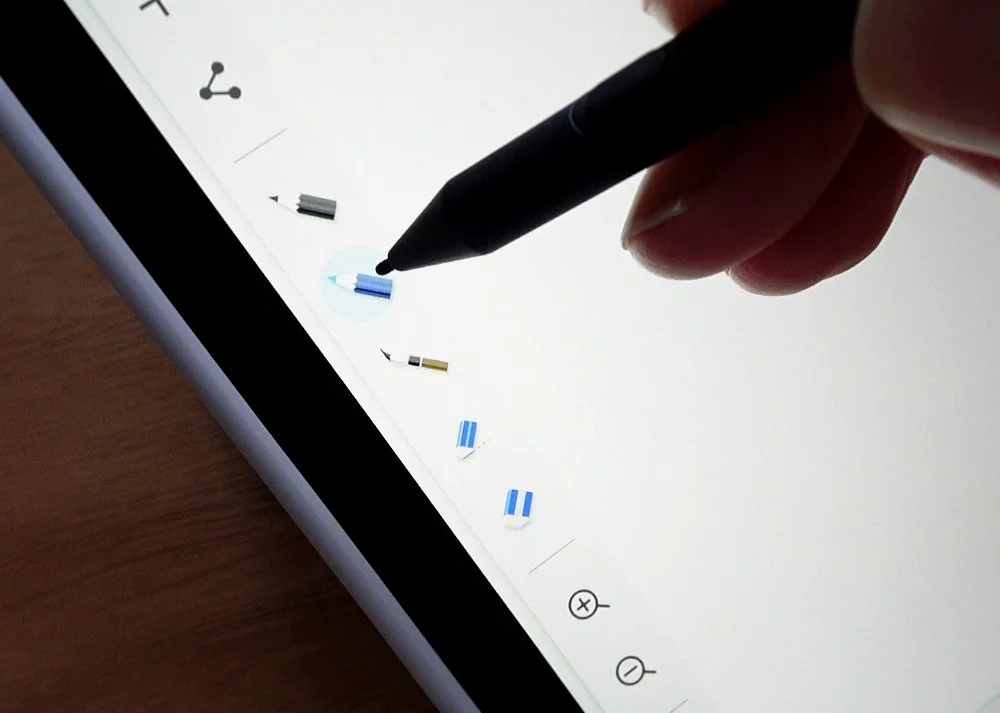
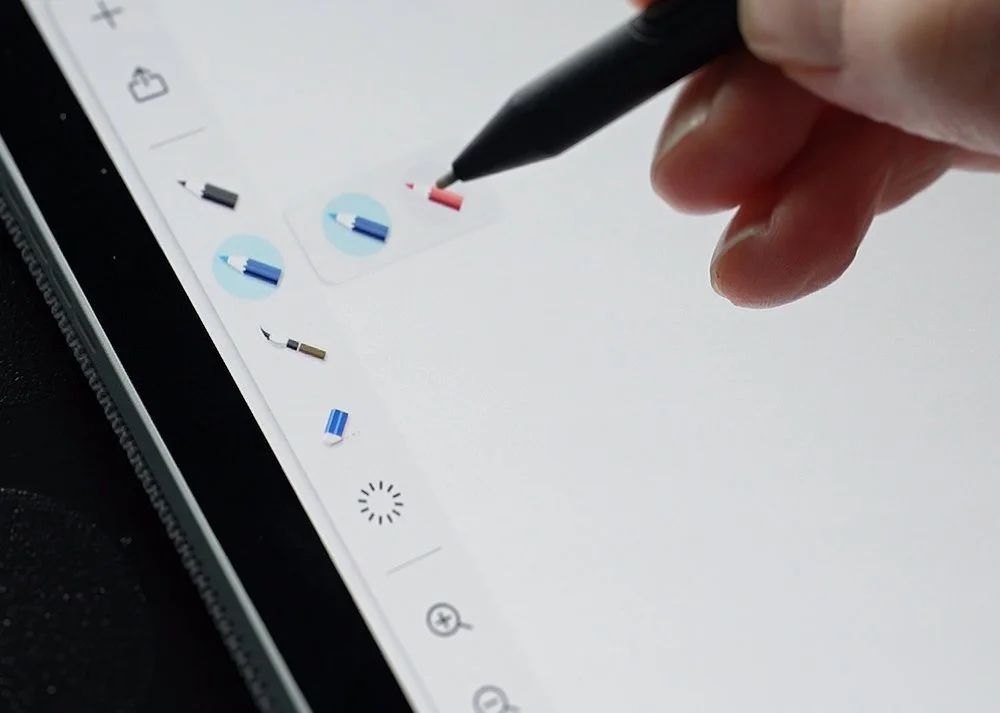
What I would love to see is the option of different background colours, and also a white pencil option too for highlights. Plus the ability to continue previous sketches too directly in the app, at the moment you need to load them through Wacom Shelf.
One Wacom app id love to see is Wacom Paint. A more in depth version of Wacom Canvas but giving you all of the tools and options you would get with other major painting apps. Layers, liquify, more brushes etc.
So lets keep our fingers crossed for that.
Sketching & Painting Test
Now, I loved drawing on the MovinkPad 11, so much so that I haven’t sketched on my iPad since. Its hard to describe but it felt more natural to me.
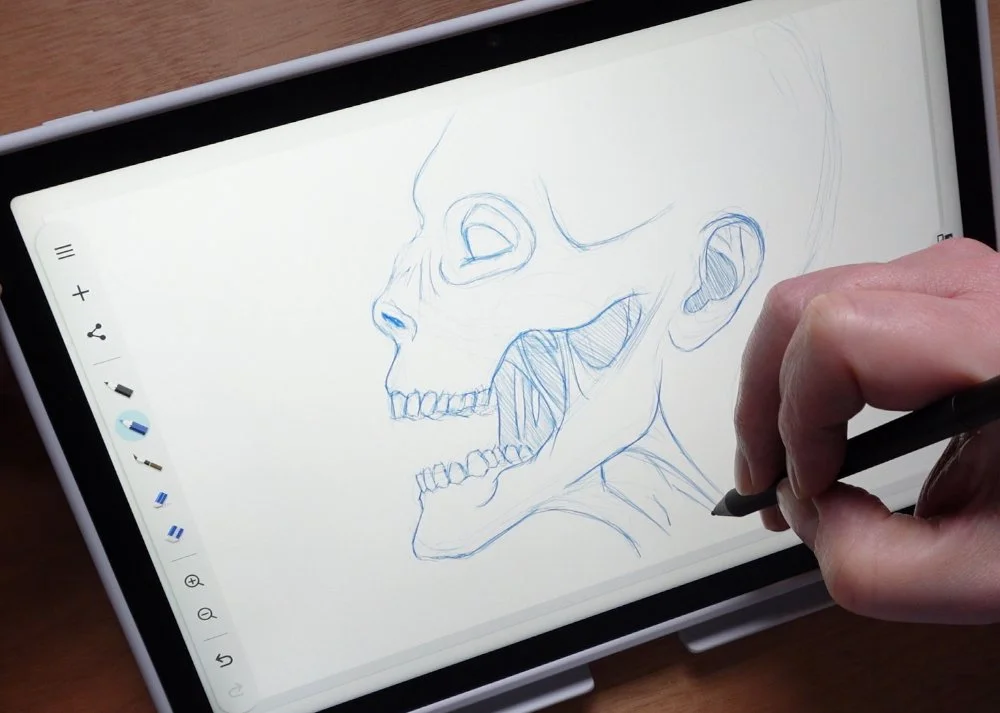
I never really got used to the iPad, there was something that didn’t feel right, and I admit this is probably because I come from years of using pen displays in one form or another.
What I did struggle with was the screen size and performance with more demanding apps, so as much as I loved to sketch on it, I didn’t really expand on these and paint.
Well, these issues have both been rectified with the MovinkPad Pro 14.
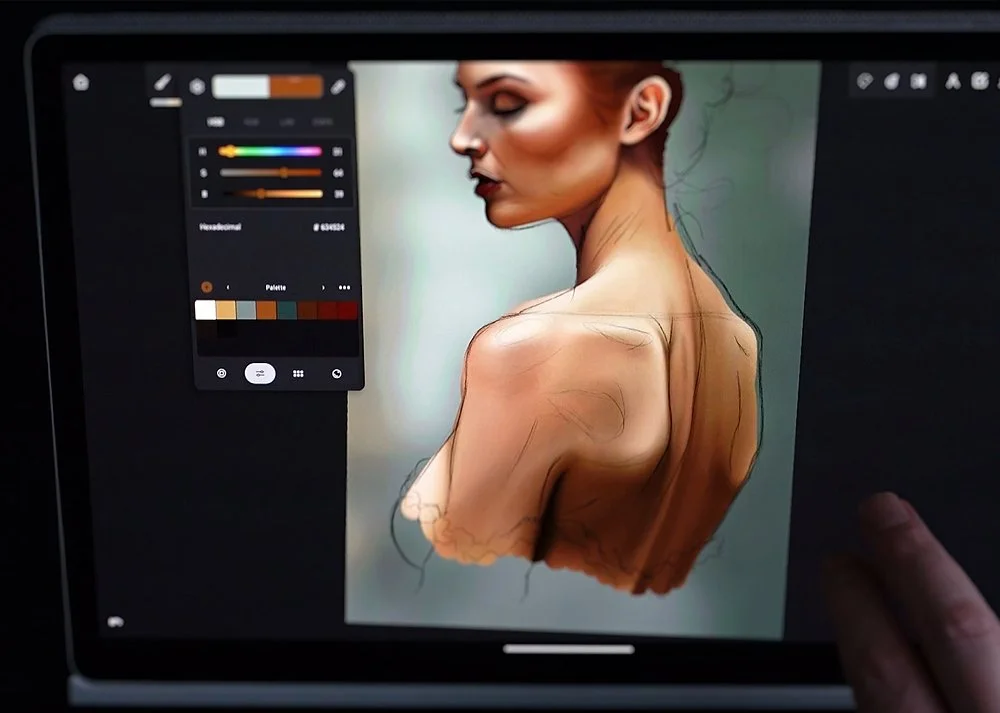
At first I did wonder about the proportions of the screen. Its wider than most tablets but after using it I totally get why. I can happily sketch or paint on one side of the screen and have my reference on the other without it feeling too cramped.
With the screen being 120 Hz and OLED, not only does it look gorgeous but it feels super smooth to work on. Each pencil stroke is fluid and the screen responds perfectly to the Pro Pen 3, with the textured glass offering that all important paper feel.

This is hands down the best portable art device I've used to date. In my opinion it stands above its baby brother, the MovinkPad 11 as well as the XP-Pen Magic Drawing Pad and eclipses the iPad Pro for me.
Sculpting Test
On the more 3D side of things I decided to dive into Nomad Sculpt and compare how it performed along side the MovinkPad 11. Its not a surprise that it outperformed it, not just with how many polygons and vertices it could throw around, but also with the screen.
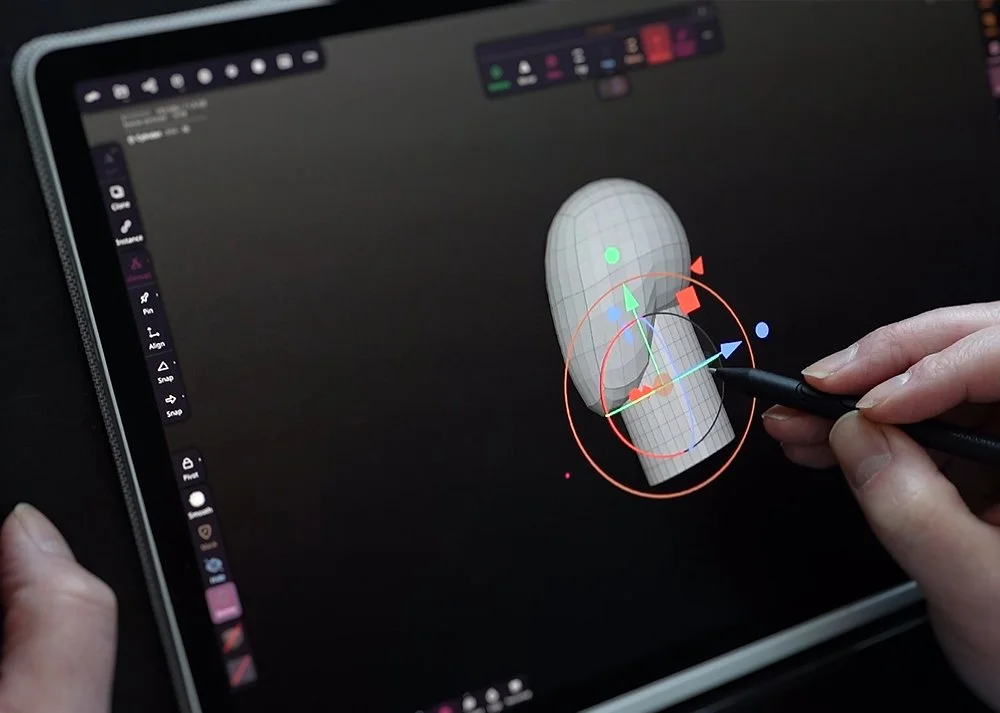
When I hit 6.29 million vertices on a sphere, with the wireframe visible, it became difficult to sculpt on the MovinkPad 11. Disabling the wireframe did make it a little easier to use, but it was still like working on a slideshow.
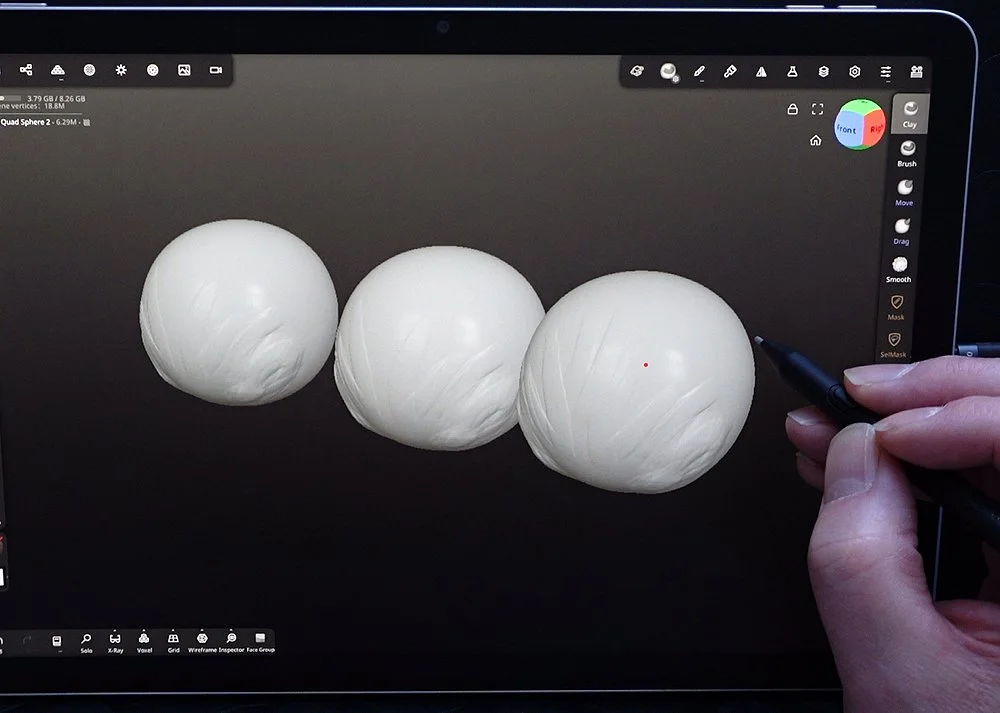
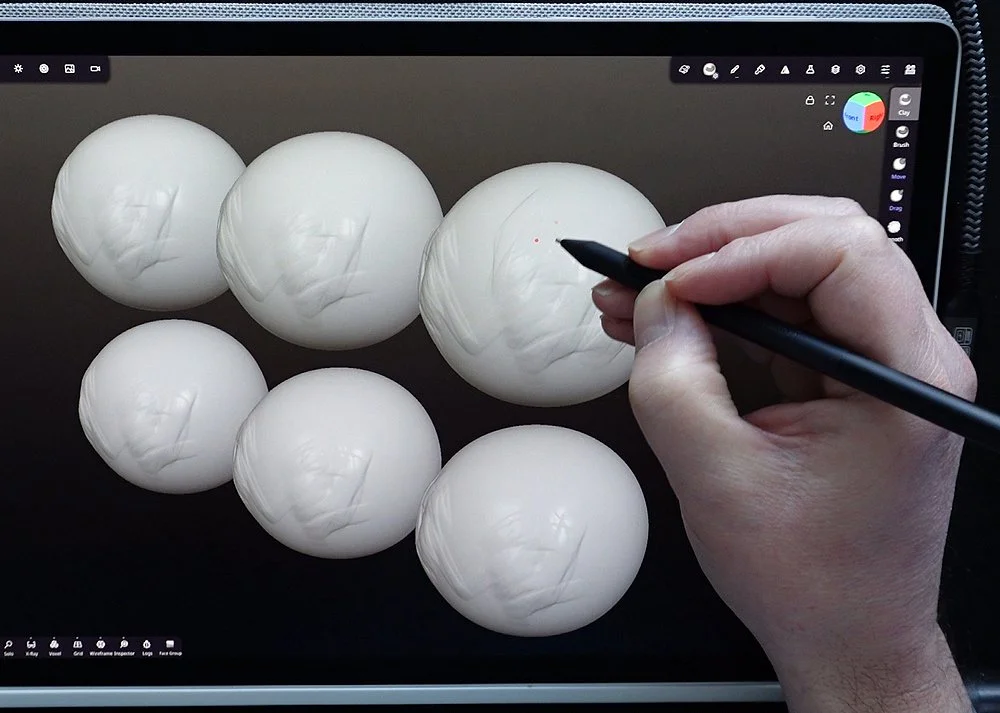
The MovinkPad Pro 14 took this in its stride and still felt smooth and responsive. Once I hit around 18.8 million vertices I did feel it start to struggle, and at 37.7 million it did impact the performance, but not like with the MovinkPad 11. So with these numbers I would estimate you can work on a model seven times more complex on the Pro.
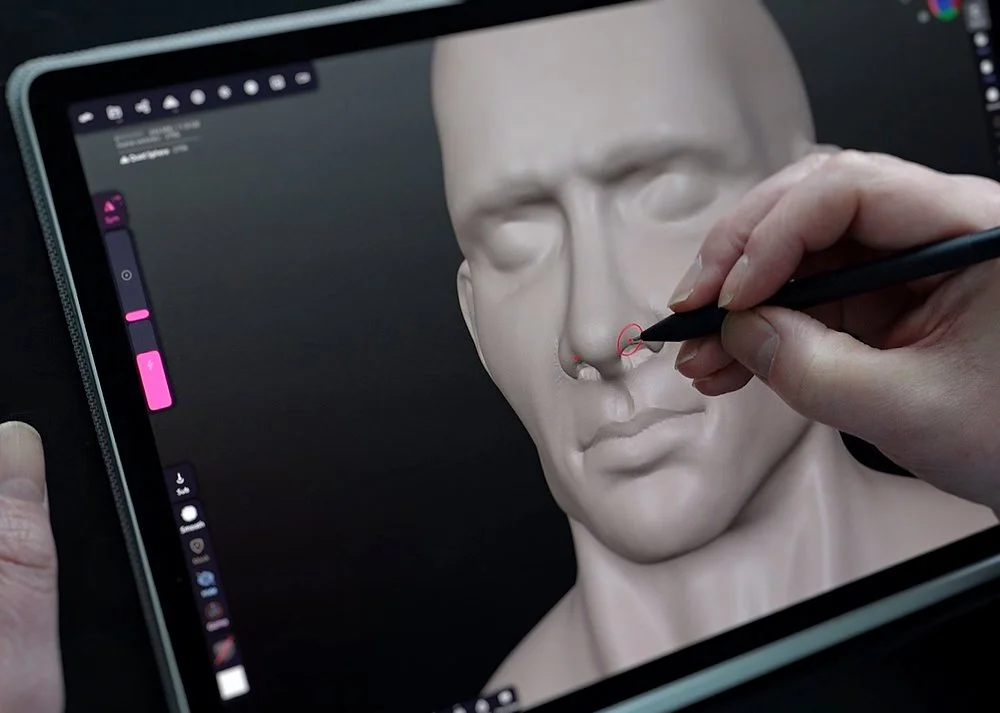
Now this is great news because I can confidently play around and sculpt on the Pro 14 and not feel too limited. At the end of the day, any models I want to push further can then be worked on on my desktop, but its nice to have the option to hash out ideas while not tied to a desk.
General Use
The MovinkPad Pro 14 isn’t just a workhorse, it can be used for leisure time too.
The screen is ideal for consuming content, particularly videos, although the speakers do let it down. Don’t get me wrong, there’s decent stereo sound but it lacks any real bass, so i’d recommend using headphones.
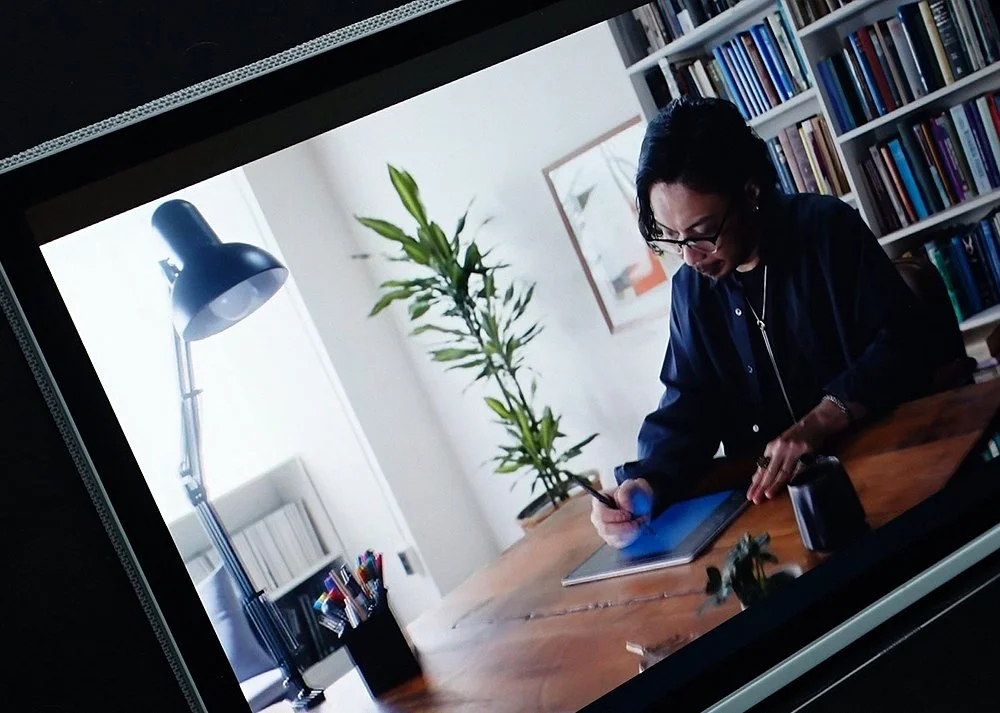
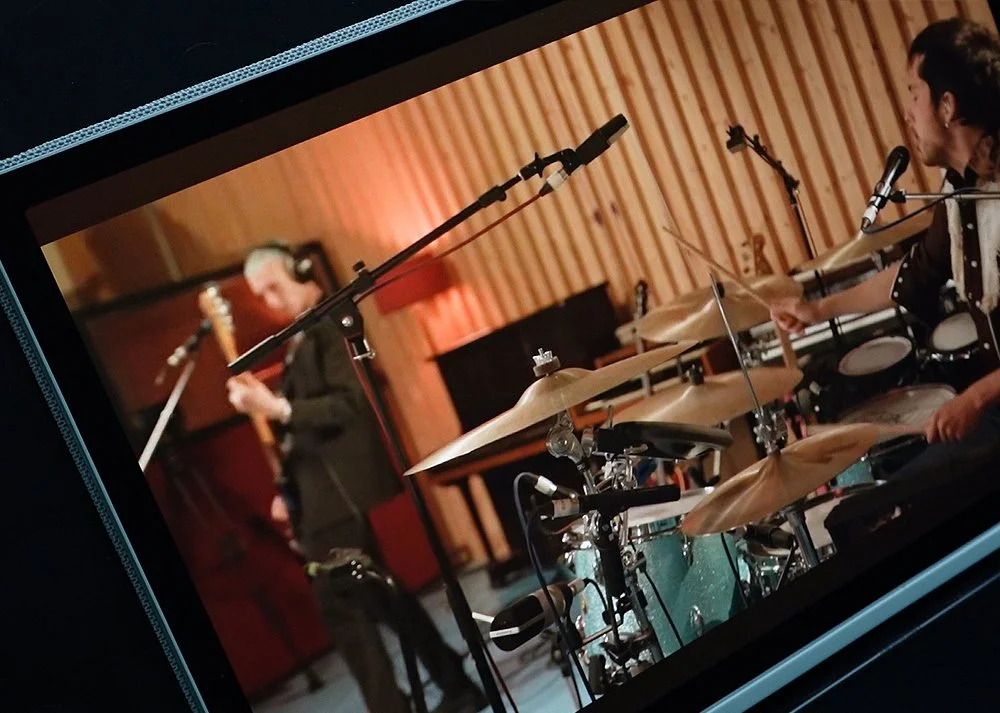
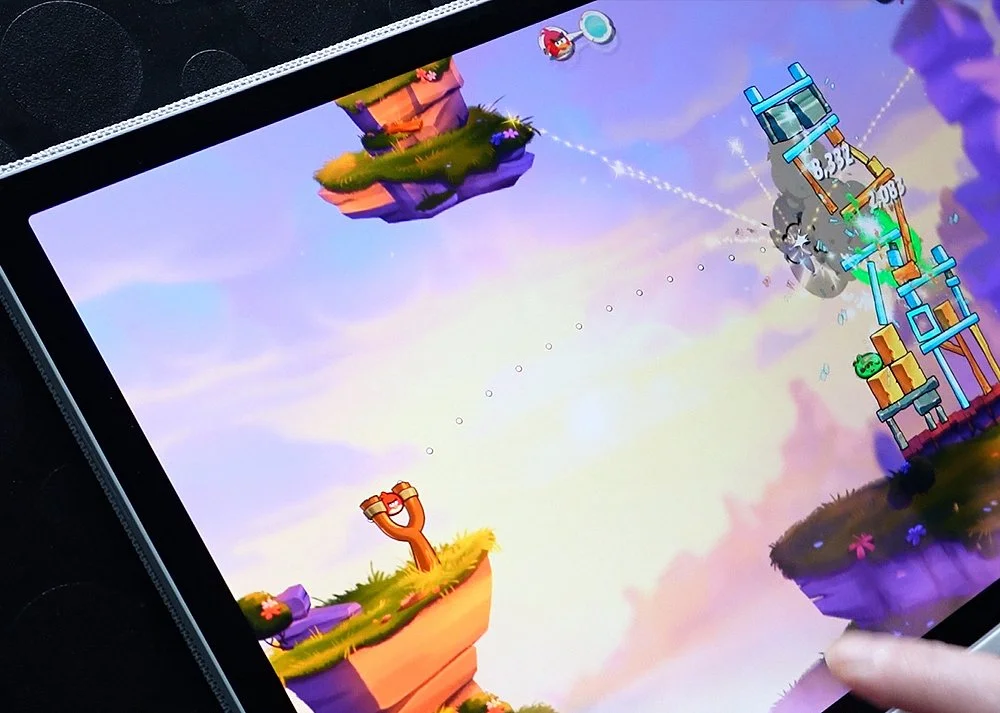
Navigating websites is smooth and snappy and games also take advantage of the Snapdragon 8s Gen 3 chip and Adreno GPU. Angry Birds 2, which I also tested on the MovinkPad 11, looked crisp and played well without any slow down, as did Asphalt. There was a definite improvement in the graphics and performance on the Pro 14.
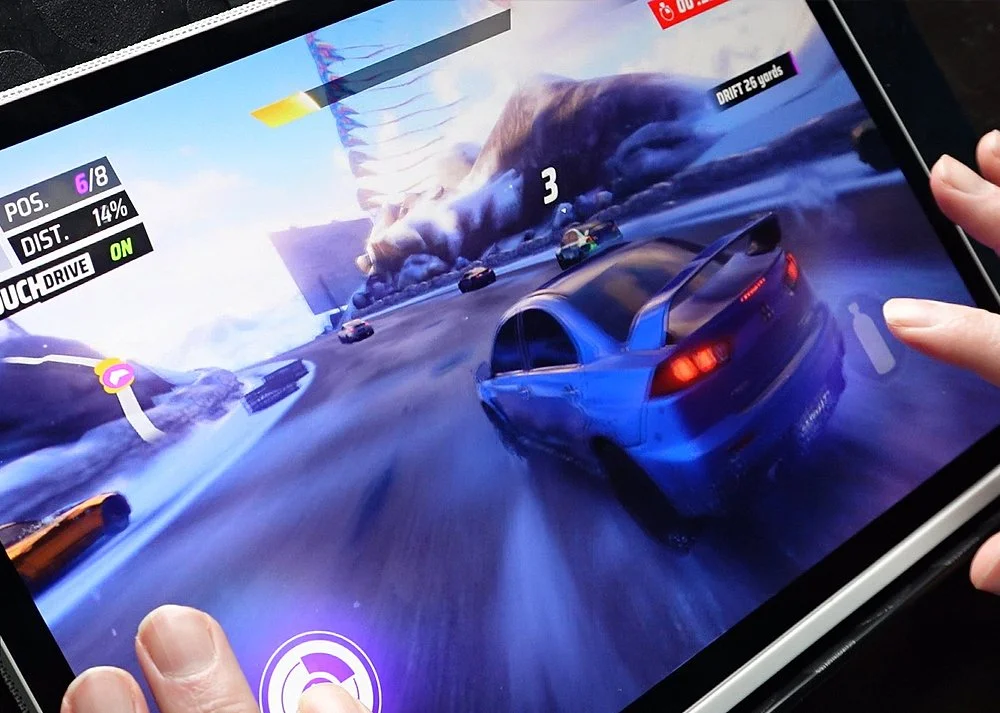
As mentioned, there are no cameras on the Pro 14 so I can’t compare those, but I don’t see this as a bad thing. Its a device meant primarily for working and most of us have phones now which can take any photos we need, or make any video calls with.
Instant Pen Display [BETA]
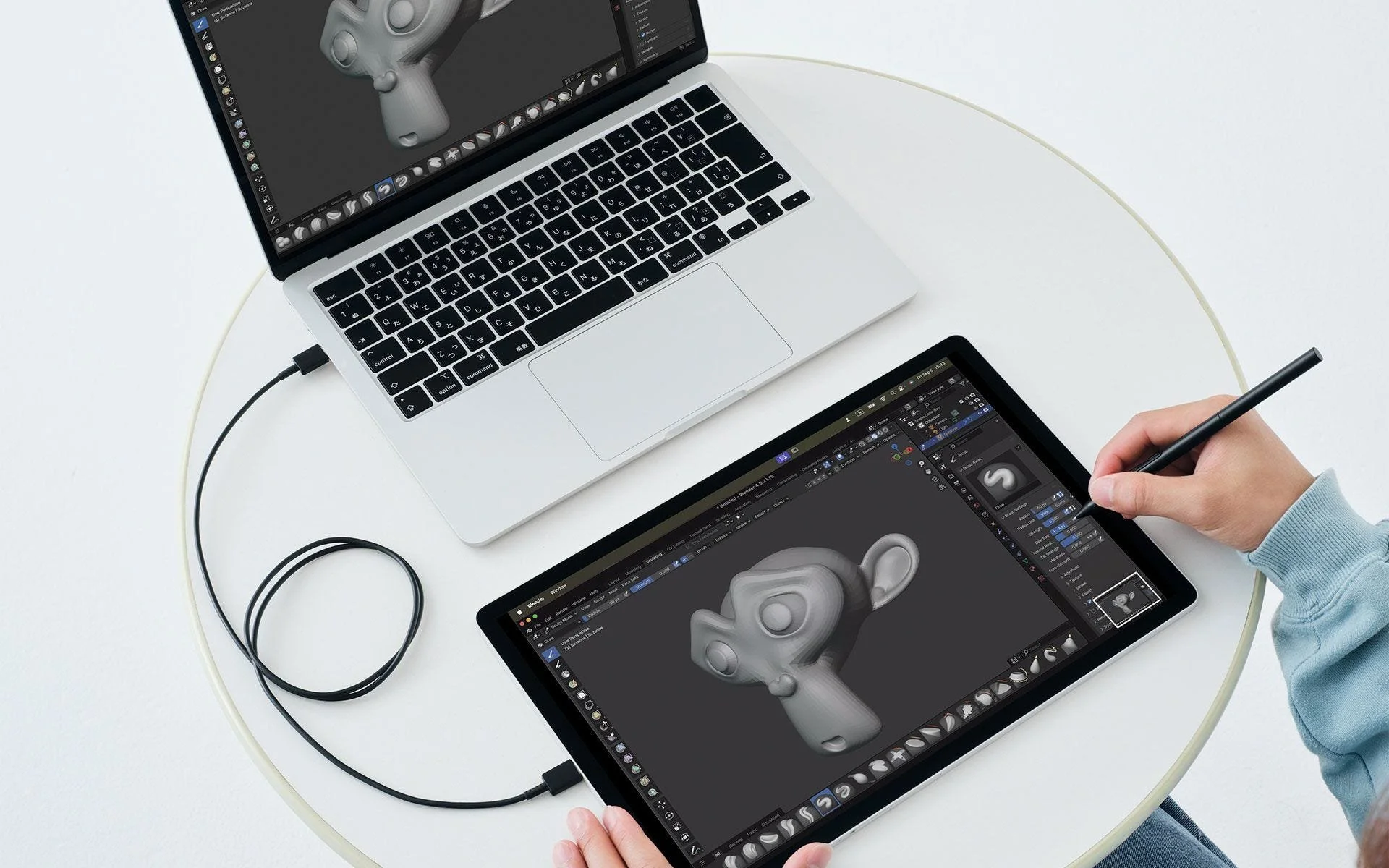
A really nice feature of the MovinkPad Pro 14 is its ability to also be used as a pen display, meaning it can be plugged into a computer and used as a second screen you can essentially draw on, like a traditional pen display.
You can do this over WiFi too as well as connected directly with a USB-C cable.
This essentially means you are also getting two Wacom devices in one, a handy mix of the original Movink and the MovinkPad 11 but with a nice boost in size and performance.
Now this is an exclusive, early-access feature and is only available to those with the MovinkPad 11 or MovinkPad Pro 14. Its also in early development, so some options are limited at the moment and the setup process, for now, is a little fiddly, but here are the basic steps if you're interested.
Initially I was surprised by how well this feature worked, especially when using it over WiFi. When comparing the two options, WiFi or USB-C, the wireless option was a bit more laggy, but not much. To be fair though, there were issues with both connection options.
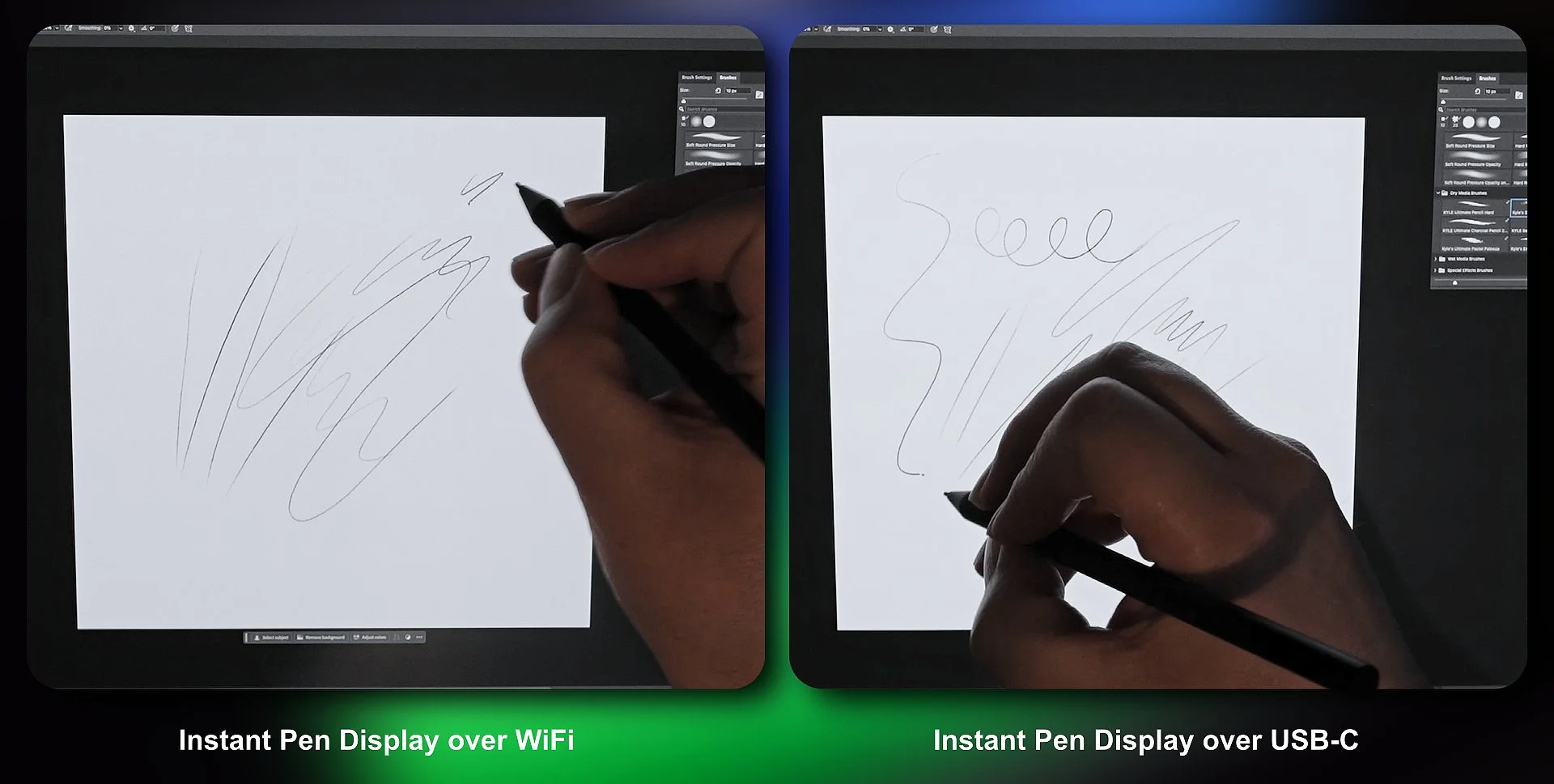
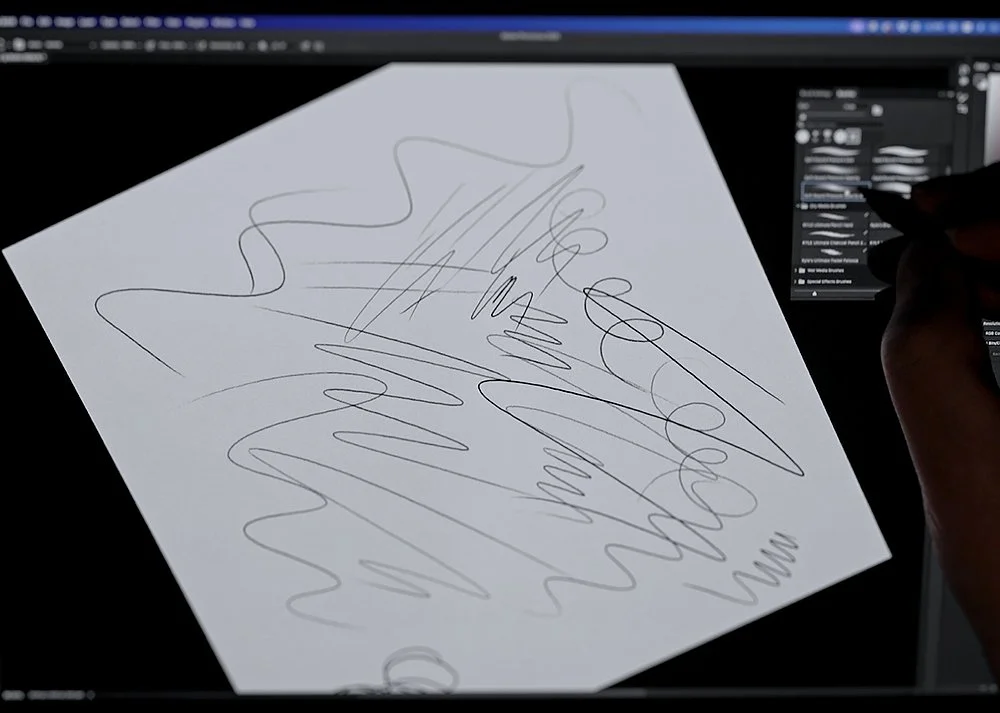
Actual drawing felt good, but I did get the odd stutter at the beginning of a line where the connection suddenly realised the pen was touching the screen. The cursor also doesn’t follow the pen as it hovers over the screen, you have to make contact to reposition it.
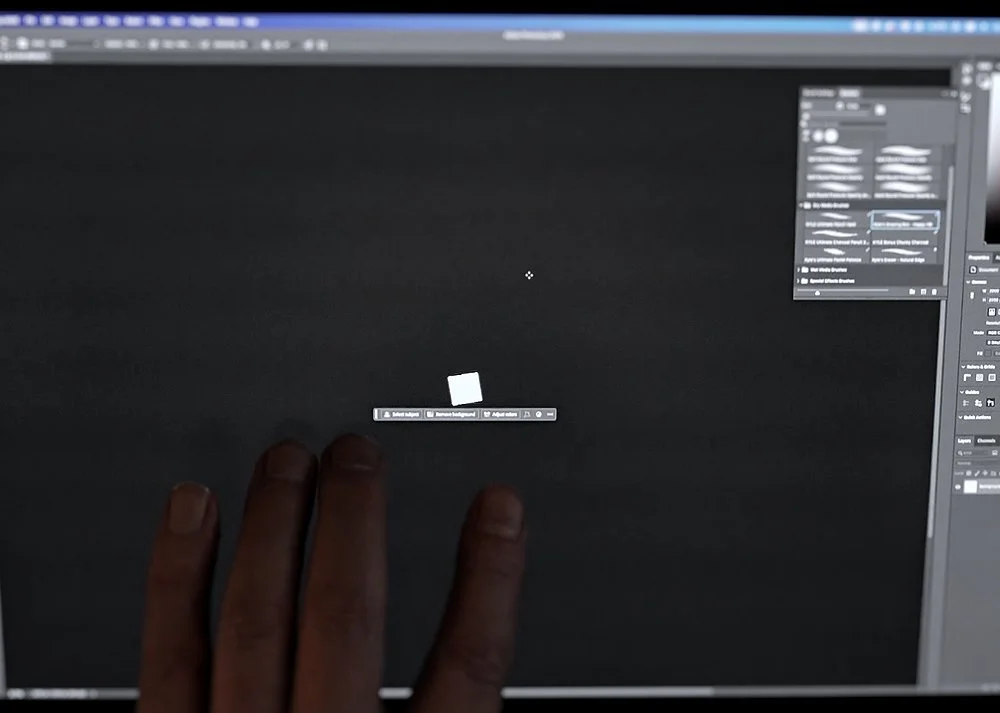
There was more of a delay when using touch to zoom and pan around the canvas and in some cases the canvas would jump to a ridiculous size which became annoying.
If this was just when using a wireless connection you could forgive these teething troubles, but not when connected directly with a cable. Im not sure why the MovinkPad Pro isn’t just treated like a traditional pen display in this instance and the computer just sees it as a second screen and uses Wacoms main software.
Whatever the reason, I do love the idea that I could be sat on the sofa, in bed or even in the garden, connected over WiFi to my desktop, and be able to use full versions of apps to create artwork, all while not being at my desk.
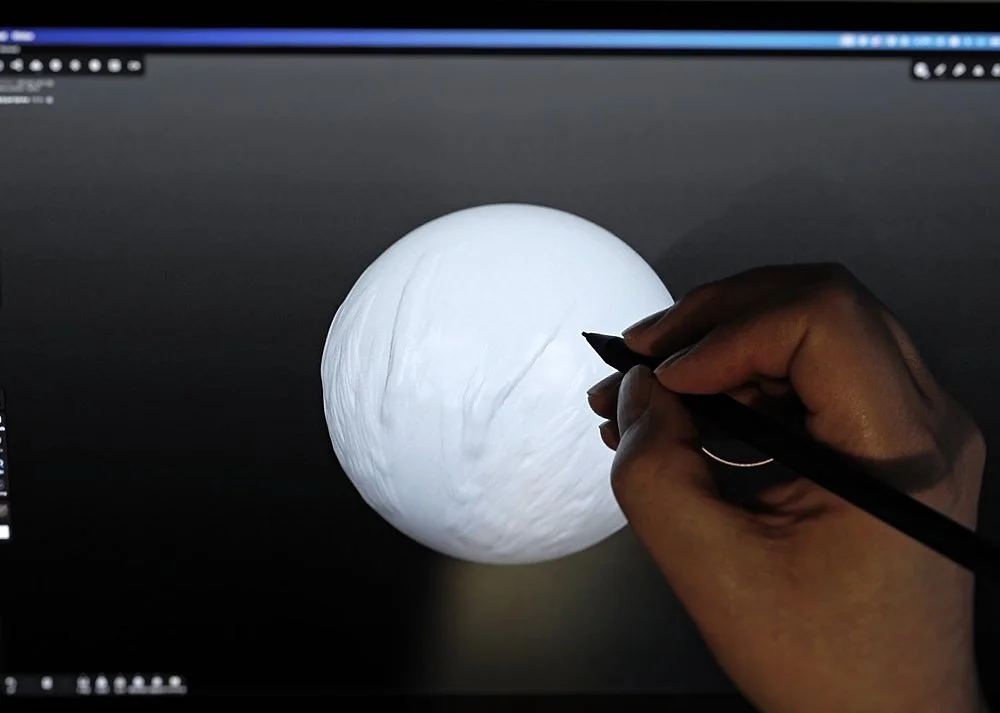
Id probably avoid using the touch screen where possible, but with that said it is still in BETA so hopefully Wacom can iron out the issues and give us a smoother experience, especially when connected via USB-C.
Price Comparison
Ok, lets talks about the all important costs…
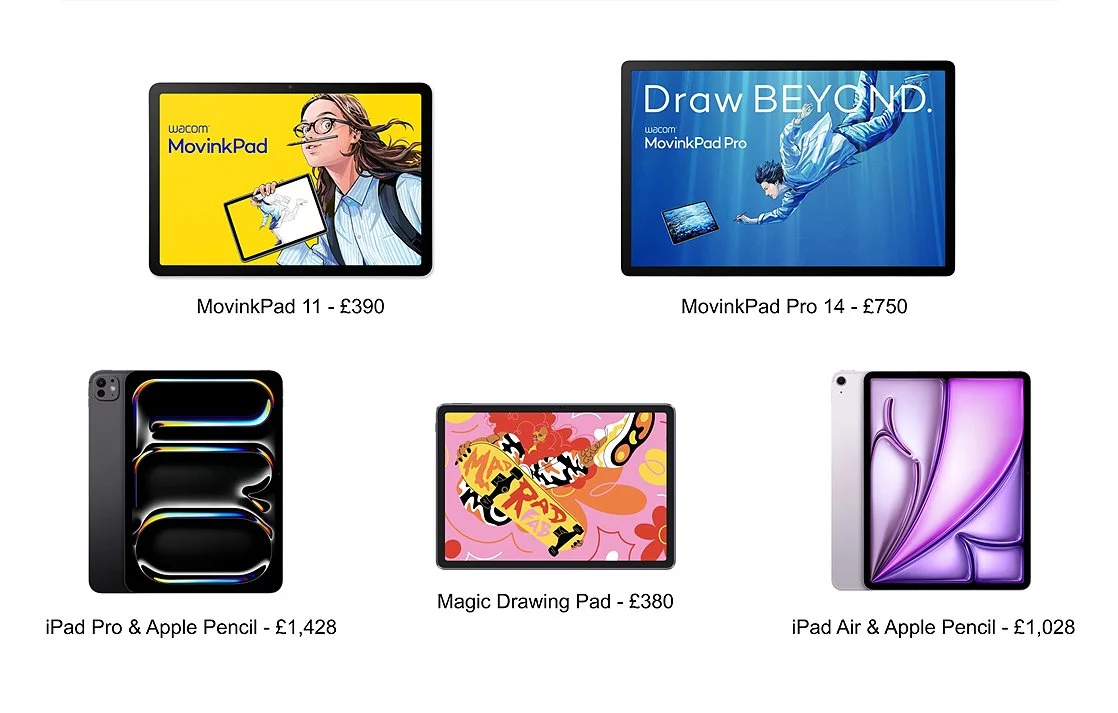
On the Wacom store the MovinkPad 11 is currently £390 and the MovinkPad Pro 14 is £750 so almost twice the price.
The XP-Pen Magic Drawing Pad is currently £380, which is a price drop, likely in response to the MovinkPad 11, which it is closest to in terms of size and specs.
A 13 inch iPad Pro with 12GB of memory and 256GB of storage (same as what you get with the MovinkPad Pro 14), including the Apple Pencil would run you around £1,428. Even an iPad Air with the same memory and storage would be over £1,000.
So the MovinkPad Pro 14 is cheaper than what Apple offer, plus you get the Pro Pen 3 included.
Should You Invest?
I suspect a lot of people out there are asking themselves the same question. Do I go for the safe bet and get an iPad, maybe the XP-Pen Magic Drawing Pad, or try one of the MovinkPad models? Its a tricky one…
I admit, i’m deep into the Apple ecosystem. I have an iPhone, Apple Watch, AirPods, iPad and recently swapped my PC for a MacBook, so it would be beneficial for me to stick to working on the iPad, yet I just can’t sketch or paint on it and believe me, I've forced myself to try for years.
The MovinkPad series have solved this for me by giving me the drawing experience I've craved on a mobile device. Yes, they aren’t perfect, and the way the devices handle palm rejection can be frustrating, but for the overall drawing experience I can learn to live with those, plus now with the Pro 14 I get the excellent screen quality and also have the option to do some detailed sculpting too.
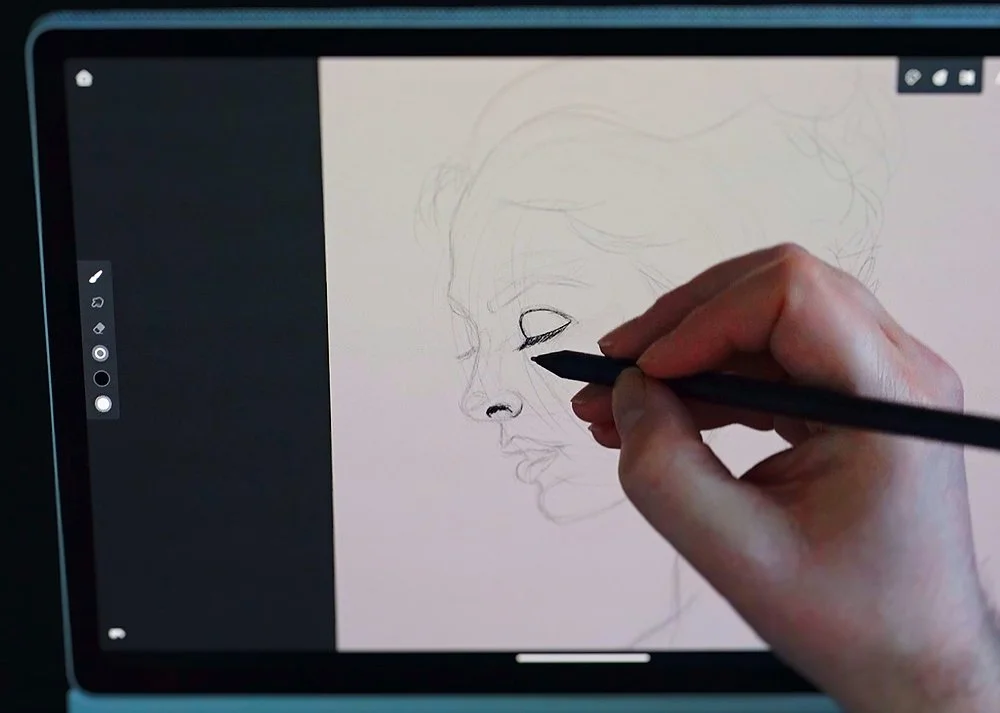
Unfortunately, I still have the same issue I have always had with Android devices, and thats the apps. We don’t seem to get ones that are at the quality level that you see on iOS.
Some are getting close though, and I am enjoying Infinite Painter, but its great to see Wacom taking it upon themselves to develop their own apps. If they continue to do so and at the same quality level as Wacom Canvas, it could be a game changer and help to push their portable pads into new hands.
For me, my iPad painting days are over, probably my iPad sculpting days too. The MovinkPad Pro 14 is now my new go to device and to be honest, if all I use it for initially is Wacom Canvas, Infinite Painter and Nomad Sculpt ill be a happy chappy.
What would make me even happier is the day when the Instant Pen Display option is more stable, and from that day the pen display currently connected to my desktop will be retired and ill be using the MovinkPad Pro 14 a lot more.
Go Pro or No?
I’ve now had some quality time with both the MovinkPad 11 and the MovinkPad Pro 14 and obviously the 14 is my preferred choice, but does that mean everyone should go for that option? Id like to say yes, but I don’t actually think so.
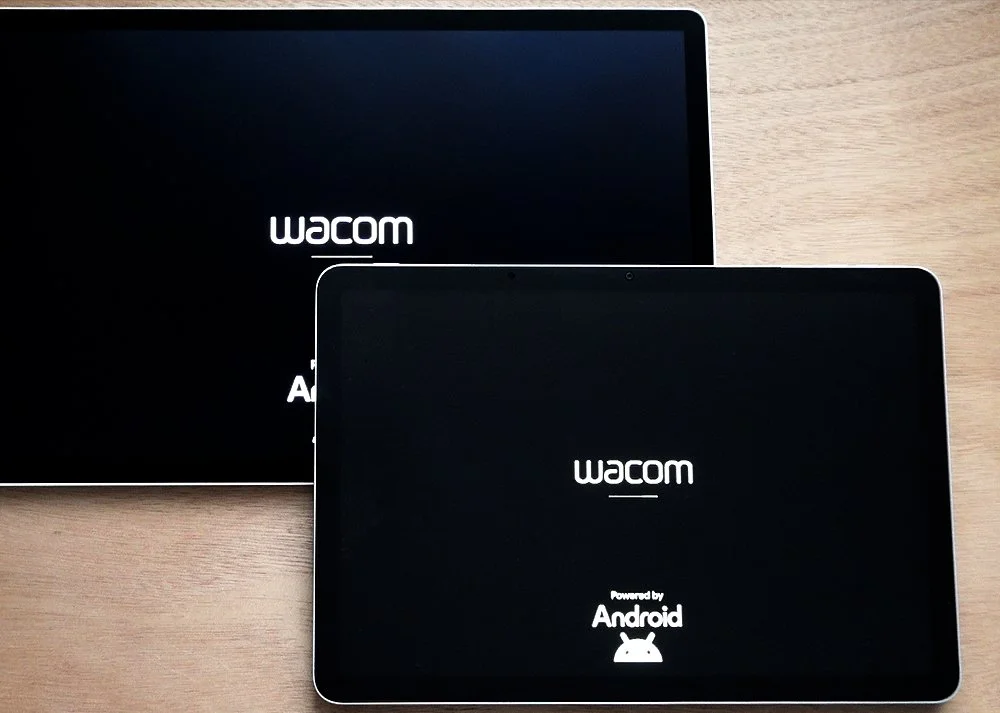
If you’re looking at both models you need to ask yourself some questions first.
Which one you get will ultimately come down to your budget, but if you have the money to go for the Pro 14, think about whether you need it?
If you’re a hobbyist and just want a portable device to take out and sketch and paint when and where the feeling takes you, maybe the 11 is better for you?
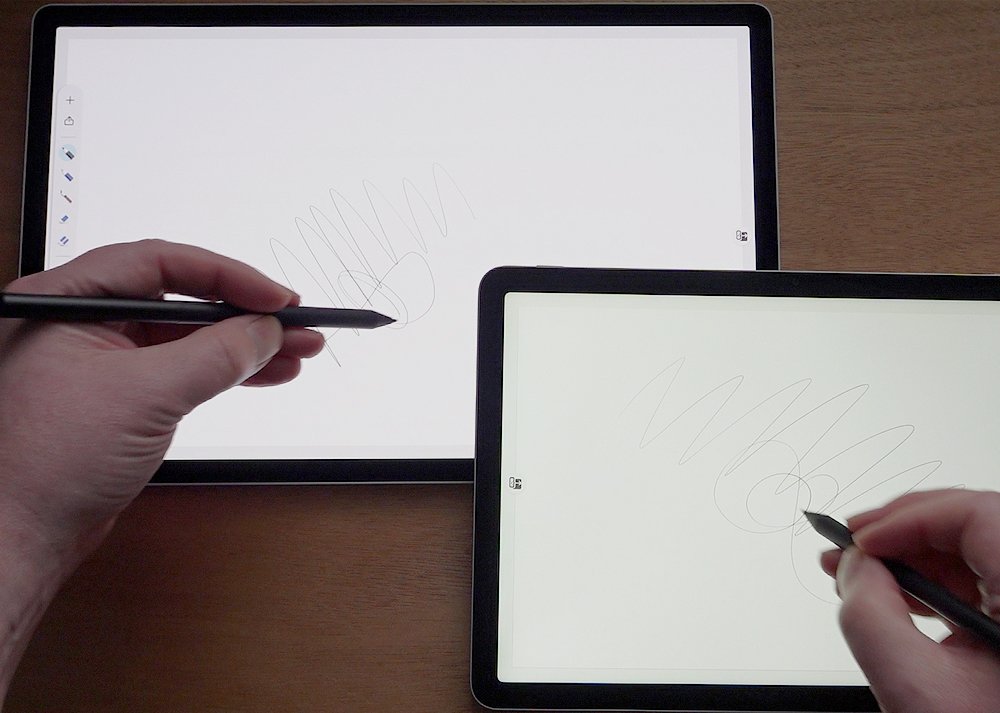
Perhaps you aren’t interested in creating high poly 3D work, or connecting your desktop to it and using it as an external pen display? Well, why pay double for features you will never use.
On the other hand if you need the extra screen size and quality, plus more power under the hood, you wouldn’t regret investing in the MovinkPad Pro 14.
Palm Rejection Update
Just as this review was due to go live I spotted a new option in the Wacom Lab settings called Touch enabled when using the pen.
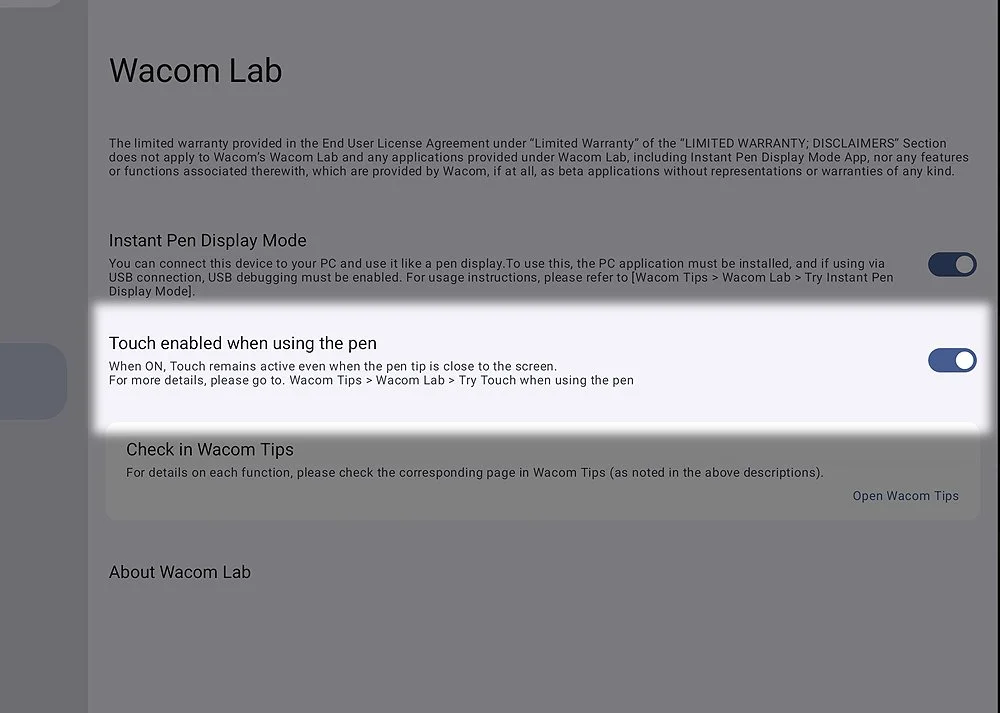
From the description, this sounded like the answer to the issues id been having with touch not being responsive when the pen was too close the the screen, so I enabled it.
Now, I haven’t fully tested this option yet but so far it makes using the MovinkPad Pro 14 so much responsive.
The down side is there are some accidental screen touches now and then, but this is still more preferable to always keeping the pen a certain distance away from the screen if you want to move around the scene.
Some apps do have their own built in options to only use touch input for navigation, so this could also help with these accidental touches.
I just wanted to point this option out, just in case you were having similar issues.